> For the complete documentation index, see [llms.txt](https://docs.pristo.io/llms.txt). Markdown versions of documentation pages are available by appending `.md` to page URLs; this page is available as [Markdown](https://docs.pristo.io/populations/adding-a-new-population.md).
# Adding a new population
To send surveys, you must populate your project with contacts. A population is typically added by importing a data file (CSV or Excel) containing your respondent details.
#### Creating a new population from a file
To send surveys, you must populate your project with contacts. There are two primary methods to do this: importing a bulk data file or adding contacts manually.
#### Importing Contacts from a File
For most distributions, you will upload a data file (CSV or Excel) containing your respondent details. This allows you to add thousands of contacts at once.
**Preparing Your Data**
Before adding a new list, ensure your file is formatted correctly to work with the Distribution and Personalization features:
* Essential Contact Info:
* Phone Number: Required if you plan to use SMS or WhatsApp distributions.
* Email Address: Required if you plan to use Email distributions.
* Personalization Fields: Include columns for details like First Name or Last Name. These will allow you to use dynamic variables (e.g., `{{Name}}`) in your message wording later.
* Segmentation Data: If you plan to filter your audience (e.g., "Send only to customers in New York"), ensure your file includes these specific attributes (like `City`, `Age`, or `Purchase Date`) as separate columns.
To import contacts from a file:
1. Navigate to the **Population** tab in the left-hand menu.
2. Name your list: Enter a unique name for this group (e.g., "Q1 Customers" or "Employee List 2026") and save.
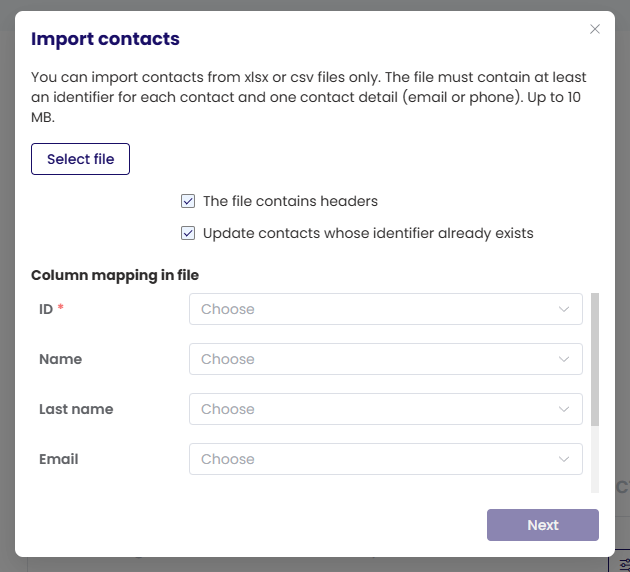
3. Click on the **Import contacts** button.
4. Upload File your CSV or Excel file into the upload window.
5. Map Columns: The system will ask you to match the columns in your file to the fields in the database.
* *Example:* Map your "Cell Phone" column to the system's "Phone Number" field.
5. Click **Next**. The system will now scan your file to check if the columns are mapped correctly and if the required data is present.
6. Only after receiving a confirmation that the data is valid can you click the **Import** button to finalize the process.
#### Manual Entry
You can also add contacts one by one directly through the interface. This is often used for:
* Testing: Adding yourself or a colleague to verify that SMS/Email links work correctly before sending to real customers.
* Quick Updates: Adding a specific VIP client or a new employee without needing to re-upload an entire spreadsheet.
To add a single contact:
1. Navigate to the specific Population list you wish to update.
2. Click on **+Add Contact**.
3. Add personalization details like First Name or Last Name to enable dynamic variables in your messages.
4. Fill in the essential details required for your distribution channel (Phone Number or Email Address).