

Use the Support screen and send log files
The Support screen of the Pristo GO app shows your username, user ID and app version, runs a full sync with a log you can read, and saves log files to the phone’s Downloads folder so you can send them to your organization’s support contact.
Open the Support screen
Section titled “Open the Support screen”In the projects list or in a project, open the menu at the end of the header, then select Support. The screen shows:
- A card with your username and, under it, your user ID.
- Sync: a full sync with its log.
- Download log files: saves files for support.
- Check version in store: opens the app’s page on Google Play.
- Log out of the app.
- The app version at the bottom, for example Version 1.427 (1427).
Save log files for support
Section titled “Save log files for support”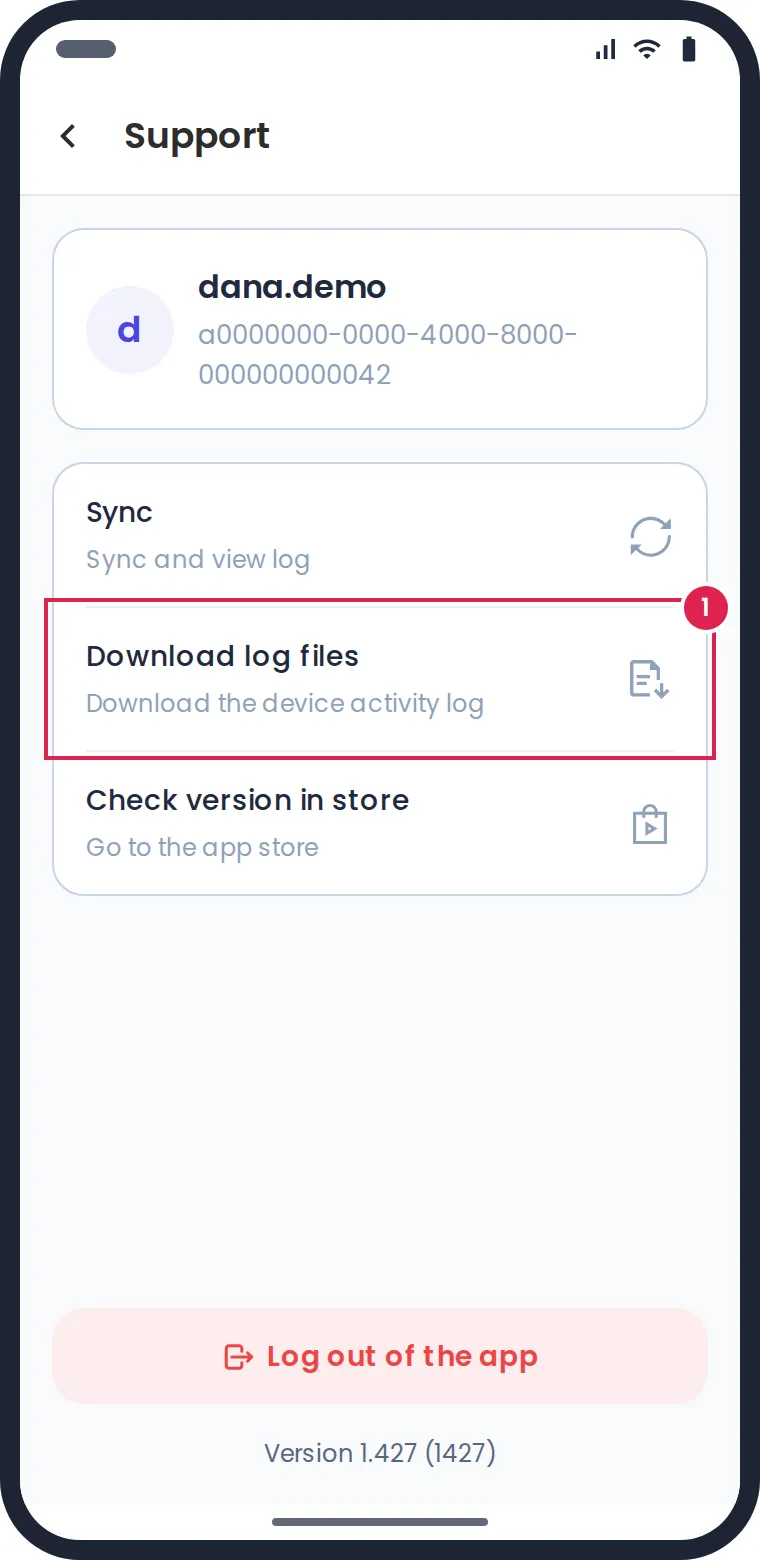
-
On the Support screen, select Download log files.
-
Wait for the message Logs saved to downloads folder.
-
Open the phone’s Files app, go to Downloads, and send the newest
pristo_db_…zipandpristo_logs_…zipfiles to the person who asked for them, for example by email.
The app doesn’t send the files by itself. pristo_db_…zip holds your projects and records as they are on the phone, and pristo_logs_…zip holds the app’s crash reports. The second file is there only if the app crashed on this phone. Each name ends with the date and time the file was saved, so the newest file is the one with the latest time.
The files stay in the Downloads folder, where other apps on the phone can read them. Delete them after you send them, especially on a shared phone.
Run a full sync and read its log
Section titled “Run a full sync and read its log”-
On the Support screen, select Sync. The sync starts by itself.
-
When Sync Finished appears, select Show Log to read the log, or Ok to leave the screen.
-
To run it again, select Sync under the log.
The log lists each step of the sync with its time. Most lines are in English in both interface languages. If a sync fails, the log shows the step where it stopped, and no dialog appears. Without a connection, the log has a single line that says so.
Result
Section titled “Result”The log files are in the phone’s Downloads folder, and the support contact can see your user, app version and sync log.
What support asks for
Section titled “What support asks for”- Your username and user ID, from the card at the top of the Support screen.
- The app version, from the bottom of the Support screen.
- If you can’t sign in: the build number and device ID at the bottom of the sign-in screen.
- The log files described above.
Troubleshooting
Section titled “Troubleshooting”The app shows No backups or logs to export found. The files could not be saved to the Downloads folder. On Android 10, check that the app has the files and media permission, then try again.
The sync on the Support screen doesn’t start. A sync is already running in the background. Wait a minute and select Sync again.