

Set a location in a record
A Pristo GO record has two kinds of location field. An address field takes an address that you search for or pick on a map. A GPS field saves where you are standing when you select its pin button.
Before you start
Section titled “Before you start”- Allow precise location for the app and turn on the phone’s location. See Permissions the Pristo GO app needs.
- Address search needs an internet connection. Without one, you type the address yourself.
Search for an address
Section titled “Search for an address”-
In the record, select the address field. The address search opens.
-
Type part of the address and select it in the results. The field shows the place’s name and address.
To empty the field, select the X at its end. Clear it before you type over an address you picked, or the field keeps the old point on the map. The search can be limited to your organization’s area, so places outside it may not appear.
Pick a location on the map
Section titled “Pick a location on the map”Some address fields have a map button next to them.
-
Select the map button next to the address field.
-
Select the search bar at the top to look for an address, or move the map and select the spot. A pin drops there and the bar shows its address. Use the
+and−buttons to zoom. -
Select OK.
The map doesn’t show your own position, so look for the spot by its streets. The arrow at the top goes back without changing the field.
Save your GPS position
Section titled “Save your GPS position”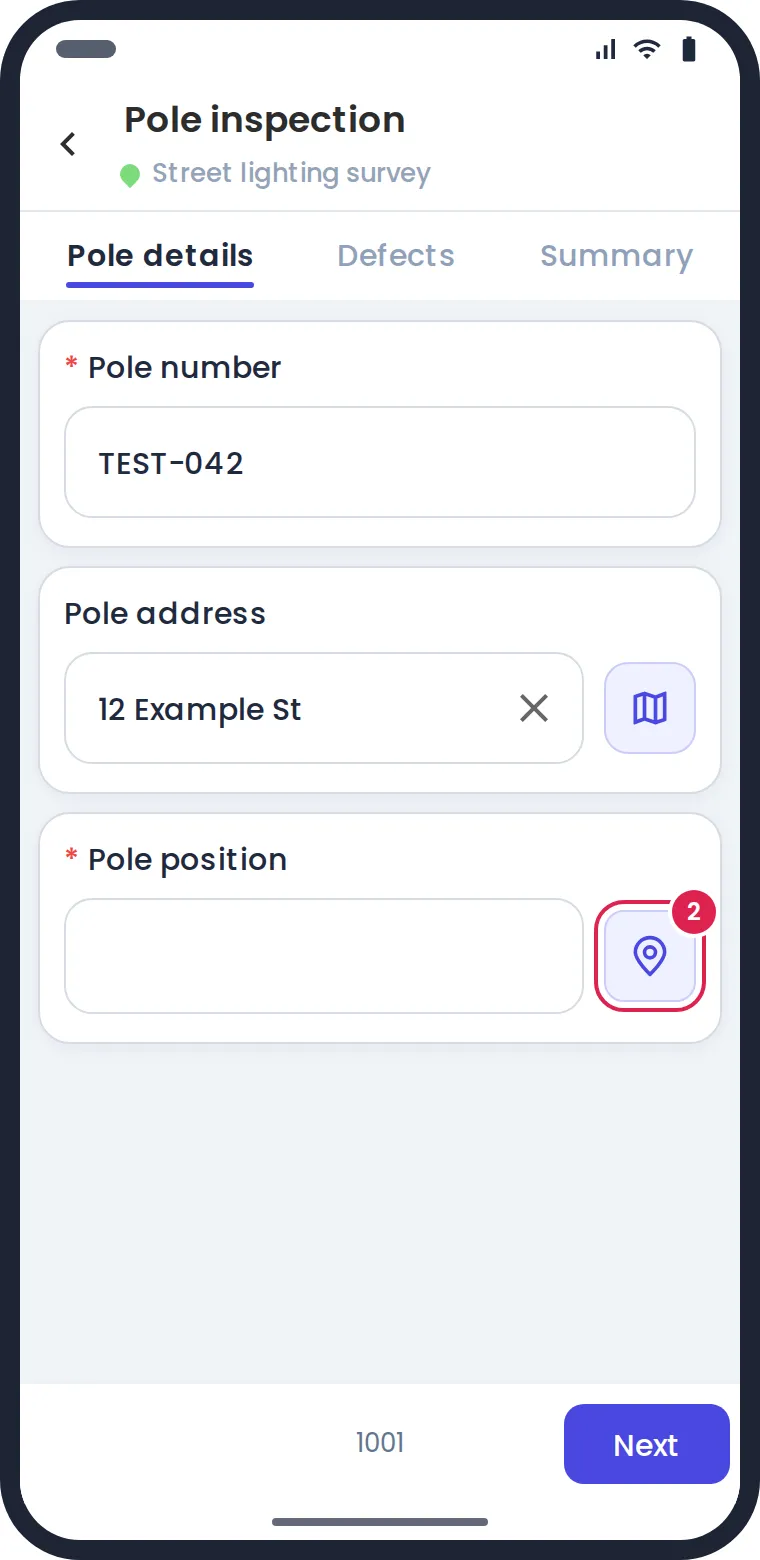
-
Stand at the place you are recording.
-
Select the pin button next to the GPS field.
The field turns green and shows the time the position was saved. If it turns red, the phone has had no GPS position in the last minute: move to an open place, wait a moment and select the pin button again. A red field counts as empty.
To change a saved position, select the pin button again. The app asks There is already a value set, are you sure you want to change this value?: select Yes to save your current position instead, No to keep it, or Reset to clear the field.
Some GPS fields save your position by themselves when the record opens. A GPS field without a pin button only shows the time its position was saved.
Without an internet connection
Section titled “Without an internet connection”When address search isn’t available, a short message Address search unavailable — type the address appears when you select the field, and the field turns into a text box. The same happens when the search opens but fails. Type the address. It is saved as text, without a point on the map. If the field already held a place you picked, clear it with the X first, or the typed text keeps the old place’s point. On the map screen, selecting the search bar shows Address search unavailable — tap the map to set the location, and so does a search that fails. You can still drop a pin, but the app needs a connection to find its address before OK works.
GPS fields work without a connection, because the position comes from the phone.
Troubleshooting
Section titled “Troubleshooting”The GPS field is red. The phone has no current position. Check that location is on, step outside or away from tall buildings, and try again after a few seconds.
The map says Please review the fields when I select OK. No pin is dropped, or the pin has no address yet. Drop a pin, and connect to the internet if the address doesn’t appear.
The address appears in English in the Hebrew interface. Addresses found from a pin on the map are in English in this version. Addresses from the search are in the language of the search results.