

Open a project and find records
The projects list of the Pristo GO app shows every project assigned to you. You open a project to see its records, or its tasks in a project with tasks, and you can search, sort and filter that list or switch it to a map.
Before you start
Section titled “Before you start”The app downloads your projects by itself when the projects list is empty, for example after you first sign in. A project assigned to you later appears after a full sync. See Sync your data.
-
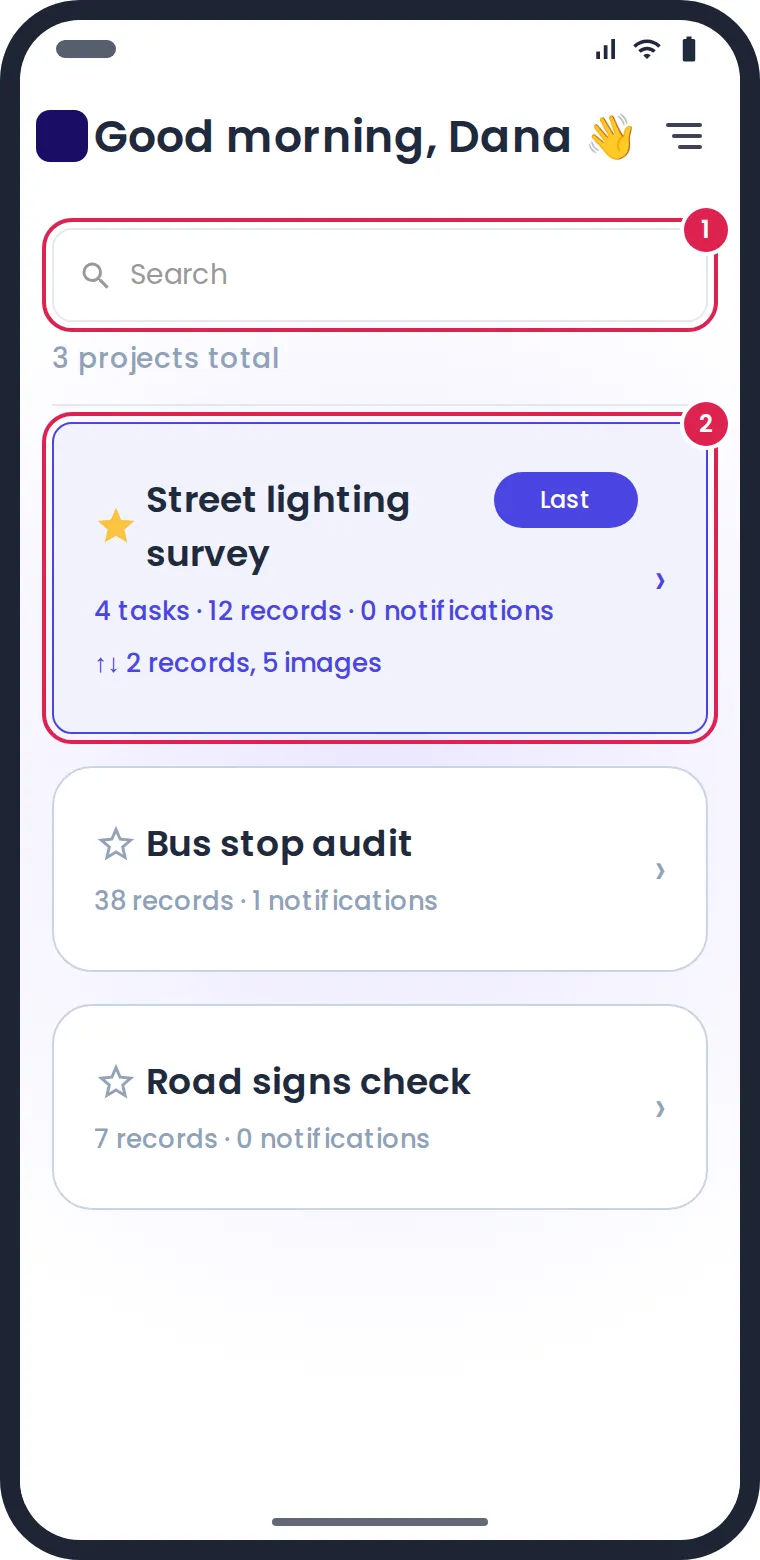
On the projects list, find the project. To narrow the list, type part of its name in Search.
-
Select the project card. The project opens with its records, or with its tasks if the project has tasks.
-
To find a record or task, type in Search. To search only one column, select the funnel in the search box and choose a field instead of All.
-
To sort the list, select the button with the up and down arrows next to the search box and choose a field. Choose it again to reverse the order, or choose None to go back to the usual order. The sort button is hidden on the map.
Result
Section titled “Result”The list shows the matching records or tasks. The app remembers your sort and search field for each project, also after you sign out. To see the same items on a map, select Map. See See records and tasks on a map.
To change project, go back to the projects list and select another card.
The projects list
Section titled “The projects list”- A project card shows the project name and the number of tasks, records and notifications on the phone.
- The star at the start of a card marks the project as a favorite. Favorites come first, then the other projects in alphabetical order.
- Last marks the project you opened most recently.
- A line with ↑↓ shows how many finished records are waiting to be sent, then how many files of records already sent are still to upload. The second number counts every kind of file, not only images. See Sync your data.
Records in a project
Section titled “Records in a project”Each record shows its questionnaire, its number, its status, its start time and up to three answers that the project chooses. Show more shows the rest.
- Select a record to continue it. Records with a final status, and deleted records, don’t open.
- To add a record, select + Add record. The button appears only in projects where you can add records yourself. See Fill in and finish a record.
- To delete a record you created on the phone, touch and hold it, select Delete, then Yes, delete. The record shows Deleted. Until the next full sync, you can touch and hold it and select UnDelete. At the next full sync, the app removes it from the phone for good, with its answers and files.
You can’t delete records with a final status, records your organization assigned to you, or records of a task that is done.
Troubleshooting
Section titled “Troubleshooting”A project is missing from the list. It isn’t assigned to you yet, or it was assigned after your last sync. Select Sync in the menu. A project that is no longer assigned to you disappears at the next sync.
The project shows No records yet. No record is assigned to you in this project. If the project lets you add records, select + New record.
The search shows No rows found. No record matches the text in the field you search. Choose All in the funnel, or clear the search.
A finished record disappeared from the list. In a project without tasks, finished records leave the phone once they are sent. Your organization sees them in Pristo GO.