

Notifications in the Pristo GO app are short messages about your projects. A red dot on the menu of the projects list, and on the bell in a project, shows that you have unread ones. They appear only inside the app, not in the phone’s notification bar.
Before you start
Section titled “Before you start”You need an internet connection to receive new notifications.
-
In the projects list, open the menu and select Notifications. In a project, select the bell.
-
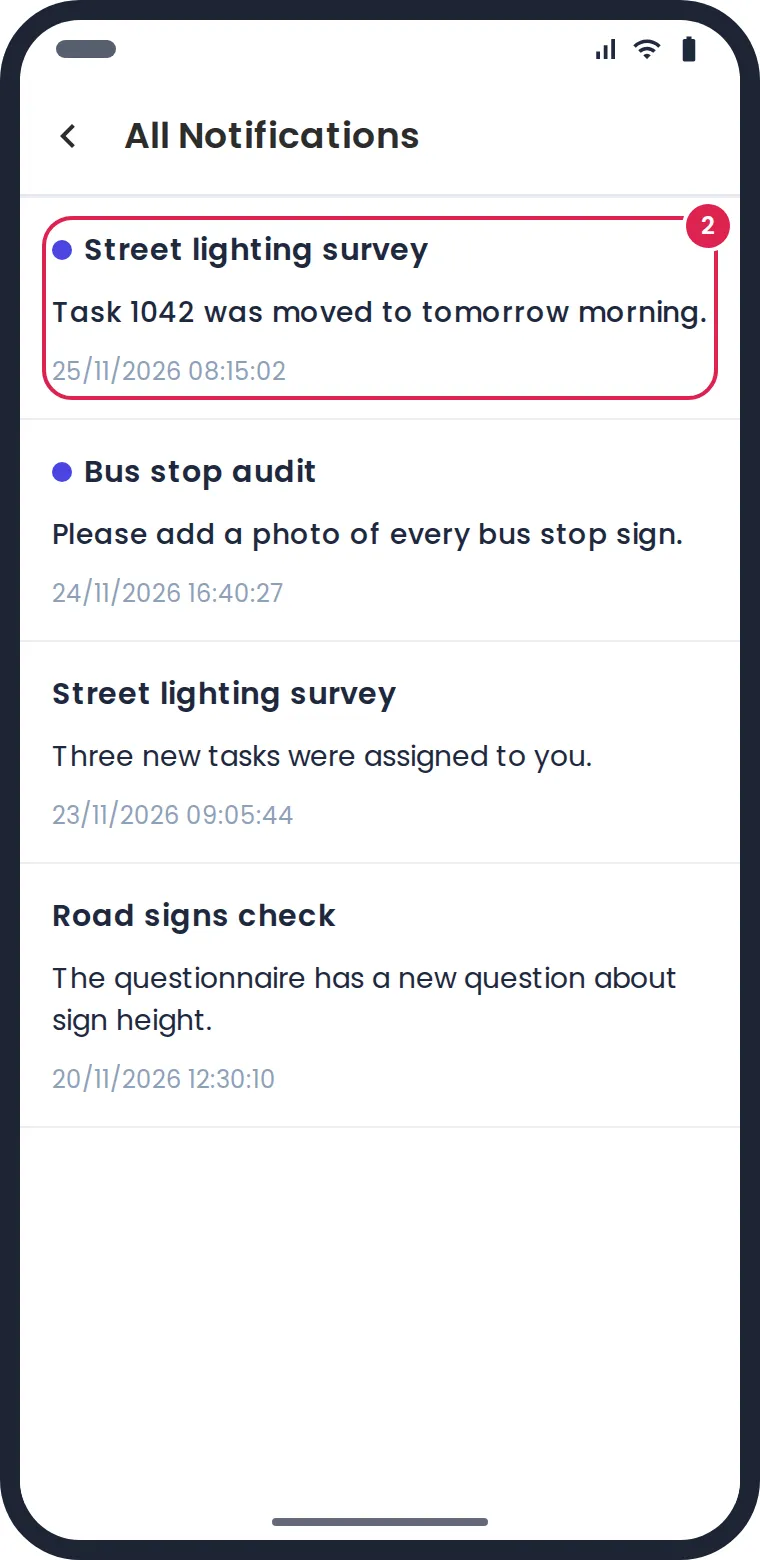
Read the list. Each notification shows its project, the message and the date and time. Unread ones have a purple dot.
Result
Section titled “Result”The red dot goes away once the list has loaded from Pristo GO. Without a connection, the screen shows the list from the last time you opened it, and the dot stays.
Limits
Section titled “Limits”- The app checks for new notifications about once a minute while it is open and you have a connection. A notification can take a minute to show up.
- A notification can expire. It then leaves the list.
- No notifications to display means you have no notifications.
Troubleshooting
Section titled “Troubleshooting”A notification I expected didn’t arrive. The app checks only while it is open and online. Open the projects list and wait a minute.
The notifications screen shows User is no longer authenticated, please login again. Your session has ended. See Sign out and share a phone.