

Fill in and finish a record
In the Pristo GO app, a record is one filled-in questionnaire, such as one inspection. You open it from a project or a task, answer its fields page by page, and finish it. The questionnaire sets the record’s status when you finish, so there is no status to choose.
Before you start
Section titled “Before you start”- Open the project or task the record belongs to. See Open a project and Work on a task.
- If the project requires location, turn on the phone’s location first. See Permissions the Pristo GO app needs.
-
To start a new record, select + Add record in the project, or Add Record in a task. To continue a record, select it in the list. If the project has several questionnaires, choose one in Please choose questionnaire.
-
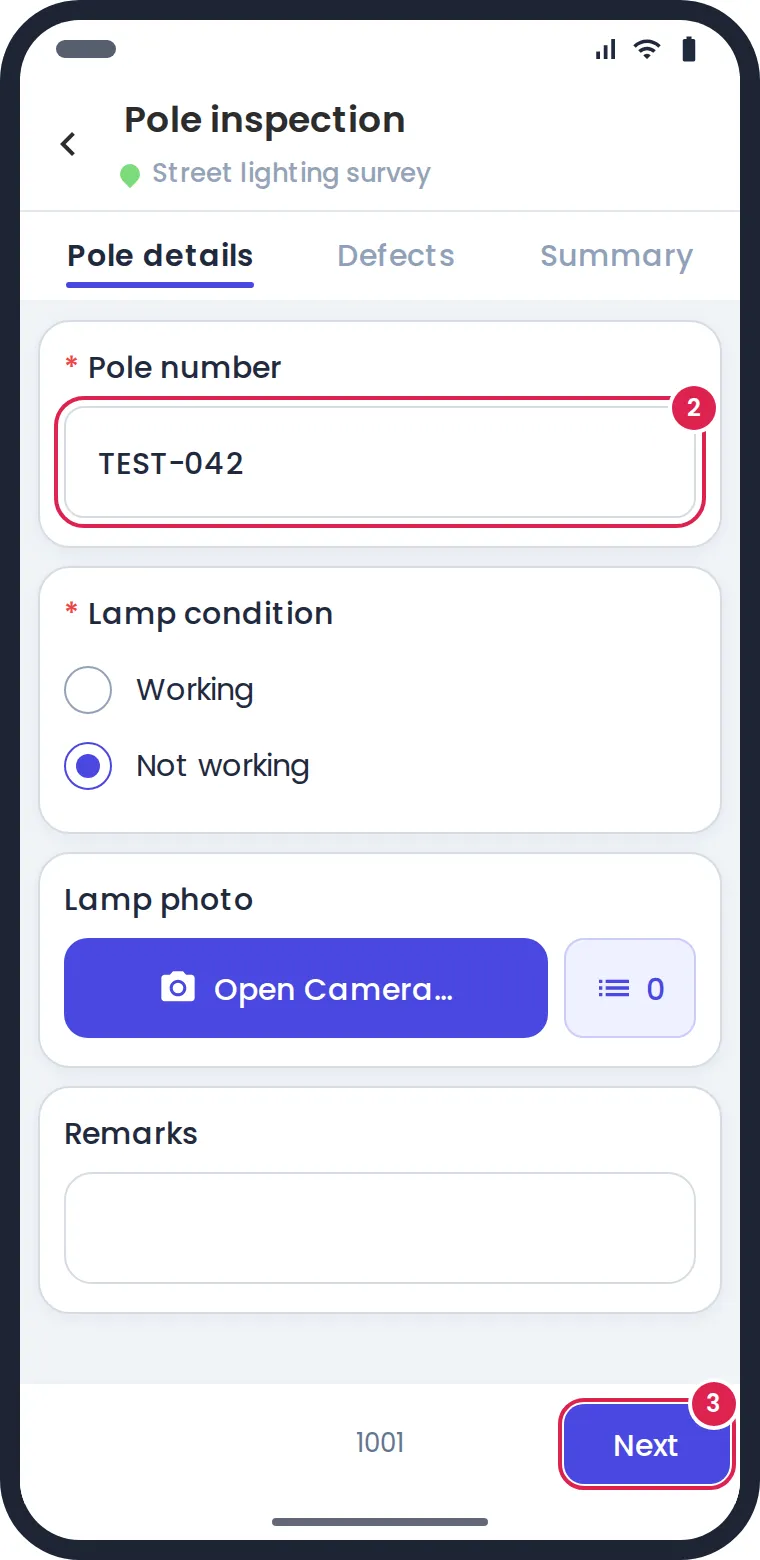
Fill in the fields of the first page. Fields marked with a red asterisk (*) are required. See Field types in the Pristo GO app.
-
Move to the next page with Next. The app saves the page and checks it. If a field is wrong, it shows Please review the fields and scrolls to the first field marked in red. Fix it and select Next again.
-
On the last page, select Finish. If the questionnaire sets no status on that page, the record closes without a status and stays open, with no question about what to do next.
Some questionnaires let you move between pages freely instead. In those, the page names at the top can be selected, and the buttons at the bottom are Save and Finish. See the section on questionnaires with free page order below.
Result
Section titled “Result”The record is saved on the phone with the status that the questionnaire sets. When that status is final, the record is sent to your organization at the next sync. Records without a final status stay on the phone, and your organization doesn’t see them as records until you finish them. Depending on your answers, a questionnaire can end the record before its last page: Next then finishes it. Depending on the project, the app then asks what to do next:
- Do you want to open the next record?: opens the next record in the list, in the order and with the search you are using.
- Do you want to open a new record?: starts a new record. Some answers can be copied from the record you finished.
- The record is finished — what next?: offers both.
Otherwise, the app goes back to the list.
A record with a final status can’t be opened again from the lists, and after it is synced it leaves the phone, unless its task is still open. A record without a status, or with a status that isn’t final, stays open: you can continue it later.
Pages, header and buttons
Section titled “Pages, header and buttons”- The strip under the header shows the page names, when the questionnaire has more than one page. The current page is underlined.
- The header shows the questionnaire name and the project name, with a location icon before the project name. Depending on the project, it also has a + button to add another record, a button to switch to another record of the task, and a route button. See Follow a route.
- The bottom bar shows the record’s number. On Android 11 and later, a record of a numbered task shows the task number, a slash, and the record’s position in the task, for example
1043/2. - Prev goes back one page without saving the page you are on. Select Next first if you want to keep your changes.
Close a record before you finish
Section titled “Close a record before you finish”Select the back arrow in the header, or Android’s Back. The app asks This action will close the interview, do you wish to save changes?:
- Save saves the current page, even with errors, and closes the record. It doesn’t finish it.
- Don't Save closes without saving the current page. Pages you saved before are kept.
- Cancel stays in the record.
Questionnaires with free page order
Section titled “Questionnaires with free page order”In these questionnaires:
- Select a page name at the top to go to that page. The app saves the page you leave and colors its name: green when it is complete, red when a field needs fixing.
- Select Save to save the current page and check it.
- When every page is green, go to the page where the questionnaire ends and select Finish.
Every page must have been saved and checked without errors before you can finish, even a page without required fields: opening a page isn’t enough. Otherwise, or when a page is still red, the app shows Please complete all pages before finishing. If you select Finish on a page where the questionnaire doesn’t end, the app shows No statuses found to finish the questionnaire.
Messages under a field
Section titled “Messages under a field”| Message | What to do |
|---|---|
| * This field is required | Answer the field |
| * Please enter a text longer than, * Please enter a text shorter than | Write a longer or shorter text. The limit itself is allowed |
| * Please enter a number bigger than, * Please enter a number smaller than | Enter a number within the limits. The limit itself is allowed. Limits show with a decimal, such as 5.0 |
| * Please enter a valid email address | Enter an address like name@example.com, with a dot after the @ and no spaces |
| * Please enter a valid phone number | Enter 9 to 15 digits. Spaces, -, (, ) and . are allowed, and + only at the start |
| * Please choose items at least or equal to, * Please choose items no more than | Tick more or fewer answers |
A questionnaire can also have its own checks with their own messages. A red message stays until the page is checked again, even after you fix the field. In a table, a field with an error turns red without a message.
Troubleshooting
Section titled “Troubleshooting”The record doesn’t open, and the app shows Location is required, please check location permissions and that location is set to High Accuracy. The project requires location. Turn on location in high accuracy mode, then select the record again.
I can’t open a finished record. Records with a final status are locked on the phone. Ask your organization’s Pristo GO admin to change the record if it needs a fix.
The app shows There is no questionnaires for this project. The project has no questionnaire on the phone. Sync, and if it still shows, ask your admin.
A field I answered disappeared and its answer is gone. The field depends on another answer. When you change that answer and the field is hidden, its answer goes back to the field’s starting value, usually empty.
I lost my answers when I went back a page. Prev doesn’t save the page you leave. Use Next before you go back.