

In a Pristo GO project with tasks, each task is a planned job, such as one site to inspect. You open the task to see its details and its records, add records to it, and the task is done when you finish a record with one of the statuses that close it.
Before you start
Section titled “Before you start”- The project must have tasks. A project can call them something else, such as visits or sites; the app then uses that word.
- Your organization assigns tasks to you. Only open tasks reach the phone. A task with a planned time reaches it a limited time before that time, and leaves it at a full sync once the time passed too long ago.
-
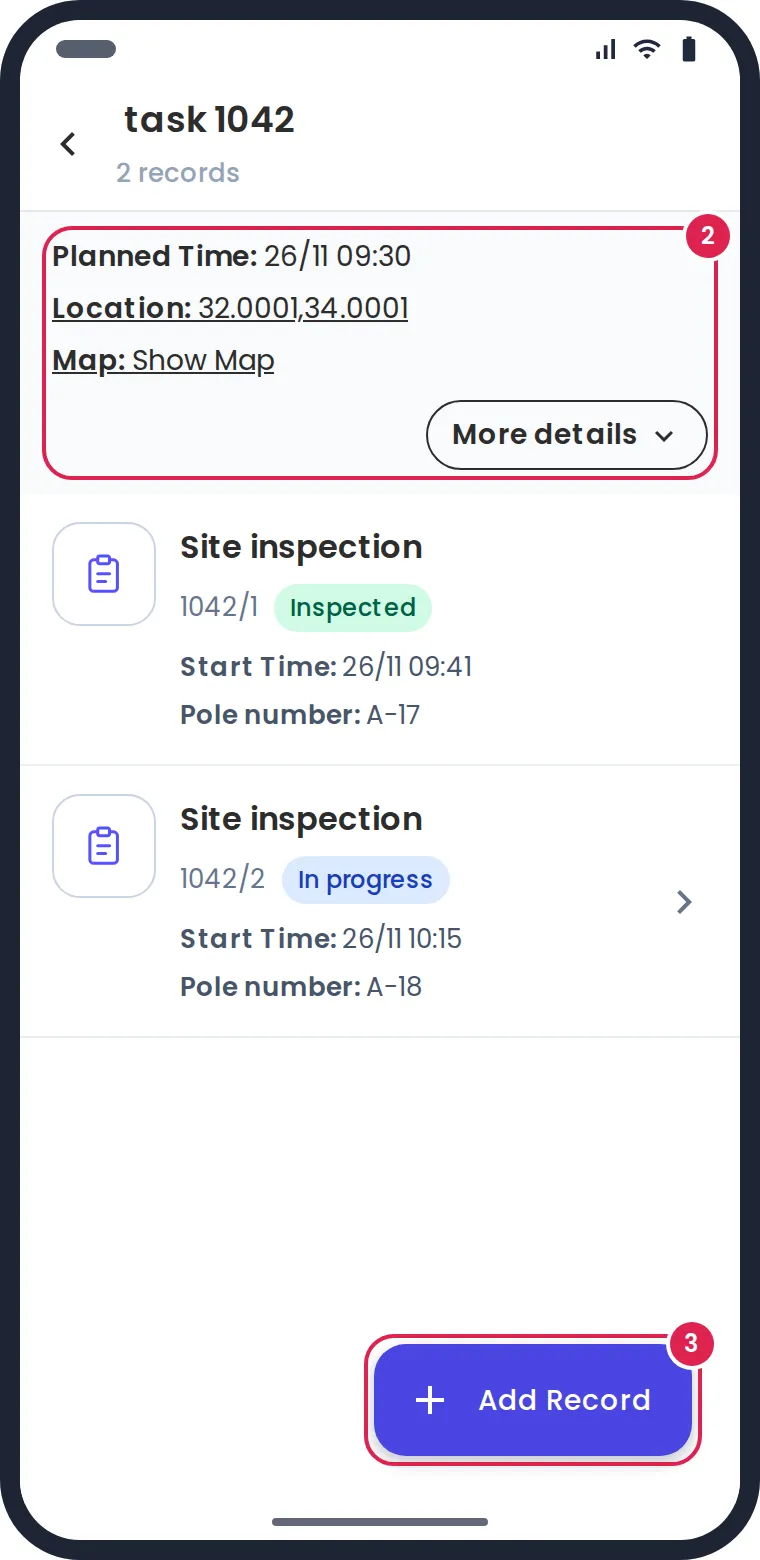
In the project, select the task. Its title shows the task number.
-
Read the task’s details at the top: the Planned Time, the Location as coordinates, a link to the route map when the task has a route, and the task fields that the project shows. More details shows the rest.
-
To add a record, select Add Record, or + New record when the task has no records yet. If several questionnaires can be used now, choose one; with one, it opens at once.
-
Fill in and finish the record. See Fill in and finish a record.
Result
Section titled “Result”The record appears under the task. When you finish a record with a status that closes the task, the task is done: you can no longer open it or its records, and it leaves the phone after it is synced.
Task details
Section titled “Task details”- Select the location to navigate to the task. See See records and tasks on a map.
- A phone number set up as a link in the details opens the phone’s dialer with the number filled in.
- Map opens the route and its stops. See Follow a route.
Create a task
Section titled “Create a task”In projects that let you create tasks, the project shows + Add task with the project’s word for a task, or + Create new task while the project has no tasks. Select it and choose the questionnaire, if there are several. The new task shows New instead of a number until the next sync gives it one. Tasks can’t be deleted in the app.
Which questionnaires a task offers
Section titled “Which questionnaires a task offers”A task offers only the questionnaires that fit it right now. For example, a questionnaire can be offered only around the task’s planned time, only when the task has no open records, or only after a first record exists. When none fits, the app shows There is no questionnaires found that are available right now.
Troubleshooting
Section titled “Troubleshooting”The app shows This task is no longer available. The task was removed from the phone, for example because it was done or reassigned and you synced. Go back to the project.
A task I expected isn’t in the list. It isn’t assigned to you, it is done, or its planned time is still far away or passed too long ago. Sync to get the latest tasks.
I can’t open a task. The task is done. Done tasks can’t be opened.