

Install the Pristo GO app and sign in
You install the Pristo GO app from Google Play and sign in with the username, password and organization code that your organization’s Pristo GO admin gives you. After the first sign-in, the app downloads the projects assigned to you.
Before you start
Section titled “Before you start”- Phone: an Android phone with Android 10 or later and Google Play. The app is not yet available for iPhone.
- Account: a Pristo GO user with a username and password, and your organization code. Your organization’s Pristo GO admin creates users and gives them access to projects, usually with the Data Collection role, so ask them for these details.
- Network: an internet connection for the first sign-in and the first download. After that, you can work without a connection. See Work offline.
- Permissions: the app needs location and the camera before it lets you sign in, plus notifications on Android 13 and later, or files and media on Android 10. See Permissions the Pristo GO app needs.
-
On the phone, open Google Play and install the Pristo GO app, or open
https://play.google.com/store/apps/details?id=co.pristo.intw. On the home screen, the app’s name is פריסטו (Pristo in Hebrew), in every phone language. -
Open the app. When Android asks, allow location (choose Precise), the camera, and notifications or, on Android 10, files and media.
-
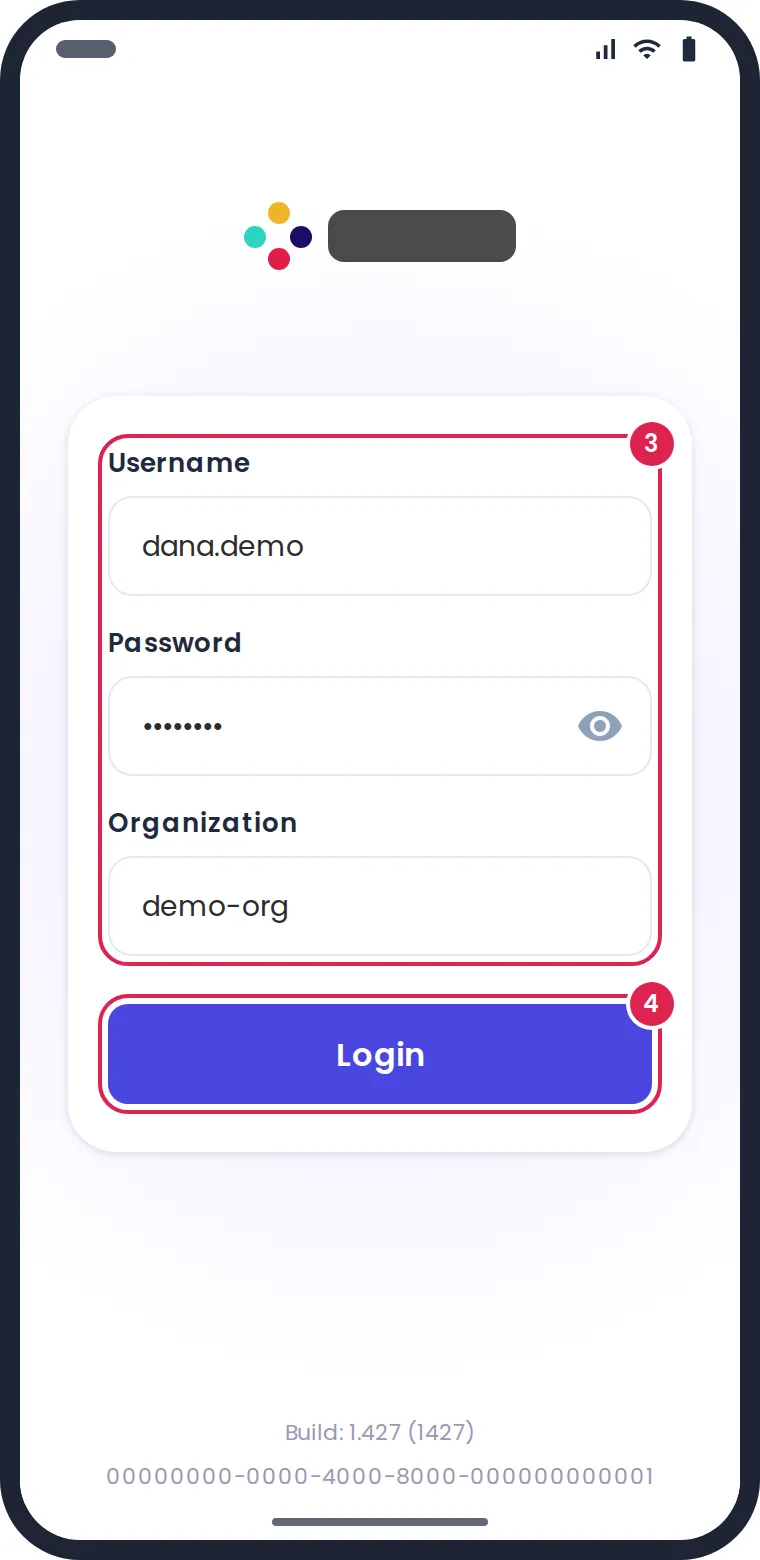
Enter your Username, your Password and your Organization code. Username and organization code are not case-sensitive.
-
Select Login.
-
If the app asks for a Two Factor Authentication Code, enter the code and select Continue. The code comes by SMS to the phone number in your user, or from an authenticator app, depending on your organization’s settings. To go back to the username and password, select Cancel.
Result
Section titled “Result”The projects list opens and greets you by name. Whenever the projects list is empty, for example the first time you sign in on a phone, the app downloads your projects right away and shows Syncing data until it finishes. When it shows Sync completed, your projects are on the phone.
The next time you open the app, the projects list opens directly. You stay signed in until you sign out or until your organization’s inactivity limit passes. See Sign out and share a phone.
Limits
Section titled “Limits”- The username must have at least 2 characters, the password at least 6 and the organization code at least 2.
- Spaces at the start and end of the password are removed before it is sent.
- The app remembers your username and organization code, not your password.
- You can be signed in on several phones at the same time. A password reset signs you out on all of them.
- The bottom of the sign-in screen shows the app’s build number and the phone’s device ID. Support may ask for both.
- The interface follows the phone’s language: Hebrew phones get the Hebrew interface, right to left, and every other language gets English. There is no language setting in the app.
Troubleshooting
Section titled “Troubleshooting”Nothing happens when I select Login. A permission is missing. The app asks again every time you select Login, and once Android stops asking, the button seems to do nothing. In Android Settings, open Apps, then פריסטו, then Permissions, and allow Location (with precise location on), Camera, and Notifications or, on Android 10, Files and media. Then select Login again.
The app says Bad username or password. The app shows this message whenever Pristo GO refuses the sign-in: a wrong username, password or organization code, but also a locked or inactive user, a phone that isn’t on your organization’s list of permitted devices, or an app version that is too old. After several wrong passwords in a row, your user is locked for a while, and even the right password gets this message. Check the three fields, update the app, then ask your organization’s Pristo GO admin, who can unlock your user, reset your password or add the phone’s device ID from the bottom of the screen. You can also reset your own password on your organization’s Pristo GO web sign-in page.
The app says Invalid two factor authentication code. The two-factor code is wrong or expired. Enter the latest code. You can try again as often as you need. An SMS code is valid for 15 minutes, and there is no button to send it again: select Cancel, then Login to get a new one. If no SMS arrives, your user may have no phone number: ask your admin.
The app says Action Failed. The phone has no internet connection, or the connection timed out. Connect to Wi-Fi or mobile data and try again.
The app says Network error occured. Pristo GO answered with an error. Try again in a few minutes. If it keeps happening, contact your admin with the build number and device ID from the bottom of the screen.
The projects list is empty after I signed in. The download failed or no project is assigned to you yet. Select Download data from server. If the list stays empty, ask your admin to assign you to a project. See Sync your data.