

Change your plan and billing details
In Pristo CX, an account admin changes the plan and the billing details under Account settings > Billing. Paid plans are priced per user, monthly or yearly, and payments go through Paddle, Pristo’s payment provider.
Before you start
Section titled “Before you start”- Role: account admin. Only account admins see Account settings and UPGRADE. See roles and permissions.
- Setup: verify your email address. Until you do, the upgrade buttons open Verify your email instead of the plans.
- To compare the plans first, see Plans and limits.
Upgrade from the Free plan
Section titled “Upgrade from the Free plan”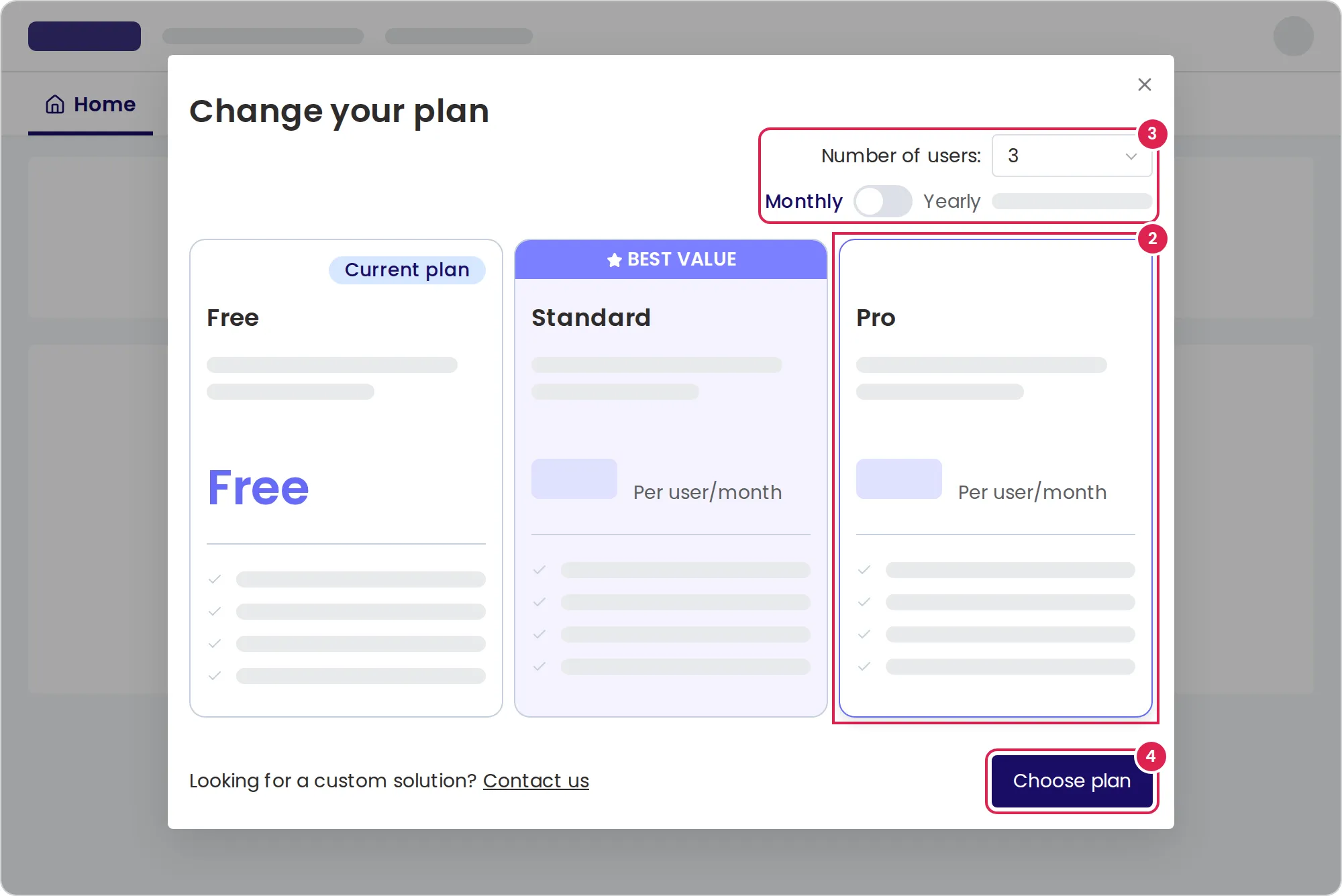
-
Select UPGRADE (the rocket icon) in the header. You can also select Upgrade now on the Overview page of Billing.
-
Select the Standard or Pro card.
-
Choose the number of users, and switch between Monthly and Yearly billing.
-
Select Choose plan.
-
Under Billing details, enter the Name, Country and Postal code, and the address and company details you want on your invoices.
-
Check the Total charge and select Continue to checkout.
-
Pay in the Paddle checkout. When the payment is complete, select Go to Pristo.
Change the plan, the number of users or the billing period
Section titled “Change the plan, the number of users or the billing period”-
On the Overview page of Billing, select Manage subscription.
-
Choose the plan, the number of users or the billing period, and select Change plan.
-
Check the Summary and select Confirm.
The change applies at once. The summary shows an Immediate payment for the rest of the current period, or an Immediate credit that is credited to your account, and the Next payment.
Cancel the subscription
Section titled “Cancel the subscription”-
On the Overview page of Billing, select Cancel subscription.
-
Read the end date in the dialog, and select Cancel subscription again.
Selecting the Free card in the plans and then Downgrade plan takes you to the same button. Until the end date, the overview shows Subscription active until and Reactivate, which keeps the subscription going.
Update the payment method and invoice details
Section titled “Update the payment method and invoice details”- Payment info shows the card or other method Paddle charges. Change payment method opens a Paddle page in a new browser tab.
- Invoice settings holds the name, address and company details on your invoices. Company number and Tax or VAT number need a Company name. Select Save after a change.
- Transactions lists every payment with its date, payment type, amount and status. Select Download invoice on a completed payment.
Result
Section titled “Result”After a checkout or a change, the app reloads with the new plan. The Overview page shows the Current plan, the Period, the Renewal date and the price, which is the price per user times the number of users.
What happens when the subscription ends
Section titled “What happens when the subscription ends”- The account moves to the Free plan with one user seat.
- If the account has more questionnaires than the Free plan allows, Pristo CX deactivates the extra ones, starting with those that have the fewest responses. Their cards show Inactive. An inactive questionnaire accepts no new responses, and in this release the app has no button to make it active again.
- Users stay active, but you can invite or reactivate users only when a seat is free.
- The features of the paid plan stop, such as the Population tab, and responses above the Free limit show a lock.
Limits
Section titled “Limits”- The plans offer 1 to 100 users. Choosing fewer users than are active deactivates nobody, but it blocks invitations.
- Prices are in US dollars, per user per month. Yearly billing shows how much it saves.
- Before you change a canceled subscription, select Reactivate.
Troubleshooting
Section titled “Troubleshooting”The plans say I need to reactivate first. The subscription is canceled and runs until its end date. Select Reactivate on the Overview page, then change the plan.
Manage subscription and Cancel subscription are missing. The app shows them only when the account has a renewal date and a price from its subscription. If your plan has neither, for example because Pristo set it up for you, contact Pristo through the Pristo contact page.
A payment shows Failed. Change the payment method under Payment info. If the plan stays unpaid, contact Pristo.
Payment info and Invoice settings are empty. They fill in after the first payment on a paid plan.