

Create a questionnaire
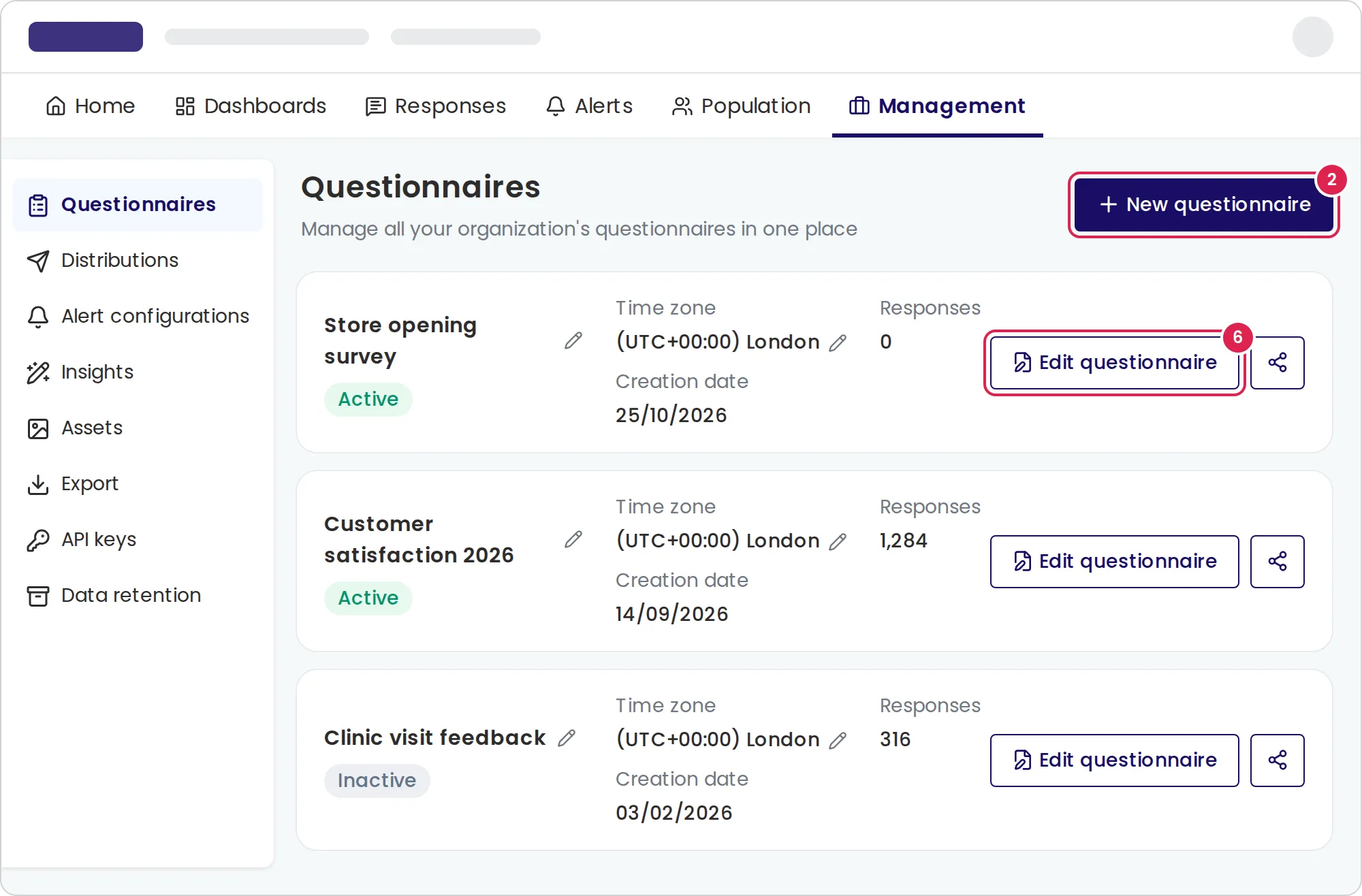
In Pristo CX, you create a questionnaire on the Questionnaires page under Management. You give it a name and a time zone, then start it from a template or a blank form, and the form builder opens so you can add questions.
Before you start
Section titled “Before you start”- Role: you need to be an account admin or a program admin. Program users don’t see Management. See roles and permissions.
- Plan: how many questionnaires you can create depends on your plan. See Plans and limits.
- Setup: verify your email address. Until you do, Pristo CX shows Verify your email instead of the new questionnaire dialog.
- The questionnaire belongs to the program you are working in. Switch to another program first if you need to.
-
Open Management. The Questionnaires page opens.
-
Select New questionnaire.
-
Enter a Questionnaire name.
-
Check the Time zone. Pristo CX fills in your browser’s time zone. Distributions of this questionnaire schedule their messages in this time zone.
-
Select Create. The new questionnaire appears in the list.
-
On the questionnaire’s card, select Edit questionnaire.
-
Choose how to start:
- To start from scratch, select Blank, then select Continue.
- To start from a ready-made questionnaire, select Template. Pick a category or search, select a template to preview it, then select Use this template.
Result
Section titled “Result”The form builder opens in the Edit questionnaire tab, with a blank form or a copy of the template. Add your questions and publish the questionnaire. After you publish, Pristo CX takes you to the Share tab.
On the Questionnaires page, the questionnaire’s card shows its status, time zone, number of responses and creation date. Select the pencil next to the name or the time zone to change it.
Continuous or event-based?
Section titled “Continuous or event-based?”A questionnaire has no type setting. The way you send it decides how it collects responses:
- A continuous questionnaire collects responses over time. Share its link, QR code or embed code. The Ongoing/Periodic Questionnaire distribution type is not available yet; see ongoing and periodic distributions for the alternatives.
- An event-based questionnaire goes to a contact after an activity, such as a purchase. Send it with a distribution of the type Event-Based Questionnaire.
- To send a questionnaire once to a group of contacts, use a distribution of the type One-time Delivery.
See the distributions overview for how each type works.
Limits
Section titled “Limits”- A questionnaire name can have up to 250 characters. No two questionnaires in the account can have the same name.
- An account can have up to 1,000 questionnaires. Your plan can set a lower limit.
- You choose a template or a blank form once. After that, Edit questionnaire always opens the form builder.
- The form builder opens on any screen size, but it is easiest to use on a computer. On narrower screens its settings panel moves into a tab or opens full screen. See screen size.
Troubleshooting
Section titled “Troubleshooting”I can’t find where to create a questionnaire. Only account admins and program admins see Management. Ask an account admin to change your role.
Pristo CX says the name is already used. Choose a name that no other questionnaire in the account uses, including questionnaires in other programs.
An upgrade message opens instead of the dialog. You reached your plan’s questionnaire limit. Account admins can select Upgrade now; see Change your plan and billing details. Other users see To upgrade the plan, ask your account admin.
The templates are in another language. Pristo CX lists templates in the language you use the app in. Change your language, then open the templates again.