

Secure your Pristo CX sign-in
In Pristo CX, you protect your sign-in from the menu under your profile picture: Change password changes your password, and User settings > Security turns on two-factor authentication with an authenticator app. If you forget your password, you reset it from the login page.
Before you start
Section titled “Before you start”- Role: every user manages their own sign-in. In the app, nobody else can change your password or your two-factor setting, account admins included. See roles and permissions.
- Plan: every plan.
- Setup: for two-factor authentication, an authenticator app on your phone, such as Google Authenticator or Microsoft Authenticator.
Change your password
Section titled “Change your password”-
Select your profile picture in the top-right corner, then Change password.
-
Enter your Current password.
-
Enter the new password in New password and again in Confirm password. The rules it must meet are listed at the top of the window.
-
Select Save.
Turn on two-factor authentication
Section titled “Turn on two-factor authentication”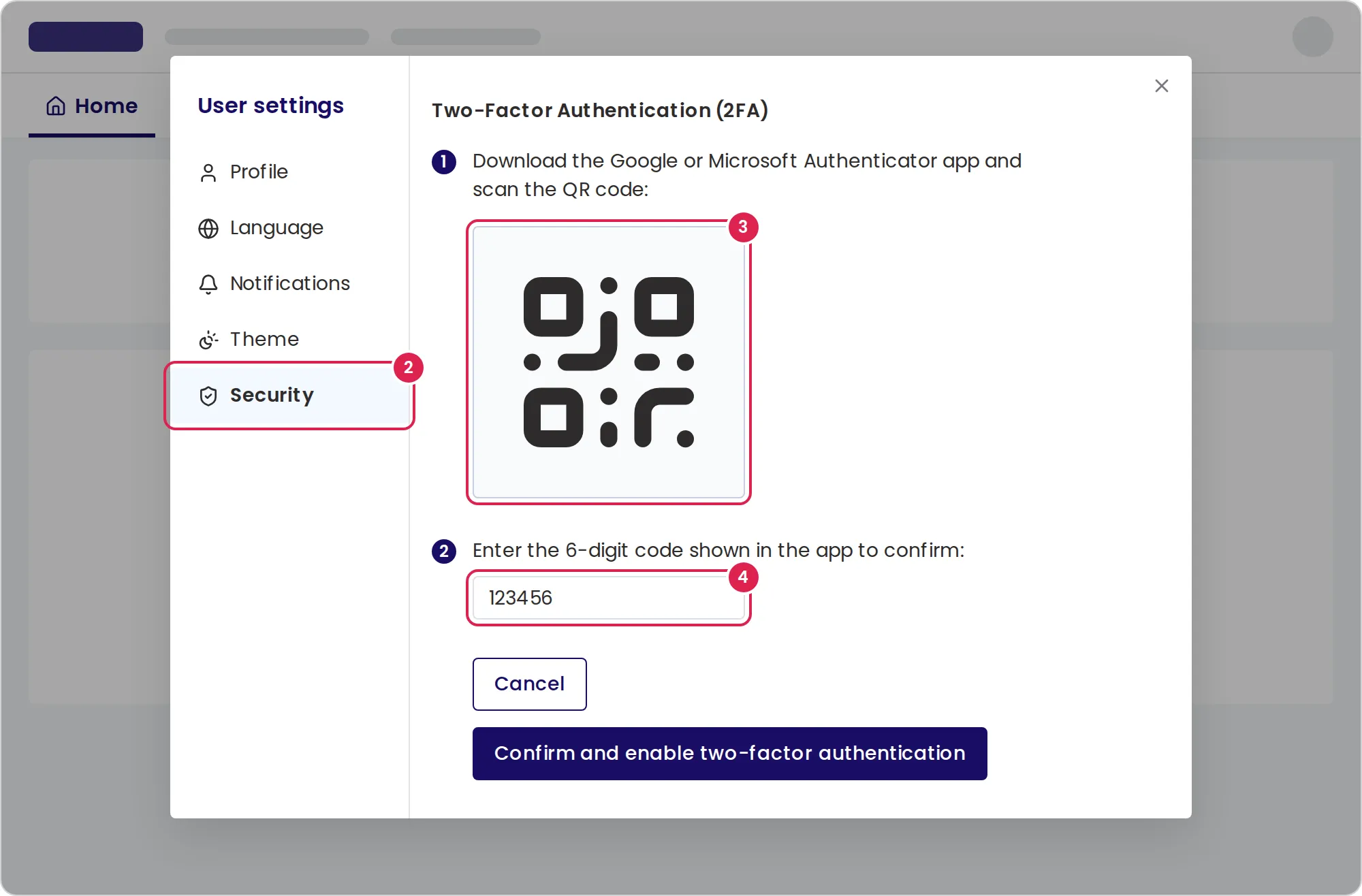
-
Select your profile picture, then User settings.
-
Select Security, then Enable two-factor authentication.
-
Scan the QR code with your authenticator app.
-
Enter the 6-digit code that the app shows and select Confirm and enable two-factor authentication.
From then on, each time you log in with your email address and password, Pristo CX asks for the current code from the app. To turn it off, select Remove two-factor authentication on the same page and confirm.
Reset a forgotten password
Section titled “Reset a forgotten password”-
On the login page, select the Forgot password? link next to the password field.
-
Enter your Email and select Send.
-
Open the email from Pristo CX and select its link within 15 minutes.
-
Enter the new password in Password and Confirm Password, and select Change password.
-
Select Go back to Login and log in with the new password.
Log in with Google
Section titled “Log in with Google”On the login page, select Login with Google and choose the Google account that uses your Pristo CX email address. Google checks who you are, so protect your Google account with Google’s own two-step verification. Two-factor authentication in Pristo CX applies when you log in with your email address and password.
A user who signed up with Google has no Pristo CX password. To add one, follow Reset a forgotten password.
Result
Section titled “Result”- After a password change, every other device you were signed in on is signed out, and Pristo CX emails you that the password changed. A reset through the login page signs out every device.
- With two-factor authentication on, the Security page shows Two-factor authentication is enabled.
Limits
Section titled “Limits”These are the default sign-in rules for every user:
- A password has 15 to 64 characters and at least 3 of these: an uppercase letter, a lowercase letter, a number and a special character.
- A new password can’t be your current password or one of your previous 4.
- Passwords don’t expire.
- A reset link works once, for 15 minutes.
- After repeated failed attempts, with a wrong password or a wrong code, Pristo CX locks your sign-in for a while, and a lock that follows another lasts longer. A successful sign-in resets the count.
- You stay signed in until you have not used the app for 24 hours.
- The app offers two-factor authentication with an authenticator app only. It has no backup codes.
Troubleshooting
Section titled “Troubleshooting”I lost the phone with my authenticator app. There are no backup codes, and the code is needed to log in with your password. Contact Pristo through the Pristo contact page.
Pristo CX says The otp you have entered is not correct. Enter the code the app shows now, before it changes. If codes keep failing, set your phone’s clock to update automatically.
The reset link says Your time for reset password is over. More than 15 minutes have passed, or you already used the link. Request a new one.
The new password is refused with Password has already been used, try another one. Choose a password you have not used before.
Pristo CX says Your user is locked, please wait. Too many attempts failed in a row. Wait a while and try again, or reset your password.
The reset email did not arrive. The login page shows the same confirmation whether or not the address has a Pristo CX user. Check the address you typed and your spam folder.
Change password says The password provided is not correct. Enter your current password. If you signed up with Google, you have none yet; reset it from the login page instead.