

Choose who receives a distribution
In Pristo CX, you choose who receives a distribution on the Samples tab of the distribution editor. Under Sampling Segmentation you limit the audience to contacts whose attributes match your conditions, and under Distribution Rules you set when the link expires and how often the same contact can be asked.
Before you start
Section titled “Before you start”- Role: account admin or program admin. See roles and permissions.
- Plan: the Distributions page appears under Management on the Pro plan.
- Setup: for segment conditions, contact attributes on the population, with values on the contacts. See Contact attributes.
-
Open the distribution, or start one as described in Create a distribution. Fill in the Main tab and select Next.
-
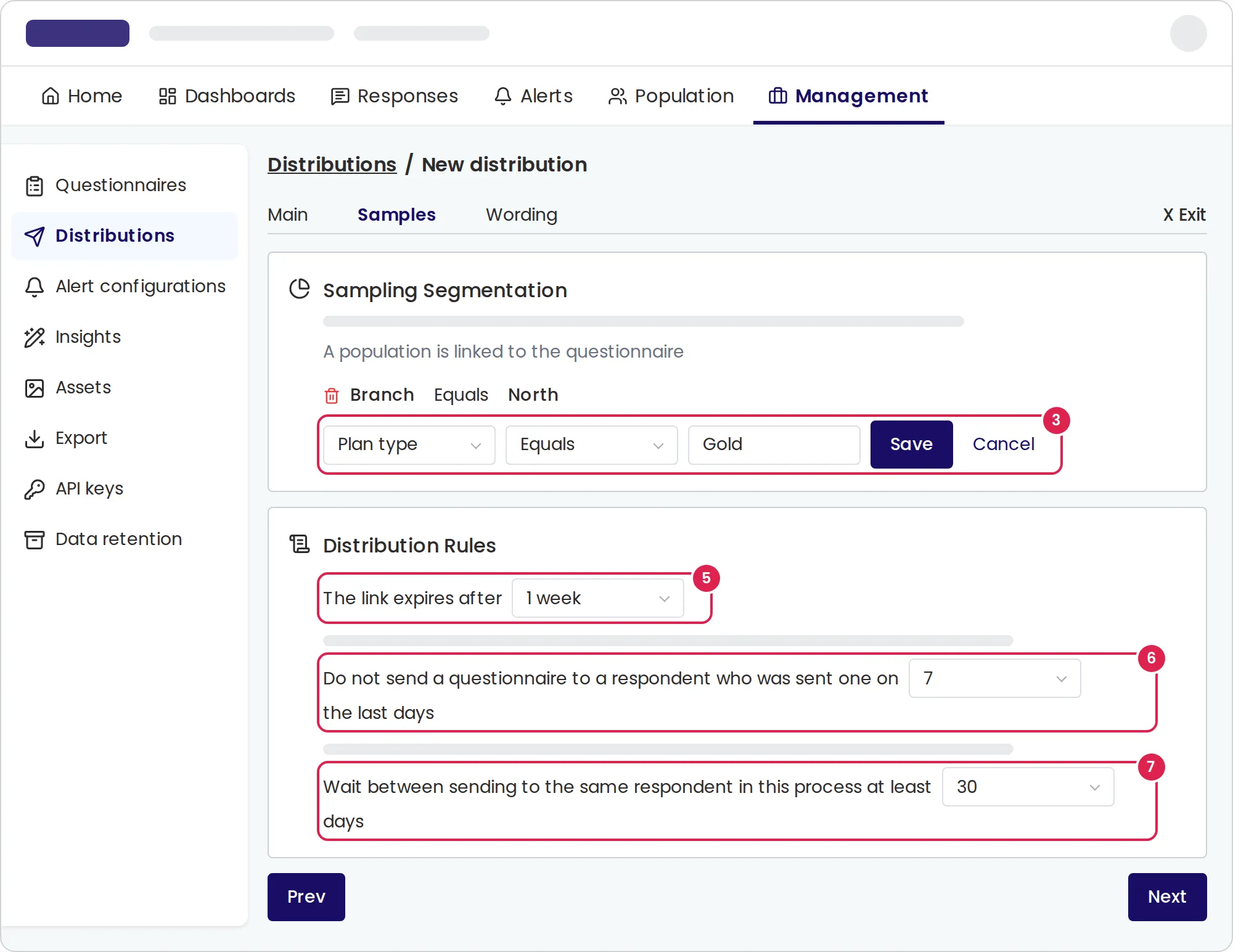
On the Samples tab, under Sampling Segmentation, select Add.
-
In Choose attribute, pick a contact attribute. Then choose a comparison, enter or pick a value, and select Save.
-
To add another condition, select And and repeat. A contact must match every condition.
-
Under Distribution Rules, choose how long the link works, or No expiration.
-
In the first rule, choose how many days must pass after a contact received any questionnaire before this distribution can send to them.
-
In the second rule, choose how many days must pass between two messages of this distribution to the same contact. Then select Next.
Without conditions, every contact in the population can receive the questionnaire.
Result
Section titled “Result”Pristo CX picks the contacts when it sends, not when you save:
- A one-time delivery takes, when it runs, every contact who matches the conditions and passes both rules. Later changes to contacts do not change its audience.
- An event-based distribution checks each contact when an activity arrives, after it updates the contact from the activity, together with its event filters.
The contact must also be active and subscribed, with an Israeli mobile number for SMS or an email address for email. The anonymity level does not change who receives the questionnaire.
Segment conditions
Section titled “Segment conditions”| Attribute type | Comparisons | Value |
|---|---|---|
| Text | Equals, Not equals | Typed text, up to 50 characters |
| Number | Equals, Not equals, Greater than, Less than, Greater than or equal, Less than or equal | A number |
| Date, Time, Date & Time | The same six as numbers | Picked from a calendar or a clock |
| Boolean | Equals | Yes or No |
- Conditions use contact attributes only. You cannot segment by name, email, phone or language.
- Type text values exactly as they are stored on the contacts, with the same capital letters.
- A contact without a value for the attribute does not match Equals or the greater-than and less-than comparisons. That contact does match Not equals: for every attribute type in a one-time delivery, and only for a text attribute in an event-based distribution.
Distribution rules
Section titled “Distribution rules”| Rule | What it does | Choices |
|---|---|---|
| Link expiry | How long the contact’s personal link works, counted from when the message goes out. Reminders use the same link and must go out before it expires | 5 to 50 minutes, 1 to 4 hours, 1 or 2 days, 1 week, 1, 3 or 6 months, 1 year, or No expiration |
| First rule | Skips contacts who were sent a questionnaire by any distribution in the last days you choose | 0, 1, 3, 7, 10, 14, 21, 30, 60, 90 or 180 days |
| Second rule | Skips contacts who were sent this distribution’s questionnaire in the last days you choose | The same as the first rule |
- The rules count messages that were actually sent, including reminders, but not test messages. An event-based distribution also counts messages that are scheduled but not sent yet.
- For an event-based distribution, a rule left at 0 still keeps two messages to the same contact at least 10 minutes apart. For a one-time delivery, 0 means no check.
- A one-time delivery sends to each contact once, so the second rule matters only for event-based distributions.
Limits
Section titled “Limits”- Up to 5 segment conditions, joined with And. There is no way to match one condition or another.
- After a one-time delivery has sent, its Samples tab is read-only.
Troubleshooting
Section titled “Troubleshooting”The attribute list is empty. The population has no contact attributes yet. Define them first, as described in Contact attributes.
The tab shows To define segmentations, you must first link a population to the questionnaire. The questionnaire’s program has no population, and conditions need one. See the populations overview.
Fewer contacts received the questionnaire than expected. Check each condition, the capital letters in text values and both rules. Contacts without a value for an attribute, unsubscribed or inactive contacts, and contacts without a usable phone number or email are left out.