

Change the look of a questionnaire
In Pristo CX, you set how a questionnaire looks to respondents in the form builder. Choose a theme or your own colors in the Style panel of the side menu, and add your logo with Add Logo above the questions in the editor.
Before you start
Section titled “Before you start”- Role: you need to be an account admin or a program admin. See roles and permissions.
- Plan: Default and Elegant are on every plan. Ocean, Party, Business and Custom need the Standard or Pro plan. On the Free plan they show a lock and the tooltip Please upgrade to use this feature, and selecting them does nothing.
- Setup: open the questionnaire in the form builder, as described in the form builder overview. A published version is read-only, so select Edit first.
Choose a theme
Section titled “Choose a theme”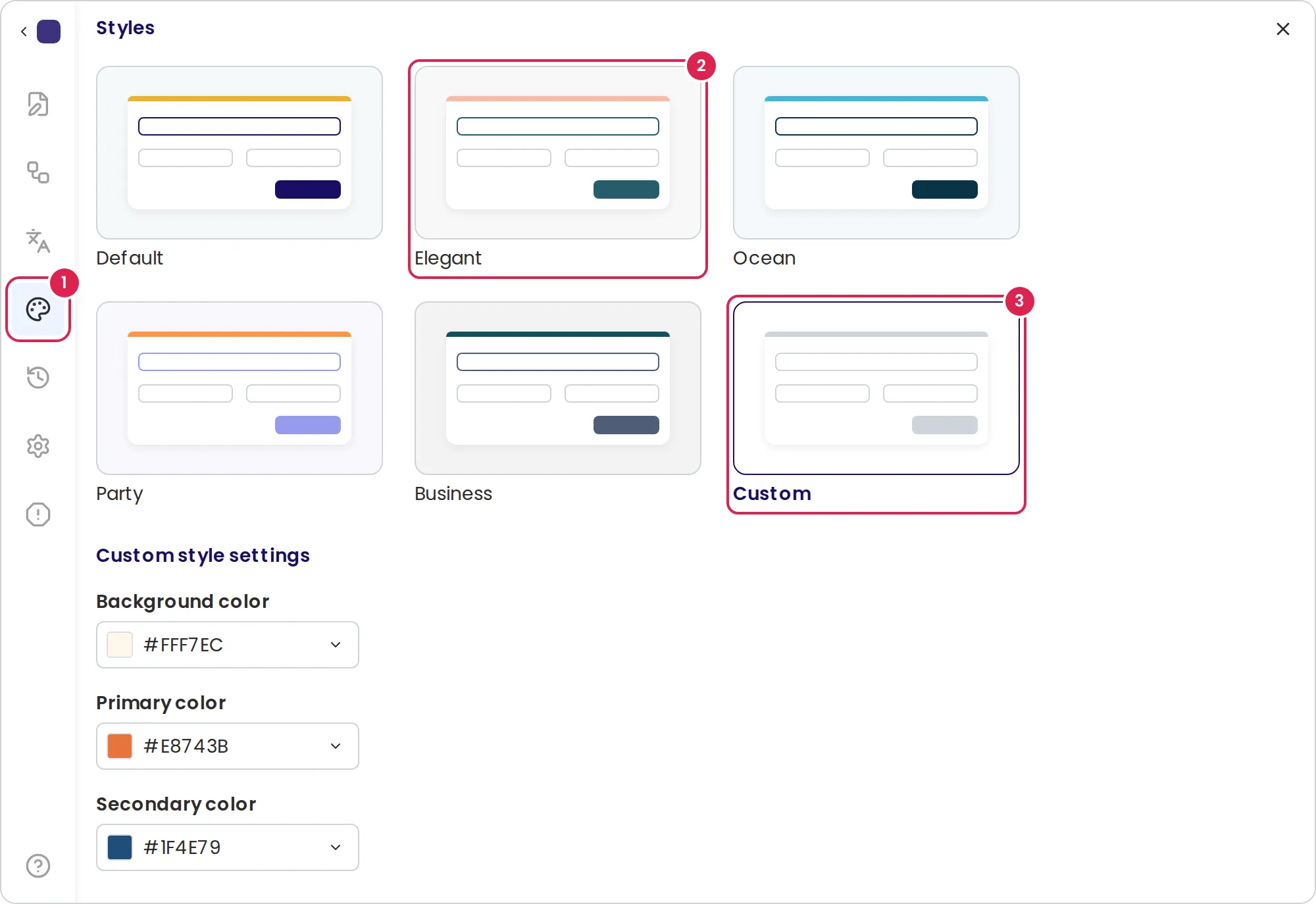
-
In the side menu, select Style.
-
Select a theme. The panel closes, and the editor shows the theme’s colors.
-
To choose your own colors, select Custom. Under Custom style settings, set the Background color, the Primary color and the Secondary color, then close the panel.
| Color | Where respondents see it |
|---|---|
| Background color | Behind the sections, and in the bar with the page buttons |
| Primary color | The line across the top of each section |
| Secondary color | Buttons, the page steps or tabs, selected choices and the outline of the field in focus |
Custom starts with a white background and grey colors. The Style panel has no font setting.
Add a logo
Section titled “Add a logo”-
In the editor, select Add Logo above the page.
-
Select an image from the program’s images, or select Upload image to add a PNG or JPEG file, then select the new image.
-
In the settings panel, set Image width for computers and tablets, Mobile image width for phones, and Alignment.
-
In Alt text, describe the logo for screen readers, such as
Example Coffee logo. It starts as the file name.
To change or remove the logo, point to it in the editor and select Replace or Delete.
Result
Section titled “Result”Respondents see the theme’s colors, and the logo above every page and on the end page. Your changes reach them when you publish the questionnaire. The logo of the last published version also appears in the questionnaire’s distribution emails.
Respondent forms follow the light or dark setting of the respondent’s device, and respondents can switch with the sun-and-moon button at the top of the form. In dark mode, Pristo CX’s own dark colors replace the theme’s colors. Preview always shows the light look.
To change how wide the pages are, use the width menu in the page bar. See Add and organize pages in a questionnaire.
Limits
Section titled “Limits”- Six themes. Custom colors belong to one questionnaire.
- Logo files: PNG or JPEG, up to 10 MB.
- Logo width: 10% to 100% of the page width, in steps of 10%. The defaults are 50% on large screens and 70% on small ones.
- Every page of the questionnaire shows Powered by and the Pristo logo, on every plan.
Troubleshooting
Section titled “Troubleshooting”A theme has a lock. Your account is on the Free plan. Choose Default or Elegant, or move to the Standard or Pro plan.
The upload shows File size is too large. The file is larger than 10 MB. Make it smaller and upload it again.
Respondents see different colors from mine. Their device uses dark mode. Respondents can switch to the light look with the sun-and-moon button.