

In Pristo CX, you build a dashboard on the Dashboards tab: select Create dashboard, add widgets, arrange them in rows and publish. A dashboard belongs to the program you are working in.
Before you start
Section titled “Before you start”- Role: account admin or program admin. Program users cannot open the editor. See roles and permissions.
- Plan: any plan. The text analysis widgets need Insights, which is on the Pro plan.
- Setup: at least one questionnaire in the program. To break data down or filter it by contact or event attributes, the program’s population needs those attributes. See Contact attributes.
-
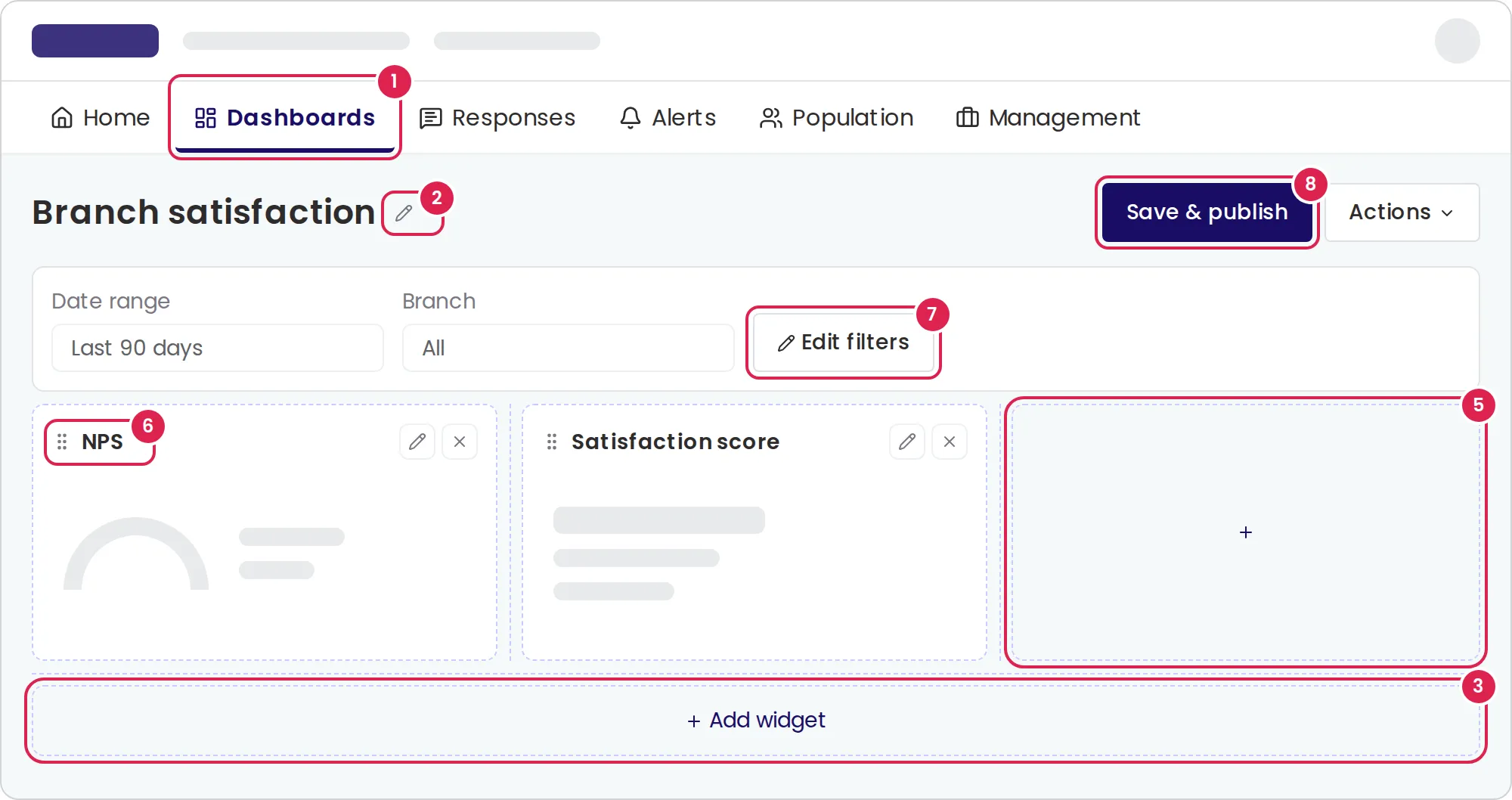
Open Dashboards and select Create dashboard.
-
Select the pencil beside New dashboard, type a name and press Enter.
-
Select Add widget and choose a widget in the dialog. Dashboard widgets describes each one.
-
In the widget’s editor, choose the source questionnaire and, for score and answer widgets, the question. Then select Apply. A spacer has no editor.
-
Add more widgets. Each new widget starts a new row. To place a widget beside others, select the plus sign in the free space of a row.
-
Arrange the widgets with the mouse. Drag a widget by its top bar (Move widget) into another row, or between two rows to start a new one. Drag the dashed line after a widget to change its width, and the dashed line under a row to change the row’s height.
-
Optionally, select Edit filters and choose the attributes that appear in the filter bar. See Filter and segment dashboard data.
-
Select Save & publish.
To change a widget, select the pencil on it. To remove it, select the X and confirm.
Result
Section titled “Result”Pristo CX shows Dashboard published and opens the dashboard with real data. In the editor, widgets show sample data in gray. In the lobby, the card shows Published. Program users can open it only after you add them as viewers. See Share a dashboard.
Drafts and published versions
Section titled “Drafts and published versions”A dashboard has a draft, which you edit, and a published version, which viewers see. Open a dashboard and select Edit to change it. The editor’s Actions menu has:
| Action | What it does |
|---|---|
| Save | Saves the draft without publishing. Viewers keep seeing the published version, and the editor shows This version differs from the published version |
| Discard changes since publish | Replaces the draft with the published version, after you confirm. Shown only while they differ |
| Unpublish | Hides the dashboard from viewers. The card shows Not published. The viewer list stays, and viewers see the dashboard again when you publish |
| Delete | Deletes the dashboard, after you confirm. This cannot be undone. Shown after the first save |
| Exit without saving | Leaves the editor and drops unsaved changes. If you leave another way with unsaved changes, Pristo CX asks first |
There is no way to copy a dashboard.
Limits
Section titled “Limits”- A row is 12 columns wide, and a widget takes 1 to 12 of them. Most data widgets start at 4 columns, a title at 12, a text block at 6 and a spacer at 3.
- A widget added with the plus sign takes up to 4 columns of the row’s free space. A widget moves into another row only if that row has room for its width.
- Moving and resizing need a mouse. There is no keyboard or touch alternative.
- The dashboard name holds up to 200 characters. Widget limits are in Dashboard widgets.
- Saving and publishing need a name and at least one widget that is not a spacer.
Troubleshooting
Section titled “Troubleshooting”Save & publish is disabled. Give the dashboard a name and add at least one widget that is not a spacer.
Pristo CX does not publish and says some widgets have configuration errors. A widget is missing a setting, such as its source questionnaire or question. The editor marks it with a red icon. Point at the icon to see the problem, then open the widget and fix it. You can still save the draft.
Publishing fails with the message Value is invalid. A widget uses a questionnaire that is no longer in the program or is inactive. Open each widget and choose an active questionnaire.
The text analysis widgets cannot be selected. No open question is set up for analysis yet. Select Text analysis settings in the dialog. See Set up Insights.
I cannot find Create dashboard. Only account admins and program admins see it.