

You share a Pristo CX dashboard by choosing program users as its viewers in the Viewers dialog, which opens from the dashboard’s card on the Dashboards tab. Viewers open the published dashboard in the app. There is no share link, email or export.
Before you start
Section titled “Before you start”- Role: account admin or program admin. See roles and permissions.
- Plan: any plan.
- Setup: a saved dashboard, and at least one program user in the program. Viewers see a dashboard only while it is published. See Create a dashboard.
-
Open Dashboards.
-
On the dashboard’s card, select the three-dot menu, then Viewers…. You can also open the dashboard and select Viewers, or use Viewers… in the editor’s Actions menu.
-
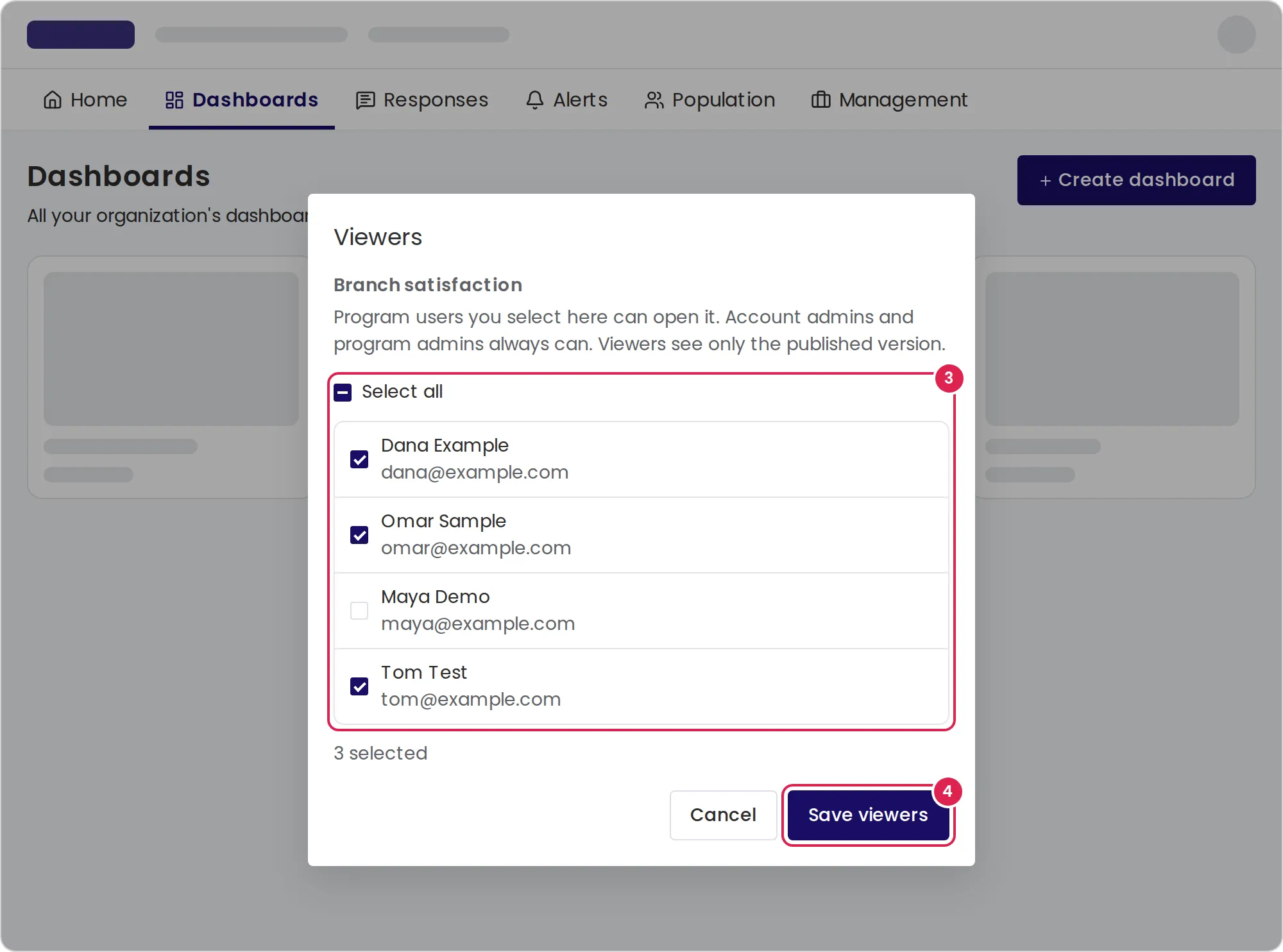
Check the program users who can open the dashboard. Select all checks everyone in the list. With more than 8 program users, a search box appears.
-
Select Save viewers.
The same dialog sets the viewers of the Distributions Report. Its card menu has only Viewers….
Result
Section titled “Result”Pristo CX shows Viewers updated, and the card shows the number of viewers. A viewer finds the dashboard in their list the next time they open the Dashboards tab in that program.
Who can be a viewer
Section titled “Who can be a viewer”- Only active program users who have this program. The list shows each one’s name and email address.
- Account admins and program admins are not in the list, because they can always open every dashboard of their programs, including drafts.
- A program user who loses this program is no longer a viewer.
- When you unpublish a dashboard, viewers stop seeing it. The viewer list stays, so they see it again when you publish.
What viewers can do
Section titled “What viewers can do”| Viewers can | Viewers cannot |
|---|---|
| Open the published version from the Dashboards tab | See the draft or an unpublished dashboard |
| Choose a date range and filter values in the filter bar, then select Apply. Their choices are not saved and do not change what others see | Change which filters the bar offers |
| Switch a widget between chart and table, hide breakdown levels and drill into a bar chart | Edit, publish, unpublish or delete the dashboard |
| Open the alerts behind an Alert count widget and go to the Alerts page | Choose viewers |
In the lobby, viewers see the dashboard’s card without its status or number of viewers.
Limits
Section titled “Limits”- Viewers must be program users of the program the dashboard belongs to.
- Pristo CX does not email viewers when you add them. Tell them where to find the dashboard.
- A dashboard has no public link, scheduled email or export. To share the numbers outside the app, export the responses.
Troubleshooting
Section titled “Troubleshooting”The dialog shows No program users in this program. Only program users can be viewers. An account admin can invite one in Account settings under Users. See Invite users.
A viewer cannot find the dashboard. Check that the dashboard is published and that the viewer is working in the right program. See Switch to another program or organization.
Save viewers is disabled. The selection has not changed since the dialog opened.
Saving fails and the list reloads. Someone on the list can no longer be a viewer, for example because they lost access to the program. Check the list and save again.
Opening a link to a dashboard shows Dashboard not found. The dashboard was deleted or unpublished, you are not one of its viewers, or it belongs to another program than the one you are working in. Pristo CX returns you to the lobby.