

Translate a questionnaire
In Pristo CX, you translate a questionnaire in the form builder’s Localizations panel: add a language, then type a translation next to each text. Respondents first see the questionnaire’s main language and can switch to a translation with the globe button. A questionnaire can have up to 5 translations.
Before you start
Section titled “Before you start”- Role: you need to be an account admin or a program admin. See roles and permissions.
- Setup: finish the questions first. The panel lists the texts the questionnaire has now, so texts you add later need translating too.
- Main language: open Settings in the side menu and check that Language is the language you wrote the questions in.
-
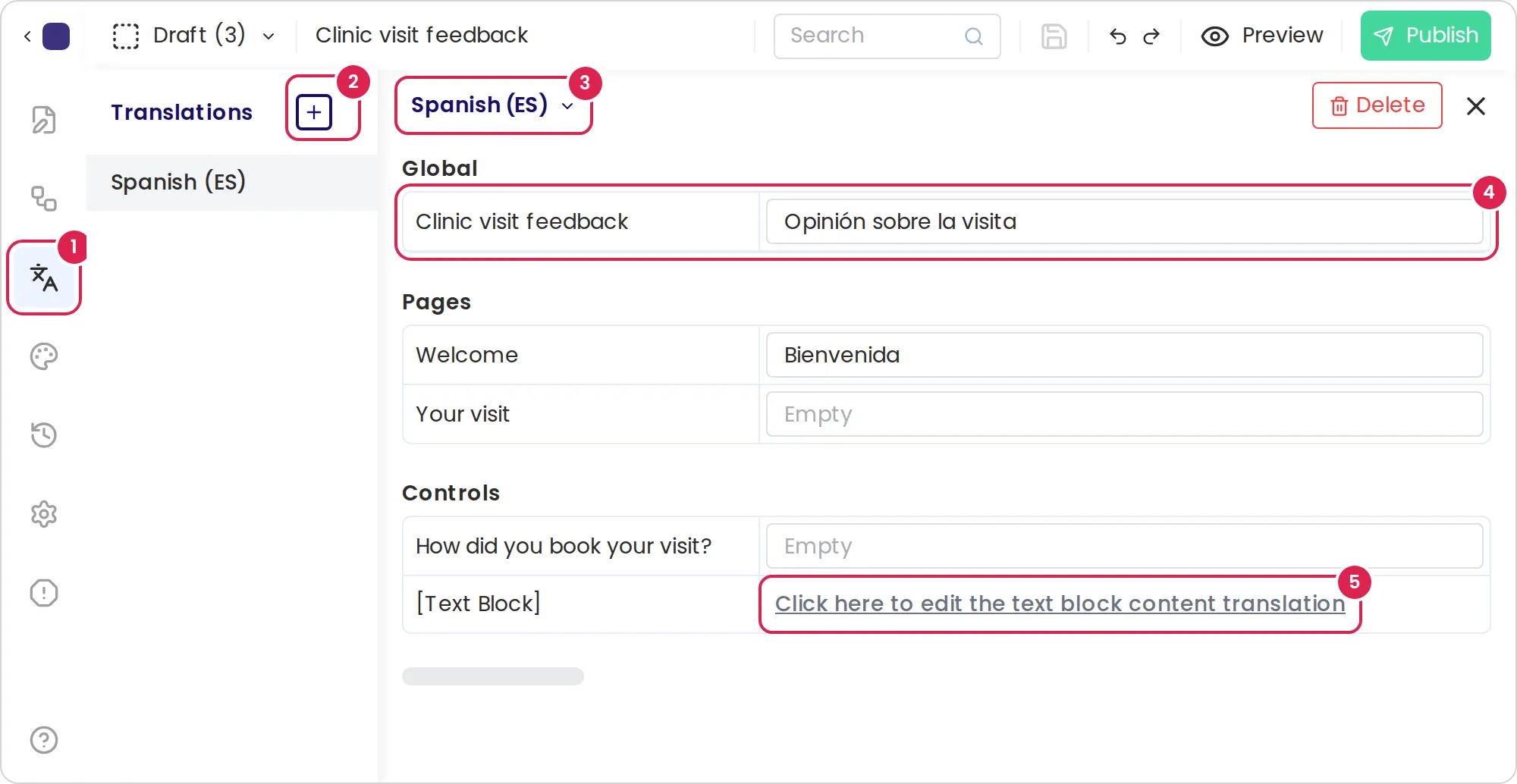
Select Localizations in the side menu.
-
Select Add (+) next to the panel title. The builder adds a language and shows its texts.
-
Select the language name at the top of the panel and choose the language you need. You can type to search the list.
-
Type a translation in the box next to each text. The texts are grouped as global (the questionnaire name), Exit points, Chapters, pages, End Page, sections, controls (the questions) and options (the choices).
-
For a Text Block, select Click here to edit the text block content translation, translate the formatted text in the window that opens, and select Save.
-
Repeat steps 2 to 5 for each language, then publish the questionnaire.
Result
Section titled “Result”After you publish, the questionnaire’s header shows a globe button, Change language, that lists the main language and every translation. The questionnaire always opens in its main language. Right-to-left languages, such as Hebrew and Arabic, switch the page to right-to-left.
Buttons and messages, such as Next, come in English, Spanish or Hebrew: in the chosen language when it is one of these three, and in English for any other language.
The main language
Section titled “The main language”Language in Settings sets the language the questions are written in. As the builder says: This setting affects the language in which the questions are written, not the user interface. The builder’s own menus follow the language of your Pristo CX profile.
Do not add a translation for the main language. The issues panel reports it as an error, and you cannot publish until you delete that translation or change the main language.
Limits
Section titled “Limits”- Up to 5 translations per questionnaire. Adding a sixth shows Limit Reached.
- The language list has 182 languages.
- The globe button is hidden on phone-sized screens, so respondents on most phones see only the main language. See the known gaps in Accessibility of questionnaires.
- In this release, respondents see the end page title and subtitle in the main language, even when you translate them.
Troubleshooting
Section titled “Troubleshooting”The issues panel reports a translation for the primary language exists - please remove or change language. A translation uses the questionnaire’s main language. Select that translation, select Delete and confirm, or change Language in Settings.
Respondents do not see the globe button. The questionnaire has no published translation, or the respondent’s screen is phone-sized.
A language is greyed out in the list. The questionnaire already has a translation in that language.