

Publish a questionnaire
In Pristo CX, select Publish in the form builder’s header to turn your draft into the questionnaire’s next published version. New respondents get the new version at once, and a response that is already under way keeps the version its respondent opened.
Before you start
Section titled “Before you start”- Role: you need to be an account admin or a program admin. See roles and permissions.
- Account: your email address must be verified. Until it is, the publish window shows To publish your survey, please complete verification by checking your inbox and clicking on the link we sent you. See Create a Pristo CX account.
- Setup: the issues panel has no errors. Check the questionnaire first with Preview a questionnaire.
-
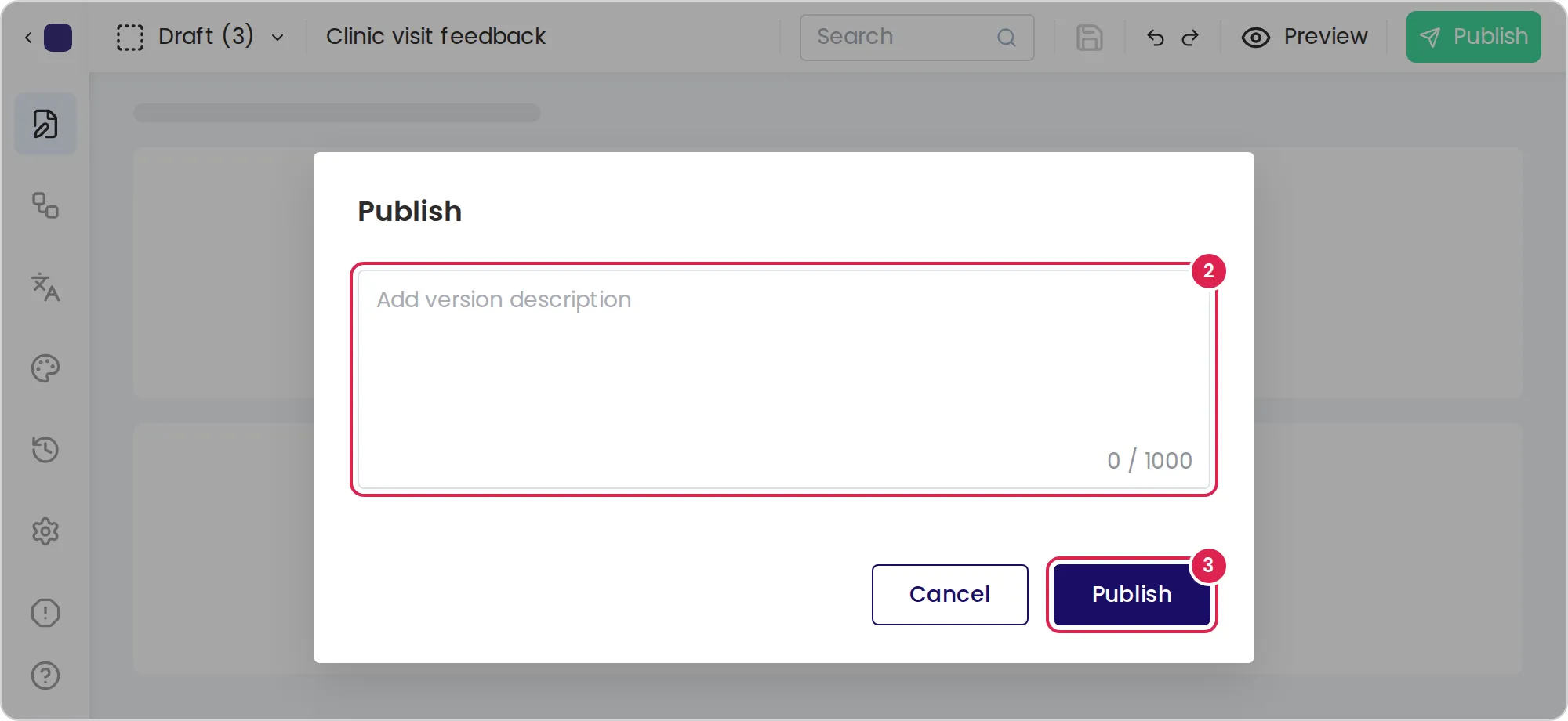
Select Publish in the header. The builder checks the questionnaire first. If it finds errors, it opens the issues panel instead. Fix each issue, then select Publish again.
-
Optionally, describe your changes in Add version description. The text becomes the version’s release notes.
-
Select Publish.
Result
Section titled “Result”The builder shows a message such as Version 2 published successfully! After a moment, Pristo CX opens the questionnaire’s Share tab, where you can share the questionnaire. The builder also starts a new draft from the published version, so you can go on editing.
What respondents get after a new version
Section titled “What respondents get after a new version”- New respondents open the latest published version.
- A response stays on the version it was started on, even if the respondent opened the link before you published and answered after.
- An export of responses gives each questionnaire version its own file, with that version’s questions. When there is more than one file, they come in one ZIP file.
Versions
Section titled “Versions”- The version menu at the start of the header lists the draft, marked draft, and every published version. Select one to open it. The menu is hidden on most tablets and on phones.
- Versions in the side menu lists the published versions. Select one to see Published on and Release notes, then select Load version to open it.
- A published version is read-only. Select Edit in the header to make a draft from it. For an older version, the builder first warns Current draft will be overridden.
What the issues check blocks
Section titled “What the issues check blocks”The issues panel lists problems, and refresh checks again. Errors block publishing, and a red dot on the issues button shows there is at least one. Warnings do not block publishing.
| Kind | Examples |
|---|---|
| Errors | The end page redirect URL is not valid. Two questions have the same data field ID. A dropdown has no choices. A translation exists for the questionnaire’s own language. A condition or exit point has empty values or uses a deleted question. A question depends on itself, on a question that comes after it, or on a question in a loop section. A counter’s increment is 0 or does not fit its range. A date’s default value is outside its range |
| Warnings | A section is empty. Questions have no title. A mask expression is empty. A dropdown repeats a key value. A date range is missing a value. A loop item has no title. A checkbox has no label. A question depends on another page in the Parallel flow |
Limits
Section titled “Limits”- Release notes hold up to 1,000 characters.
- Publishing needs a verified email address.
- After the first publish of a questionnaire, Pristo CX emails the user who published it, if that user has the Form published notification turned on in their profile.
Troubleshooting
Section titled “Troubleshooting”Publish is grey and shows a warning icon. The questionnaire has errors. Point to the button to see All issues must be fixed before publishing, then open issues and fix them.
The publish window asks me to verify my email. Open the verification email Pristo CX sent you and select its link, then publish again. If the email did not arrive, see Create a Pristo CX account.
The message says publishing failed. Pristo CX could not publish the version. Wait a moment and select Publish again.