

An alert rule in Pristo CX watches one questionnaire and raises an alert when a completed response meets its conditions, such as a score of 6 or lower. You create rules in Management > Alert configurations, and the alerts they raise appear under Alerts.
Before you start
Section titled “Before you start”- Role: account admin or program admin. Program users handle alerts but cannot create rules. See roles and permissions.
- Plan: alert rules are available on every plan.
- Setup: a questionnaire with the questions you want to watch. See Create a questionnaire.
-
Open Management and select Alert configurations.
-
Select New alert, choose the questionnaire under Questionnaire and select Continue.
-
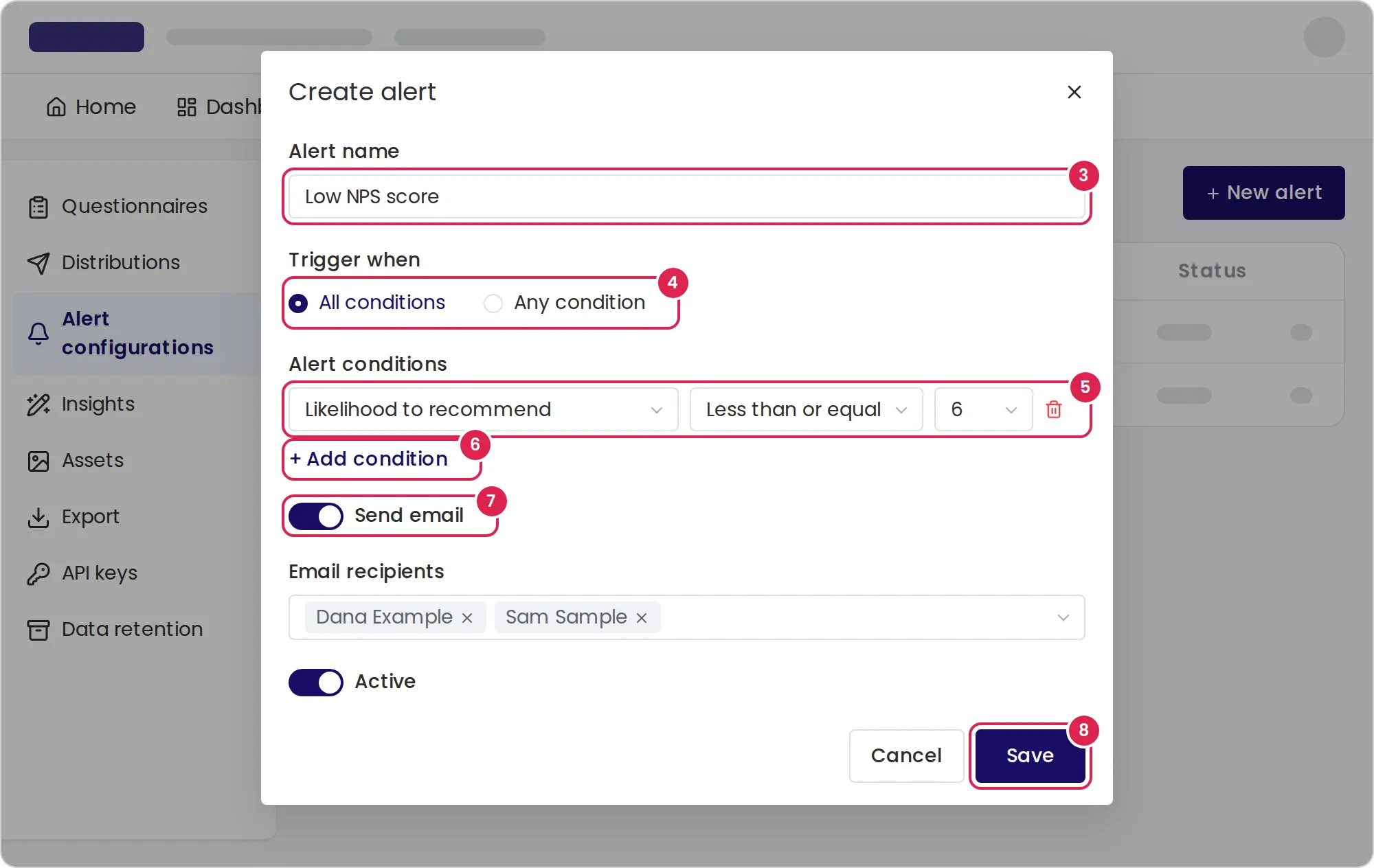
Enter an Alert name such as
Low NPS score. Your team sees it on every alert the rule raises. -
Under Trigger when, choose All conditions or Any condition.
-
Under Alert conditions, choose the question in Field, a comparison in Condition, such as Less than or equal, and the Value.
-
To test more answers, select Add condition and fill in the new row.
-
To email people when the rule fires, turn on Send email and choose them under Email recipients.
-
Keep Active turned on and select Save.
Result
Section titled “Result”The rule appears in the list with its questionnaire and a switch under Status. From then on, each completed response that meets the rule raises an alert under Alerts. To change a rule, select the pencil icon in its row. To pause it, turn off its switch.
What a condition compares
Section titled “What a condition compares”| Question | Value you choose |
|---|---|
| Choice and dropdown questions | One of the question’s options |
| Checkbox | Checked or Not checked |
| Smiley rating scale | 1 to 5. A scale with 3 faces uses 1, 3 and 5 |
| Numeric rating scale | 0 to 10 |
| Text questions and Counter | A value you type |
A number is compared as a number, so Less than or equal 6 matches 0 to 6. Any other value is compared with the whole answer as text, ignoring capital letters: equal and not equal compare the whole text, and the other comparisons compare in alphabetical order. A rule cannot find a word inside a longer text. Date, grid, file, location and signature questions are not offered.
For text questions, a Dimension list also offers analysis results such as Sentiment and Category. In this release those conditions never match, so use Answer.
The alert email
Section titled “The alert email”Each recipient gets one email per response, in their interface language, even when the response matches several rules. The email names the questionnaire and the response number and lists every rule that matched.
You can choose any active user who can open the program. Pristo CX emails them only while they can still open the program, have a verified email address and keep Alert triggered turned on under User settings > Notifications.
Limits
Section titled “Limits”- A rule watches one questionnaire, and you cannot move it to another. Create one rule for each questionnaire you want to watch.
- Alert name: up to 80 characters.
- Every condition needs a question and a value. You can add a condition only when the rows above it are complete.
- Pristo CX checks each response once, after the respondent reaches an exit point.
- A rule checks only responses completed while it is active. Creating a rule or turning it on does not check earlier responses.
- A rule fires at most once for each response.
- You cannot delete a rule. Turn off its switch to stop it.
Troubleshooting
Section titled “Troubleshooting”The dialog asks for a recipient. A rule with Send email turned on needs at least one recipient. Choose someone, or turn the email off.
The dialog says some recipients will be removed. Those users were deactivated or lost access to the program. Save to remove them, or ask an account admin to restore their access first.
Pristo CX says the questionnaire has no form. Build the questionnaire in the form builder first, then create the rule.
The rule never fires. Check that its switch is on, that the response reached an exit point after you saved the rule, that a text value matches the whole answer, and that no condition uses Sentiment or another analysis result.
A recipient gets no email. They may be inactive, lack access to the program, have an unverified email address or have turned off Alert triggered.