

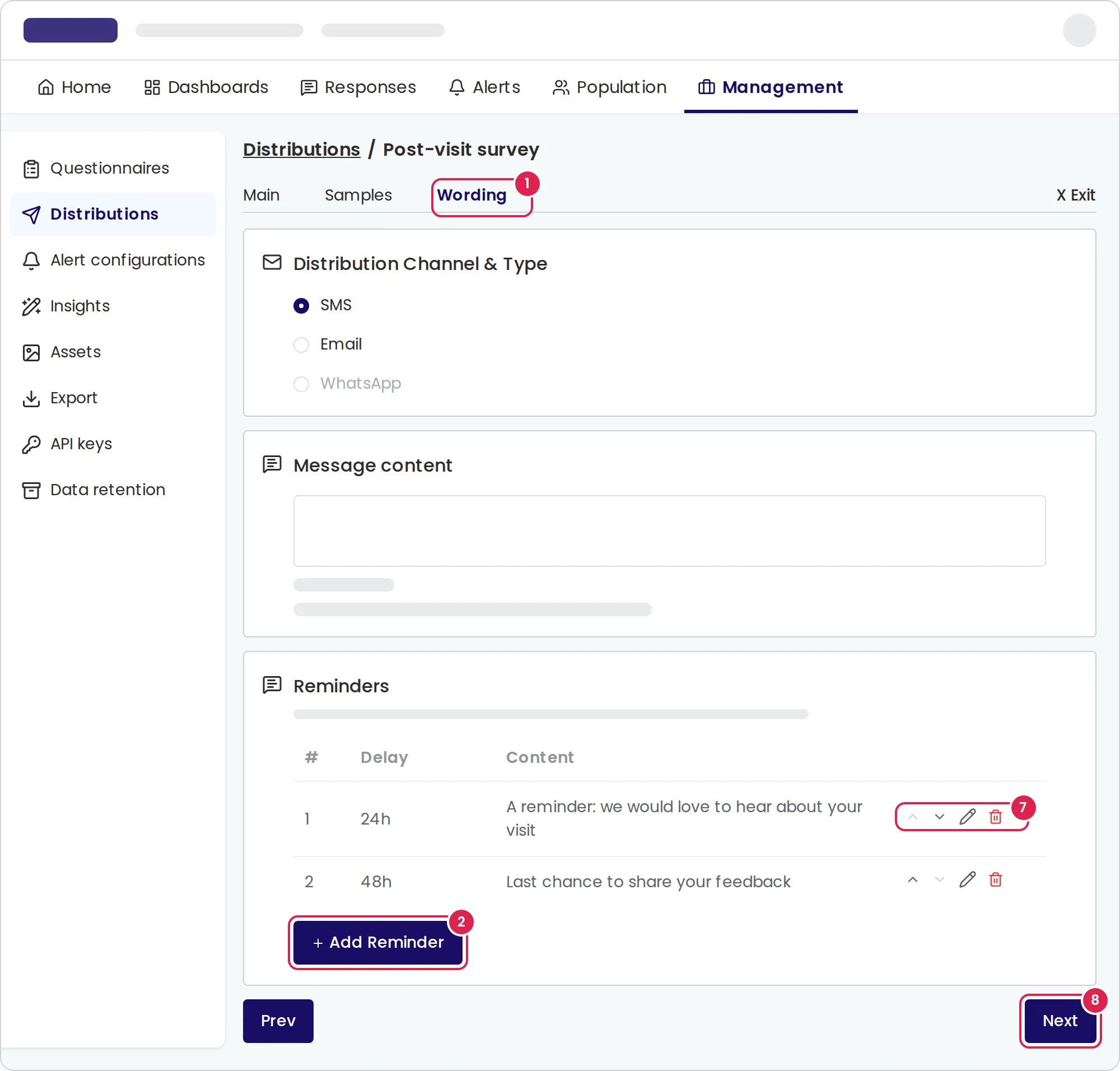
In Pristo CX, you add reminders to a distribution on the Wording tab of the distribution editor, under Reminders. Each reminder goes by the distribution’s channel to every contact who has not answered yet, a set number of hours after the previous message, with the same personal link.
Before you start
Section titled “Before you start”- Role: account admin or program admin. See roles and permissions.
- Plan: the Distributions page appears under Management on the Pro plan.
- Anonymity: any level except Fully Anonymous Questionnaire. At that level Pristo CX cannot tell who answered, so it offers no reminders. See anonymity levels.
- Link expiry: every reminder must go out before the link expires. Choose the expiry on the Samples tab under Distribution Rules first.
-
Open the distribution by its name in Management > Distributions, or start a new one as described in Create a distribution. Go to the Wording tab.
-
Under Reminders, select Add Reminder.
-
In Hours after previous send, enter the number of hours to wait after the previous message. For the first reminder, that is the main message.
-
For an email distribution, enter the Subject.
-
Write the Reminder content. Use Add variable to insert the contact’s name or an attribute, and check the Preview.
-
Select Save. The reminder appears in the list with its delay.
-
Add up to 3 reminders. In each row, use Move up and Move down to change the order, Edit to change a reminder, and Delete to remove it.
-
Select Next to save the distribution. A new distribution starts as Inactive, so activate it from the menu in its row.
Result
Section titled “Result”When a reminder’s delay has passed since the previous message was sent, Pristo CX checks whether the contact has submitted a response. If not, it sends the reminder with the same link, so the contact can still answer only once. A contact who answers, unsubscribes or is made inactive gets no more reminders. The contact’s page lists each reminder under Sends.
Reminders go out when they are due. They do not wait for the sending windows of an event-based distribution, and the distribution rules do not hold them back.
Limits
Section titled “Limits”- Up to 3 reminders per distribution.
- Delay: whole hours, at least 1, and 24 by default. Each delay counts from the previous message, so delays of 24 and 48 hours send reminders 1 day and 3 days after the main message.
- With a link expiry, all the delays together must end before the link expires. Without an expiry, one delay can be up to 8,760 hours (1 year).
- Reminder text has no bold, italic or underline, even in email. The button in an email reminder shows a standard label in the contact’s language, not the label of the main message.
- The reminder editor shows no character limit, but a distribution with a reminder over 1,000 characters cannot be saved. An SMS reminder is a separate SMS message, and Pristo CX sends only its first 800 characters.
- If you change the anonymity level to Fully Anonymous Questionnaire, the reminders are removed when you save.
- After a one-time delivery has sent, its reminders are read-only like its other settings. To stop the reminders that are still due, deactivate the distribution.
Troubleshooting
Section titled “Troubleshooting”I cannot select Add Reminder. The distribution already has 3 reminders, or the link expires too soon for another one. For the second case, choose a longer expiry under Distribution Rules.
A reminder is marked in red. Its delay would send it after the link expires, and the distribution cannot be saved until you fix it. Shorten the delay or choose a longer expiry.
The Wording tab offers no reminders. The distribution is fully anonymous. Choose another level under Anonymity Level on the Main tab.
A contact got no reminder. Check that the distribution is still active and that the main message reached the contact. Reminders follow only messages that were sent, and they stop once the contact answers or unsubscribes.