

Set up the end page and exit points
In Pristo CX, every questionnaire ends on one end page: a thank-you message, or a redirect to a website. You set it in the form builder by selecting the end page tab after the last page. Exit points end a questionnaire early when a condition is true, and record their name as the response’s status.
Before you start
Section titled “Before you start”- Role: you need to be an account admin or a program admin. See roles and permissions.
- Setup: open the questionnaire in the form builder, as described in the form builder overview. A published version is read-only, so select Edit first.
- Terms: see end page and exit point in the glossary.
-
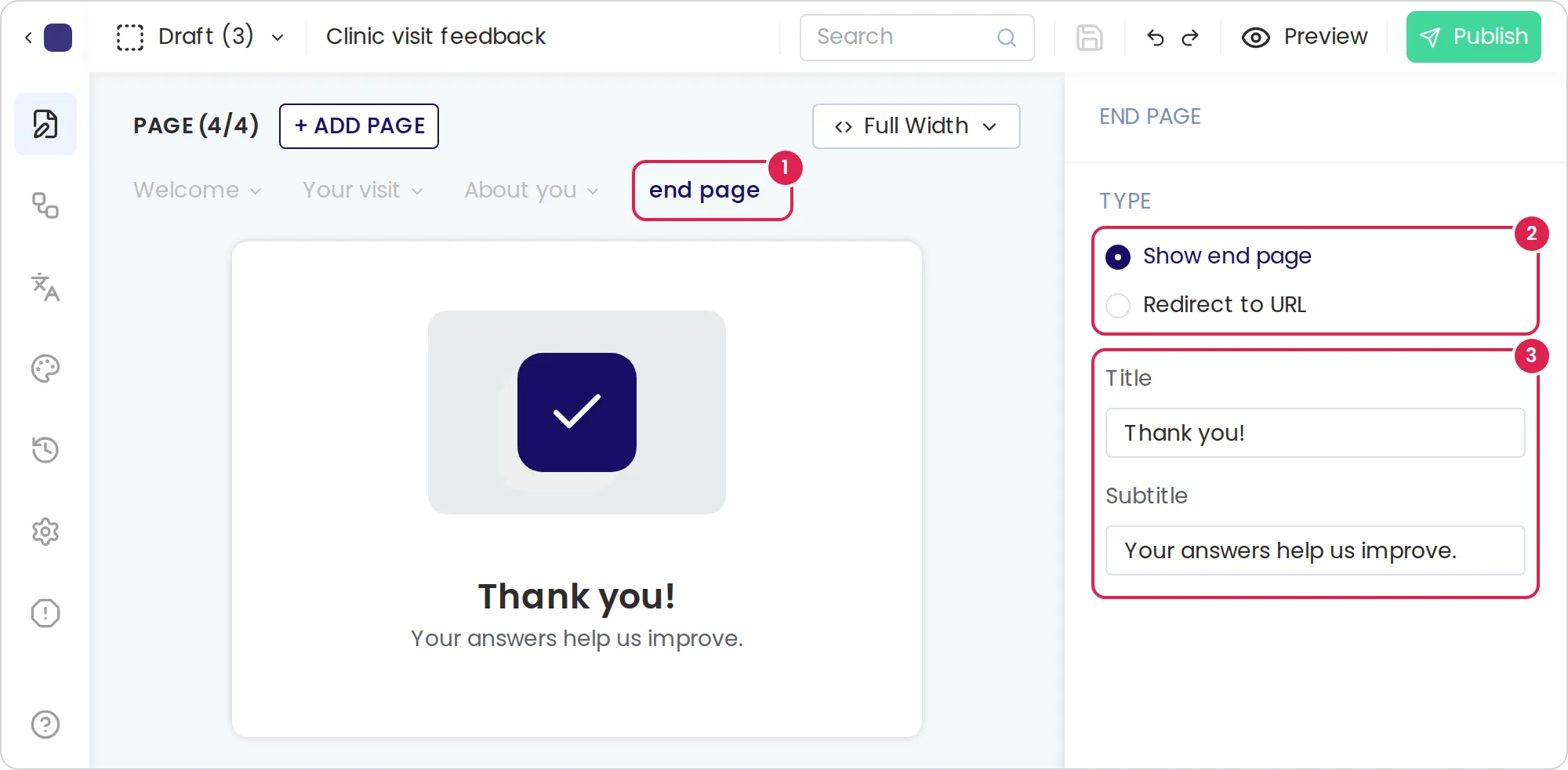
In the page bar, select end page. The editor shows the end page, and its settings open in the settings panel.
-
Under Type, choose Show end page or Redirect to URL.
-
For an end page, enter a Title and a Subtitle. You can also select the texts on the page and edit them there.
-
For a redirect, enter the URL of the page respondents go to, for example
https://www.example.com/thanks. -
Select Preview and finish the questionnaire to check the result.
Result
Section titled “Result”With Show end page, respondents who finish see your title and subtitle under a check mark. With Redirect to URL, they go straight to the URL; while the page loads they see Redirecting and a link to open it. A URL without http:// or https:// opens with https://. How respondents answer a questionnaire describes the end page as respondents see it, including in an embedded questionnaire.
How exit points work
Section titled “How exit points work”| Exit point | When respondents reach it | What it records |
|---|---|---|
| Default exit point | They select Finish and no other exit point’s condition is true | Its name as the response’s status |
| Other exit points | They select Next or Finish while the exit point’s condition is true. The questionnaire ends at once | Its name as the response’s status |
Every exit point leads to the same end page, and the response counts as complete. The status column of a responses export shows the exit point’s name.
An exit point has a Name, such as Not eligible, a condition in Exit on (Never by default) and a Color. You create the condition in Conditions; see End the questionnaire with a condition. You can set up exit points only in a questionnaire with the Progressed flow and two or more pages.
In this release, the side menu has no button for Exit points. The builder opens the panel when you select Go to beside an exit point in a condition’s Dependencies tab, or select the link of an exit point issue in the issues panel. Questionnaires that already have exit points, for example from a template, keep them, and respondents still leave through them.
Limits
Section titled “Limits”- One end page per questionnaire.
- End page title up to 100 characters, subtitle up to 250 characters and redirect URL up to 1,000 characters.
- Up to 10 exit points in a chapter, plus the default exit point.
Troubleshooting
Section titled “Troubleshooting”Publishing is blocked by an end page issue. The redirect URL is not a valid web address. Enter a full address, such as https://www.example.com.
An exit point never ends the questionnaire. Check its Exit on condition. Exit points are checked only when a respondent selects Next or Finish, after the answers on the page are valid.
The exit points panel says the setting is not available. The questionnaire uses the Parallel flow or has one page. Change the flow in Settings and add a page.