

Send email from your own domain
Pristo CX sends email distributions only from your organization’s own domain. An account admin adds the domain in Account settings > Distribution channels > Email, publishes the DNS records that Pristo CX shows, and then sets the sending address.
Before you start
Section titled “Before you start”- Role: account admin. See roles and permissions.
- Plan: the setting is on every plan. Email distributions are sent from the Distributions page, which appears on the Pro plan.
- Setup: a domain your organization owns, and someone who can change its DNS records. Pristo CX recommends a subdomain used only for questionnaires, such as
surveys.example.com.
Add and verify the domain
Section titled “Add and verify the domain”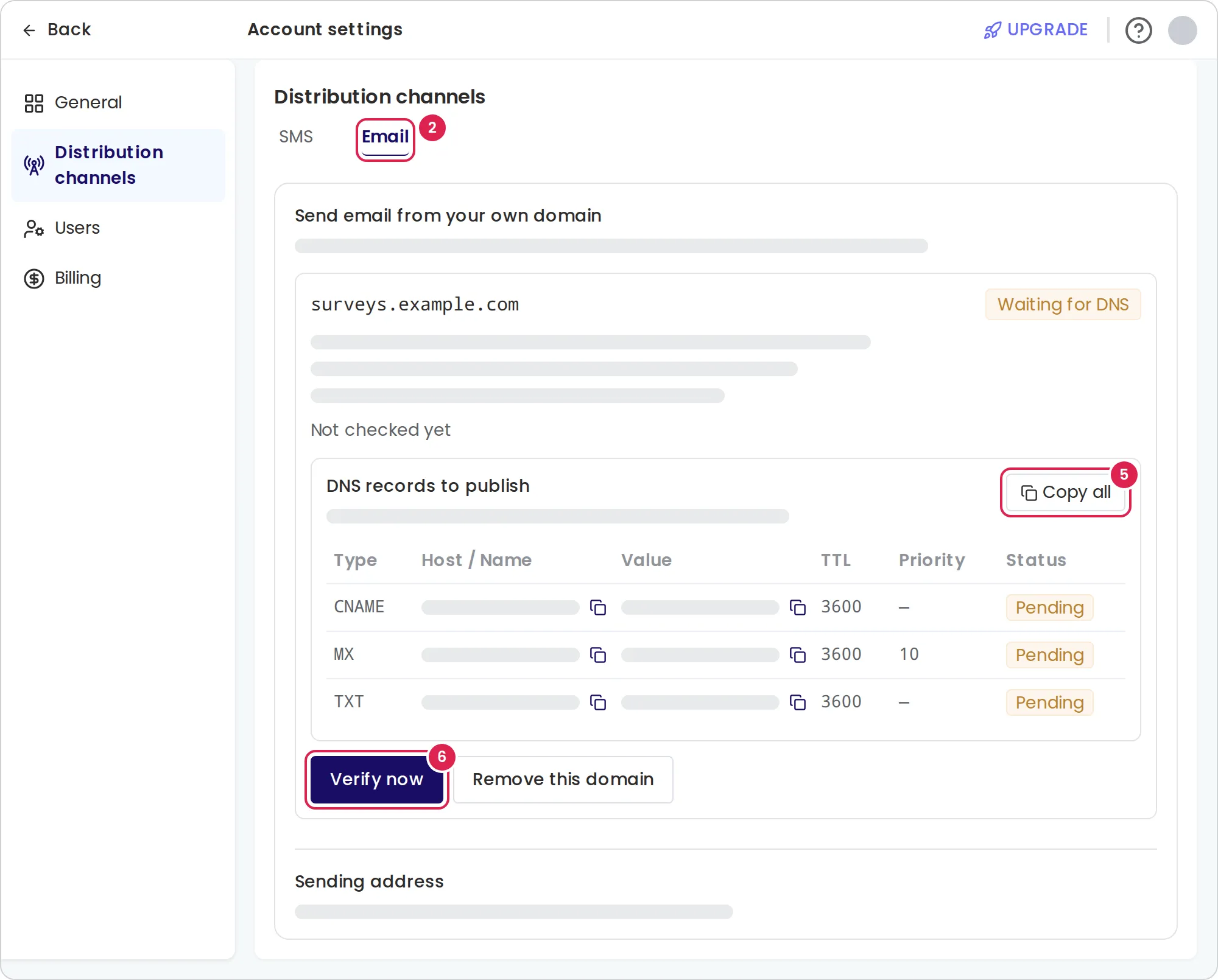
-
Select your profile picture, then Account settings.
-
Select Distribution channels, then the Email tab.
-
Select Set a domain name.
-
Enter the domain under Domain or subdomain and select Confirm.
-
Under DNS records to publish, publish every record in your domain’s DNS. Copy the type, the host, the value and, where shown, the priority exactly. Copy all copies the whole set, so you can send it to whoever manages your DNS.
-
Wait for the status to change to Verified. After you publish the records, you can select Verify now to check at once.
The records are a DKIM record, SPF records and a DMARC record at _dmarc followed by your domain. If your organization’s main domain already has a DMARC record, it also counts for a subdomain.
Set the sending address
Section titled “Set the sending address”The sending address can be set once the domain is verified.
-
Under Sending address, select Set a sending address.
-
Enter the Address, the part before the @, for example
feedback. -
Optionally, enter a Display name to show in the inbox, and a Reply-to address for replies.
-
Select Save.
Result
Section titled “Result”Pristo CX emails the admin who added the domain when it is verified. Once the sending address is saved, email distributions go out from it, for example feedback@surveys.example.com, and Email can be selected in the distribution editor.
Verification checks
Section titled “Verification checks”Pristo CX keeps checking the records after the domain is verified. Under the domain, the page shows when it was last checked and how many checks in a row have failed.
| Status | What it means | Can send |
|---|---|---|
| Setting up | Pristo CX is registering the domain. Reload the page in a moment to see the records | No |
| Waiting for DNS | Checked every 15 minutes for the first 2 hours, then every hour | No |
| Verified | Checked once a day | Yes |
| Records missing | A check failed after the domain was verified. Checked every hour | Yes |
| Not sending | The domain was not verified within 14 days of being added, or its records stayed missing after it was verified | No |
| Suspended | Pristo suspended the domain. The page shows the reason | No |
If verification later fails:
- The domain shows Records missing, and email keeps going out.
- On the third failed check in a row, Pristo CX emails the admin who added the domain. A failed check that recovers before that sends no email.
- When the records are still missing 24 hours after the first failed check, the domain shows Not sending and Pristo CX emails the admin again. Email distributions stop: they cannot be activated, and their messages are not sent.
- Nothing is lost. Publish the records again and select Verify now. The domain sends again as soon as a check passes.
Limits
Section titled “Limits”- One sending domain and one sending address per account. A domain can belong to only one Pristo account.
- Domain: letters, digits, hyphens and dots, up to 253 characters. Each part between the dots has up to 63 characters and starts and ends with a letter or a digit. Enter an international domain in its punycode form (
xn--…). - Free mail domains, such as
gmail.com,outlook.comandwalla.co.il, are refused, and so are registry suffixes such asco.il. - Address before the @: up to 64 characters. Use letters, digits,
.,_,-and+, with no dot at the start or end and no two dots in a row. - Display name: up to 100 characters. Reply-to address: up to 320 characters.
- Verify now: once a minute for each domain.
- To use another domain, select Remove this domain, then add the new one. Removing a domain also removes its sending address, and your DNS records stay as they are. A suspended domain cannot be removed, and no domain can be removed while messages from it are still being sent.
Troubleshooting
Section titled “Troubleshooting”The domain is refused because it is already registered. Another Pristo account uses it. If your organization owns it, contact Pristo support.
The status stays at Waiting for DNS. Compare each record in the table with your DNS, and check its status. A missing DMARC record also stops verification. DNS changes can take up to 48 hours to take effect.
The records table does not appear. Pristo CX has not received the records yet. Reload the page.
I cannot select email in a distribution. The account has no verified domain or no sending address. Finish both parts of this page.
An email says to open Settings and Senders. The emails about your domain use that name for this page. In the app, it is Account settings > Distribution channels > Email.
The domain shows Suspended. You cannot lift a suspension from the app. Contact Pristo support.