

Create a Pristo CX account
You create a Pristo CX account on the sign-up page at app.pristo.io/auth/sign-up, with your email address and a password or with your Google account. The new account starts on the Free plan, and you are its account admin.
Before you start
Section titled “Before you start”- Role: anyone can sign up. The person who signs up becomes the account admin and the owner of the new account. See roles and permissions.
- Plan: every new account starts on the Free plan. See Plans and limits.
- Setup: an email address you can open. If an account admin invited you to their organization, don’t sign up. Open the link in the invitation email instead, as described in Join an organization that invited you.
Sign up with your email address
Section titled “Sign up with your email address”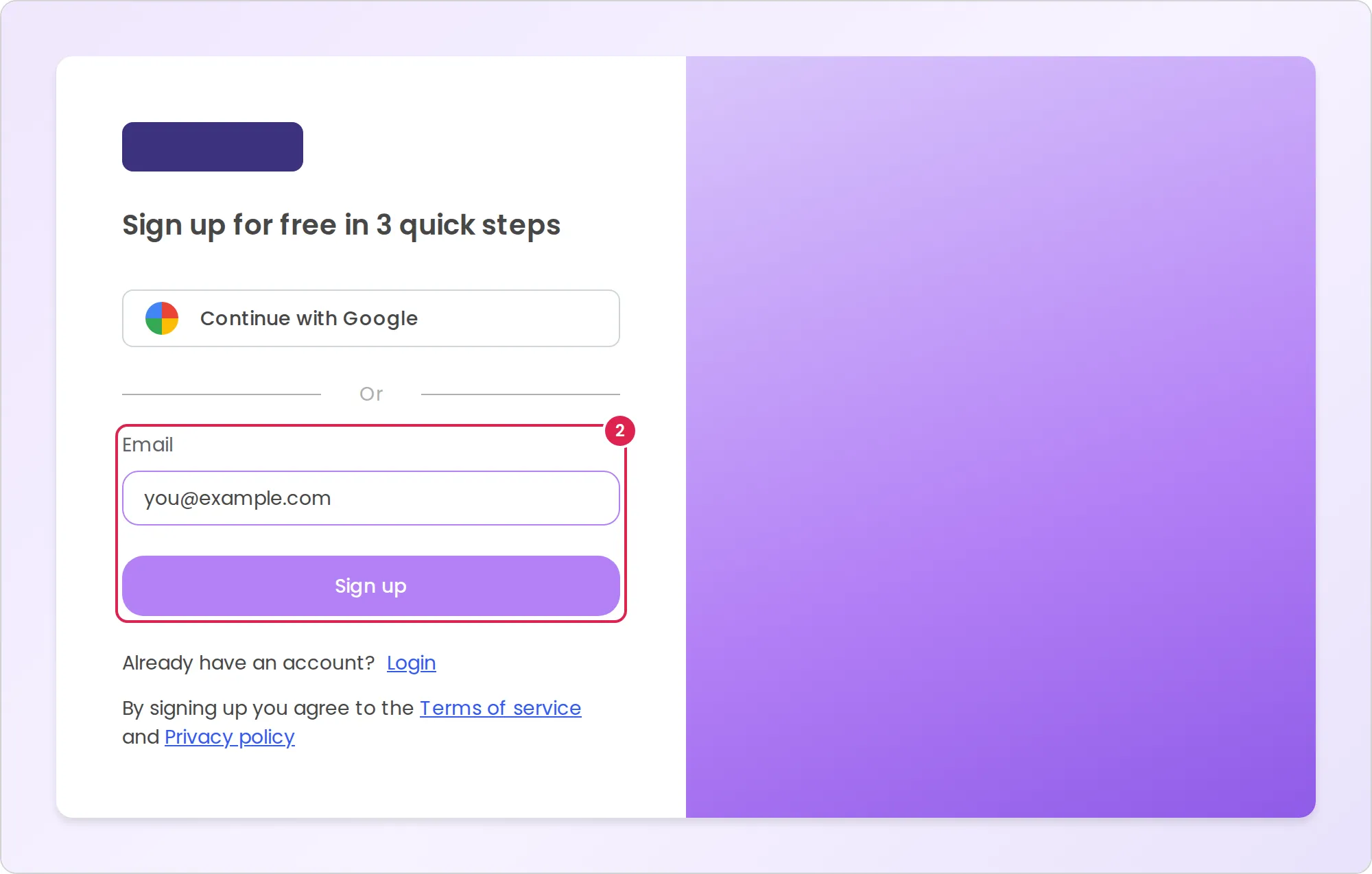
-
Open
https://app.pristo.io/auth/sign-up. From the login page, you can also select the Sign up link. -
Enter your Email and select Sign up. If a verification box appears, check it first.
-
Enter your first name, your last name and a password, then select Next. The rules for the password are listed under the fields.
-
Type a name for your first questionnaire, such as
Example Coffee feedback. -
Choose the language you want to use Pristo CX in: English, Spanish or Hebrew.
-
Select Finish.
-
Open the email that Pristo CX sends you and select its verification link.
Sign up with Google
Section titled “Sign up with Google”-
On the sign-up page, select Continue with Google. The Login with Google button on the login page works the same way for a new address.
-
Choose your Google account and allow access.
Pristo CX takes your name and email address from Google and treats the address as verified, so there is no verification email. Your first questionnaire is named My survey.
Join an organization that invited you
Section titled “Join an organization that invited you”Select the link in the invitation email instead of signing up. If you are new to Pristo, enter your name and a password, then select Join organization. You join with the role and programs the account admin chose, and no account of your own is created. See Invite users.
Result
Section titled “Result”Pristo CX signs you in and opens a welcome message while it prepares your first questionnaire. Select Continue, and the questionnaire opens so you can start it from a blank form or a template. To build it and send it, follow Create and send your first questionnaire.
The new account has:
- The Free plan, with one user seat, which is yours. You are the account admin and the account owner.
- One program with your first questionnaire. After an email sign-up, the program has the questionnaire’s name; after a Google sign-up, it is named
Default. To rename it, select the program name in the header, then the Rename button. - The part of your email address before the @ as the account name, and the time zone
Asia/Jerusalem. Change both under Account settings > General. Your first questionnaire uses your browser’s time zone.
Until you verify your email address, a banner at the top of the app reminds you, and you can’t publish a questionnaire, create another one, upgrade the plan or get exports by email.
Limits
Section titled “Limits”- The email address, each name and the questionnaire name can have up to 250 characters.
- A password needs 15 to 64 characters and at least 3 of these: an uppercase letter, a lowercase letter, a number and a special character.
- The verification link keeps working until you use it. Resend email sends it again.
- One email address can have one Pristo CX user. That user can belong to several organizations.
Troubleshooting
Section titled “Troubleshooting”Pristo CX says the email account already exists. The address already has a verified Pristo CX user, and the message appears when you select Finish. Log in instead, or select Forgot password? on the login page to set a new password.
The verification email did not arrive. Check your spam folder, then select Resend email in the banner at the top of the app. The banner disappears within a minute after you verify. On the account settings pages, reload the app to hide it.
I signed up on my own, but my organization invited me. Open the invitation link and log in with the same email address. You join the organization as well, and you can switch between organizations in the header.