

In Pristo CX, you view responses on the Responses page in the main menu. Choose a questionnaire, narrow the list with filters, and select a row to open that response in a side panel with its answers, files and details.
Before you start
Section titled “Before you start”- Role: everyone in the program can view responses. Only account admins and program admins can delete or restore them. See roles and permissions.
- Setup: the program needs a questionnaire that has collected responses.
Find and open a response
Section titled “Find and open a response”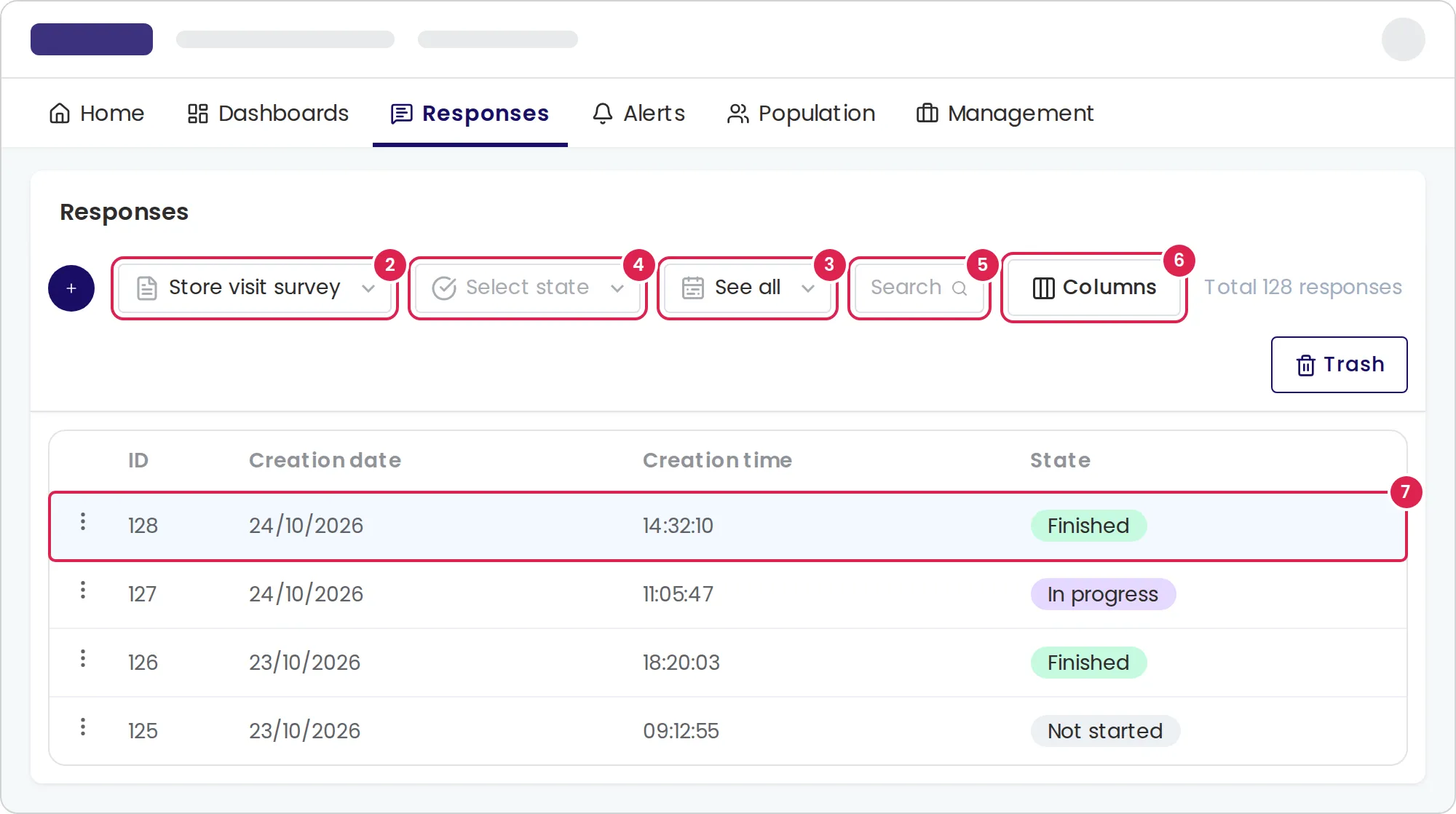
-
Select Responses in the main menu.
-
Choose the questionnaire in the questionnaire list of the filter bar.
-
Choose a period if you want fewer responses: Last 24 hours, Previous week, Previous month or See all.
-
Choose a state under Select state if you want only one state.
-
Enter a response ID in Search to find one response.
-
Select Columns and choose the columns to show.
-
Select a row. The response opens in a side panel.
-
Select a tab: Data for the answers, Files for uploaded files and images, or Details for dates and where the response came from.
Delete a response
Section titled “Delete a response”-
Select the three-dot menu at the start of the response’s row.
-
Select Delete.
-
Type delete in the box, then select Delete.
To restore it, select Trash, then select Restore next to the response.
Result
Section titled “Result”The table lists the questionnaire’s responses, newest first, with the total count above it. Select a column header to sort by ID, Creation date, Creation time or State.
When the program has a population, Columns also offers contact and activity columns, such as Contact, Email, Phone, Event type and your contact and activity attributes.
Each response has one of these states:
| State | Meaning |
|---|---|
| Not started | The respondent hasn’t started answering. |
| In progress | The respondent started but hasn’t reached an exit point. |
| Finished | The respondent reached an exit point. |
Limits
Section titled “Limits”- The table shows 50 responses per page and refreshes every 30 seconds.
- The period filter uses the date each response was created.
- Pristo CX remembers your column choice for each questionnaire.
- Deleted responses stay in the trash for 30 days, then Pristo CX deletes them permanently.
- Your plan sets how many responses a questionnaire can hold. At 90% of the limit, Pristo CX warns you. Responses above the limit show a lock and don’t open. See Plans and limits.
Troubleshooting
Section titled “Troubleshooting”I can’t delete or restore responses. Program users can view responses but don’t see Trash or the three-dot menu. Ask a program admin.
A response shows a lock and doesn’t open. The questionnaire has more responses than your plan allows. An account admin can upgrade the plan to open it.
The table is empty. When no response matches the filters, the table shows No results found. Choose See all, clear the state and empty the search box to see every response.
A new response is missing. The table refreshes every 30 seconds. Wait, or reload the page.