

In Pristo CX, you share a questionnaire from its Share tab under Management → Questionnaires. The tab gives you a public link, an embed code and a QR code, and lets you create additional links, each with its own description, language and link type.
Before you start
Section titled “Before you start”- Role: you need to be an account admin or a program admin. See roles and permissions.
- Setup: publish the questionnaire first. Until then, the tab shows Sharing options will appear here.
Share the public link, embed code or QR code
Section titled “Share the public link, embed code or QR code”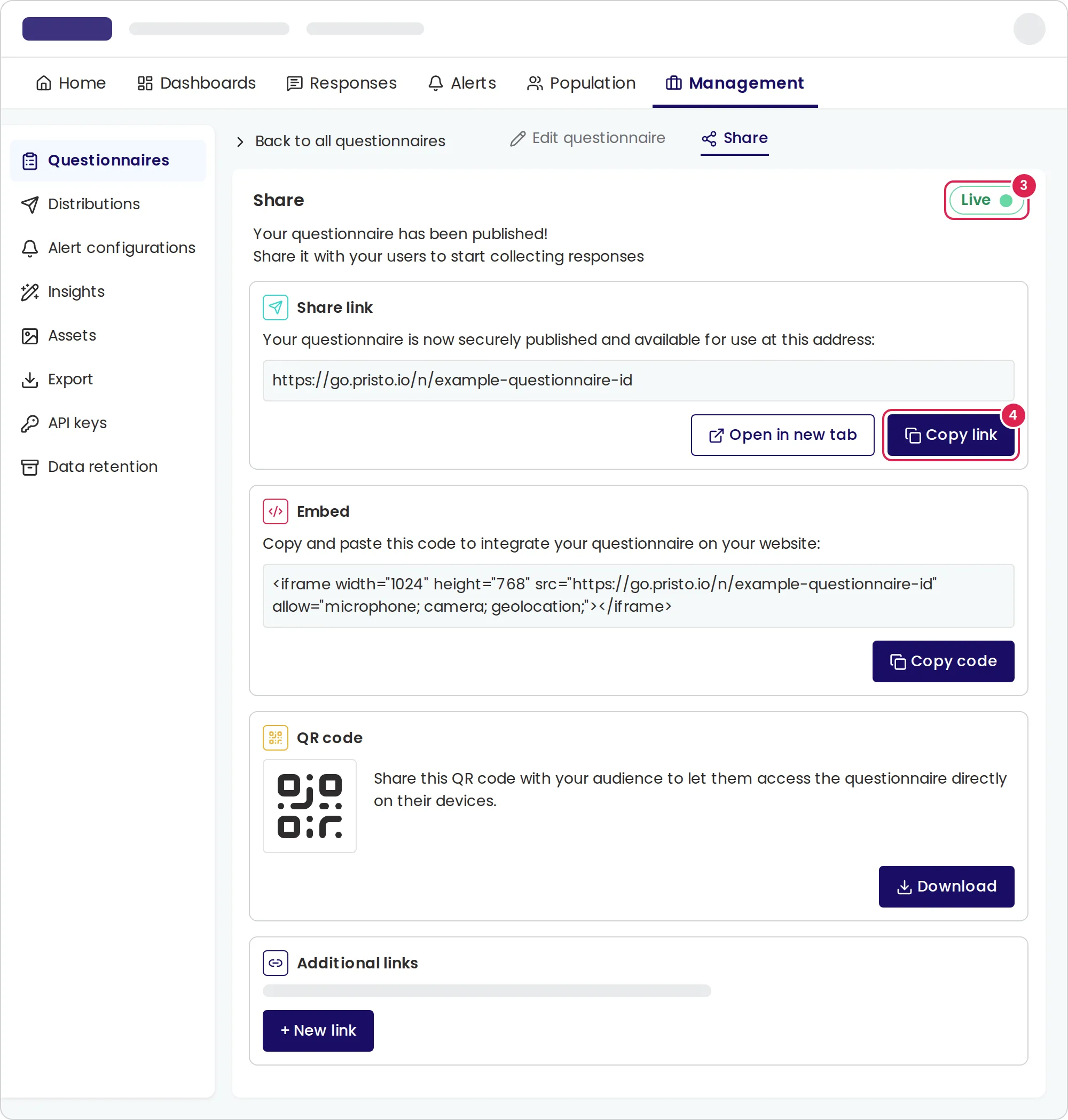
-
Open Management. The Questionnaires page opens.
-
On the questionnaire’s card, select the Share button.
-
Check that the status button at the top shows Live. If it shows Paused, select it to start sharing again.
-
Choose how to share:
- Under Share link, select Copy link and send the link.
- Under Embed, select Copy code and paste the code into your web page.
- Under QR code, select Download and print or post the image.
Create an additional link
Section titled “Create an additional link”Additional links let you track where responses come from, for example one link per store, and can be limited to a single response.
-
Under Additional links, select New link.
-
Enter a Description, such as
Example Coffee counter. -
Choose the Language.
-
Under Link type, choose Multi-use link or Single-use link.
-
Select Save.
-
In the link’s row, select Copy link, or select Download under QR code.
To rename a link or turn it off, select its description in the table, change the description or the Active switch, and select Save.
Result
Section titled “Result”Each time someone opens the public link, a new response starts. The link looks like https://go.pristo.io/n/ followed by the questionnaire ID.
Each additional link has its own address, https://go.pristo.io/l/ followed by the link ID. For each link, the table shows:
- Number of clicks: how many times the link was opened.
- Response: for a single-use link, opens the response it collected.
- Status: Active or Inactive.
The Developer API section shows the questionnaire ID that you use to generate survey links through the API.
Limits
Section titled “Limits”- The embed code is an
iframe1,024 pixels wide and 768 pixels high. The Embed section is not shown on phone-sized screens. - An embedded questionnaire does not open the end page’s web address by itself. It sends the address to your web page as a browser message,
{ action: 'redirect', url }, and respondents see a link to open it. - QR codes download as JPEG images.
- A link description can have up to 50 characters.
- You can’t change a link’s language or link type after you save it.
- Additional links don’t expire. To stop one, turn it off.
- A single-use link accepts one finished response. Until the respondent reaches an exit point, opening the link again continues the same response. After that, the link shows a thank-you page.
- The link’s language sets the language of the pages Pristo CX shows for that link, such as the thank-you page. The questionnaire itself opens in its primary language, and respondents can switch to a translation if it has one.
- The table of additional links shows the 50 newest links.
Troubleshooting
Section titled “Troubleshooting”The copy and download buttons are disabled. Sharing is paused. Select Paused to set it back to Live.
Respondents can’t open the questionnaire. Sharing is paused, the additional link is turned off, or the questionnaire reached your plan’s response limit. The public link and turned-off links then show a page saying the survey is no longer available. See When the questionnaire does not open.
A single-use link shows a thank-you page. Someone already finished that response. Create a new single-use link for the next respondent.