

You set up Insights in Pristo CX under Management > Insights, one program at a time. Create the program’s category taxonomy, choose the open-text fields to analyze and, if you want, analyze the responses you already have.
Before you start
Section titled “Before you start”- Role: account admin or program admin. See roles and permissions.
- Plan: Pro. On other plans the page shows Insights is a Pro feature. Account admins select Upgrade to Pro, then Upgrade now, to change the plan. Program admins are told to ask an account admin. See Change your plan and billing details.
- Setup: a questionnaire with at least one open-text question. See Question types.
Create the category taxonomy
Section titled “Create the category taxonomy”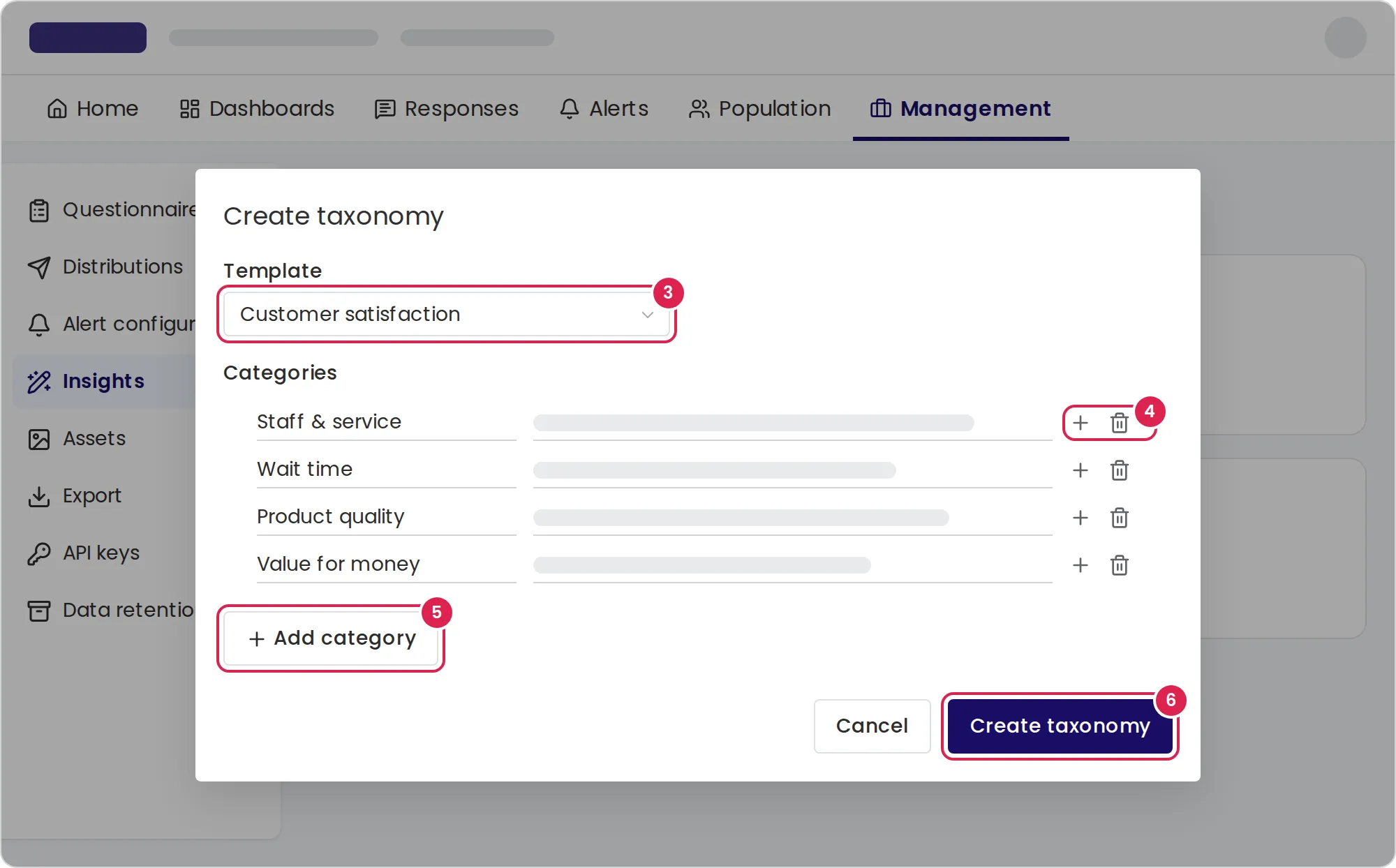
-
Open Management and select Insights.
-
Under Category taxonomy, select Create taxonomy.
-
Choose a starting point under Template, such as Customer satisfaction, or choose Empty.
-
Edit the categories. Change a name or a description, select the plus icon on a row to add a subcategory, or select the trash icon to remove a category.
-
Select Add category to add a top-level category.
-
Select Create taxonomy at the bottom of the dialog.
Choose the analyzed fields
Section titled “Choose the analyzed fields”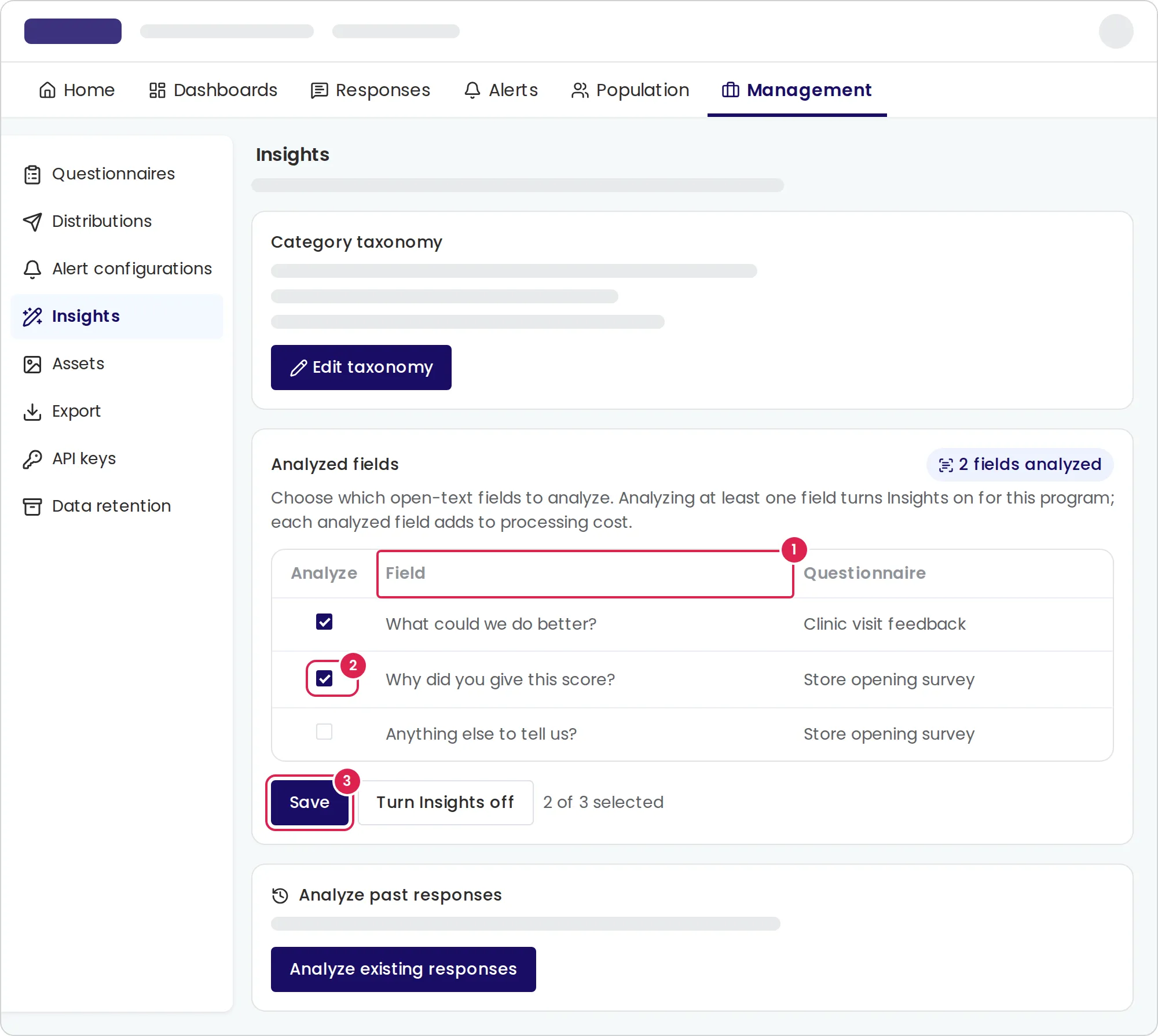
-
Under Analyzed fields, find the question in the Field column. The Questionnaire column shows where it is.
-
Select the box under Analyze for each question to analyze.
-
Select Save.
Analyze existing responses
Section titled “Analyze existing responses”-
Under Analyze past responses, select Analyze existing responses.
-
Select Analyze to confirm.
Result
Section titled “Result”Insights is on for the program once at least one field is selected, and the badge next to Analyzed fields shows how many fields are analyzed. New responses are analyzed automatically. After you analyze existing responses, a message says how many responses were queued, and the results appear as the analysis runs. The text analysis widgets become available when you add widgets to a dashboard.
Change the categories
Section titled “Change the categories”Select Edit taxonomy, change the categories and select Save changes. The new categories apply to answers analyzed from then on. Answers that were already analyzed keep their categories, and analyzing existing responses again skips them.
Turn Insights off
Section titled “Turn Insights off”Select Turn Insights off, then Turn off. This clears every analyzed field, so new answers are not analyzed. The taxonomy is kept, and you turn Insights on again by selecting fields.
Limits
Section titled “Limits”- Each program has one taxonomy and its own analyzed fields. Set up each program separately.
- The template is chosen only when you create the taxonomy. Afterwards you edit the categories directly.
- Category name: required, up to 200 characters, and unique in the taxonomy, ignoring capital letters. Description: optional, up to 1,000 characters.
- The fields list shows the text questions of the program’s questionnaires, including number, email and phone inputs. Choice questions and rating scales cannot be analyzed.
- Only responses that reached an exit point are analyzed. Empty answers are skipped.
- Analyzing existing responses covers every completed response in the program’s active questionnaires that is not deleted. Answers already analyzed are skipped, so you can run it again safely.
- Analysis runs only while the account is on the Pro plan.
Troubleshooting
Section titled “Troubleshooting”Analyzed fields asks you to create a taxonomy first. The fields list appears after you create the category taxonomy.
No fields are listed. The program’s questionnaires have no text questions. Add an open-text question in the form builder.
Changing the template asks to replace your categories. After you edit the categories, choosing another starting point replaces them. Select Cancel to keep your edits.
A dashboard shows the text analysis widgets as unavailable. No field is set up for analysis yet. The dialog links to Text analysis settings, which opens the Insights page in Management.
Older responses have no results. Select Analyze existing responses. Answers that came in before their field was selected are not analyzed otherwise.