

Create and send your first questionnaire
In this tutorial, you build a three-question customer feedback questionnaire in Pristo CX, publish it, open its public link as a respondent and see your answers on the Responses page. It takes about 15 minutes. Each part links to the page that explains it in full.
What you need
Section titled “What you need”- A Pristo CX account on any plan. If you don’t have one yet, create a Pristo CX account.
- The account admin or program admin role. See roles and permissions.
- A verified email address. Pristo CX doesn’t publish a questionnaire until you verify it.
- About 15 minutes.
1. Open a questionnaire
Section titled “1. Open a questionnaire”If you just signed up, Pristo CX has already created your first questionnaire. Select Continue in the welcome message and go on from step 4.
-
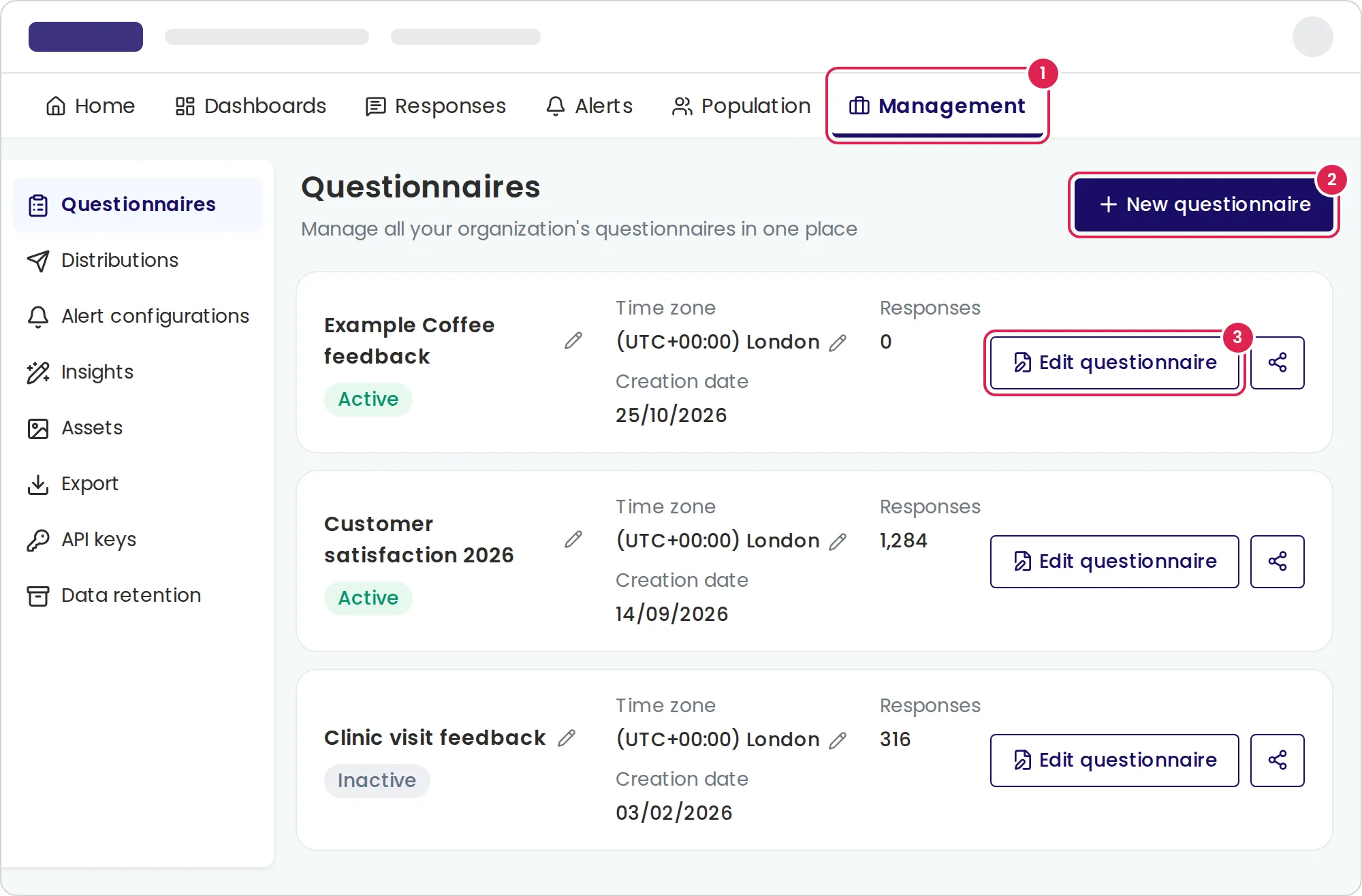
Open Management. The Questionnaires page opens.
-
Select New questionnaire, enter a Questionnaire name such as
Example Coffee feedback, and select Create. -
On the questionnaire’s card, select Edit questionnaire.
-
Select Blank, then select Continue.
The form builder opens with an empty page. To start from a ready-made questionnaire instead, see Create a questionnaire.
2. Add three questions
Section titled “2. Add three questions”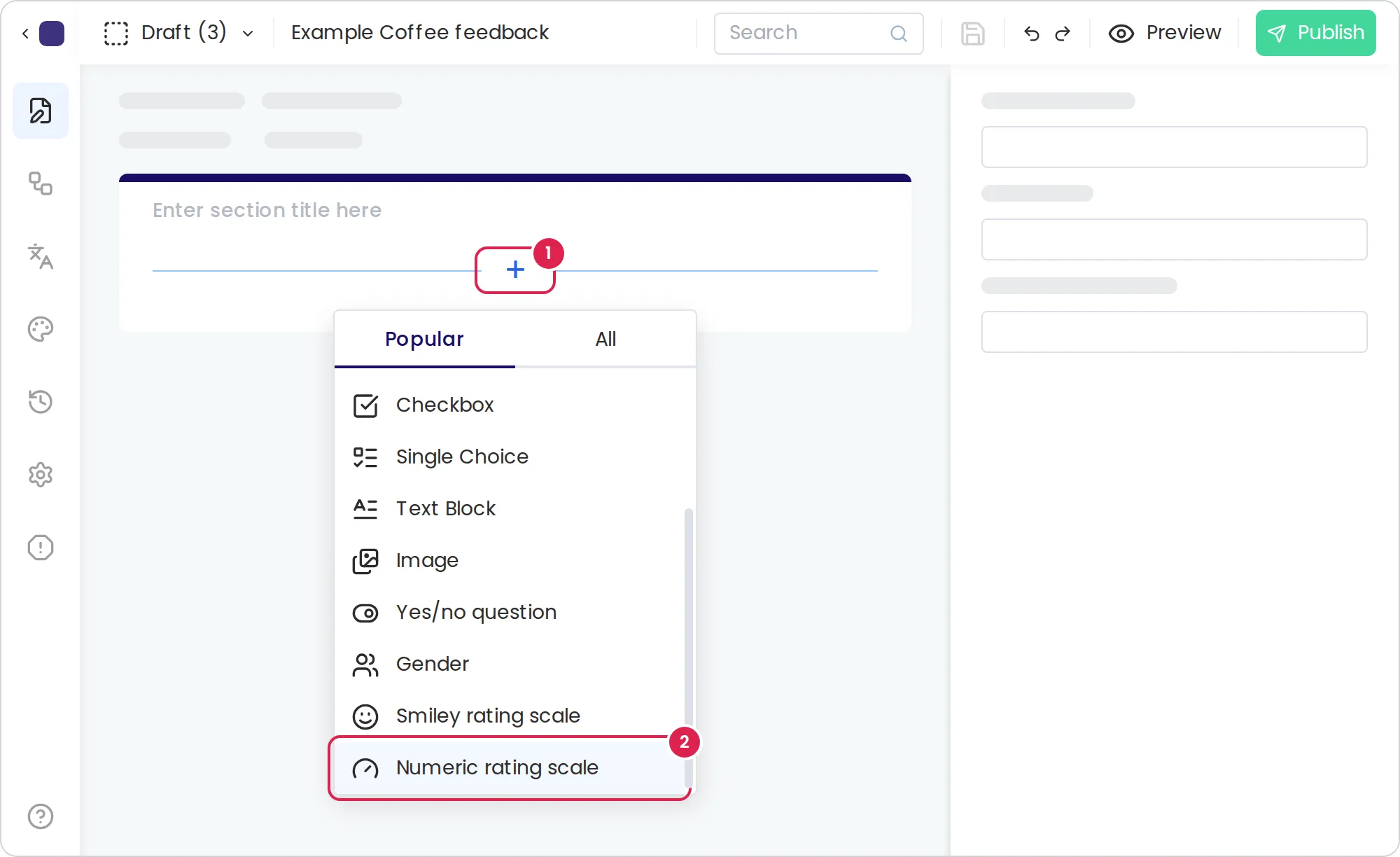
-
In the editor, select the plus sign in the empty section. The list of question types opens.
-
On the Popular tab, select Numeric rating scale.
-
Select the new question. In the settings panel, change its Title to
How likely are you to recommend Example Coffee to a friend? -
Point below the question and select the plus sign. Add a Text question with the title
What is the main reason for your score? -
Add a Single Choice question with the title
Which drink did you order?, and type its choices in the settings panel.
The questions appear on the page in the order you added them, and the builder saves your work on its own. The form builder overview explains the editor, and Question types lists every question you can add.
3. Preview the questionnaire
Section titled “3. Preview the questionnaire”-
Select Preview (the eye icon) in the header.
-
Answer the questions as a respondent would.
-
Select Close (X) to return to the builder.
Nothing you enter in the preview is saved. See Preview a questionnaire.
4. Publish it
Section titled “4. Publish it”-
Select Publish in the header.
-
Optionally, describe this version in the text box, then select Publish.
After a moment, Pristo CX opens the questionnaire’s Share tab. If the issues panel opens instead, fix the errors it lists and publish again. See Publish a questionnaire.
5. Copy the public link
Section titled “5. Copy the public link”-
On the Share tab, check that the status button shows Live.
-
Under Share link, select Copy link.
The link starts with https://go.pristo.io/n/. Anyone who opens it can answer, with no Pristo CX account. The same tab has a QR code and an embed code; see Share a questionnaire.
6. Answer it as a respondent
Section titled “6. Answer it as a respondent”-
Paste the link into a new browser tab, or send it to your phone and open it there.
-
Answer the three questions and select Finish.
The end page appears. This is a real response, so it counts toward your plan’s response limit.
7. See the response
Section titled “7. See the response”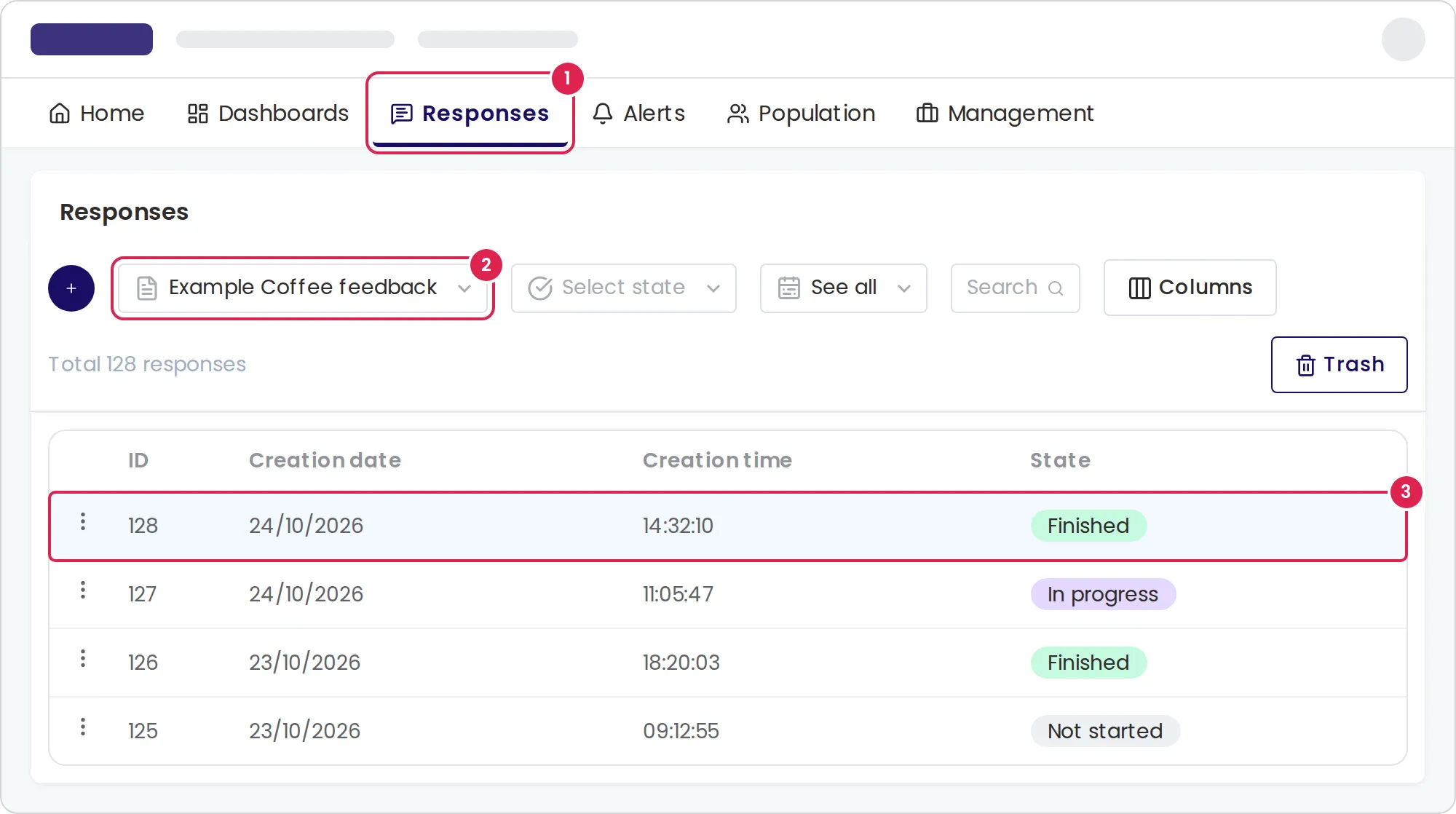
-
Select Responses in the main menu.
-
Choose your questionnaire in the questionnaire list of the filter bar.
-
Select the row of your response. Its answers open in a side panel.
The response shows the state Finished. The table refreshes every 30 seconds, so reload the page if the response is not there yet. See View responses.
What you built
Section titled “What you built”You have a published questionnaire with three questions, a public link that collects responses, and your first response. On a wide screen, the checklist on Home now ticks off these steps. To remove your test response, delete it from the Responses page. Each time you change the questionnaire, publish again so respondents get the new version.
Next steps
Section titled “Next steps”- Translate a questionnaire
- Show or hide questions with conditions
- Distributions overview, to send the questionnaire by SMS or email
- Export responses
- Dashboards overview