

Show or hide questions with conditions
In Pristo CX, a condition is a rule that shows a question, a section or a choice only when earlier answers match it. You create conditions in the Conditions panel of the form builder, then choose one in the settings of the element to show. Exit points use the same conditions to end a questionnaire early.
Before you start
Section titled “Before you start”- Role: you need to be an account admin or a program admin. See roles and permissions.
- Setup: open the questionnaire in the form builder, as described in the form builder overview, and add the question the rule depends on. A published version is read-only, so select Edit first.
-
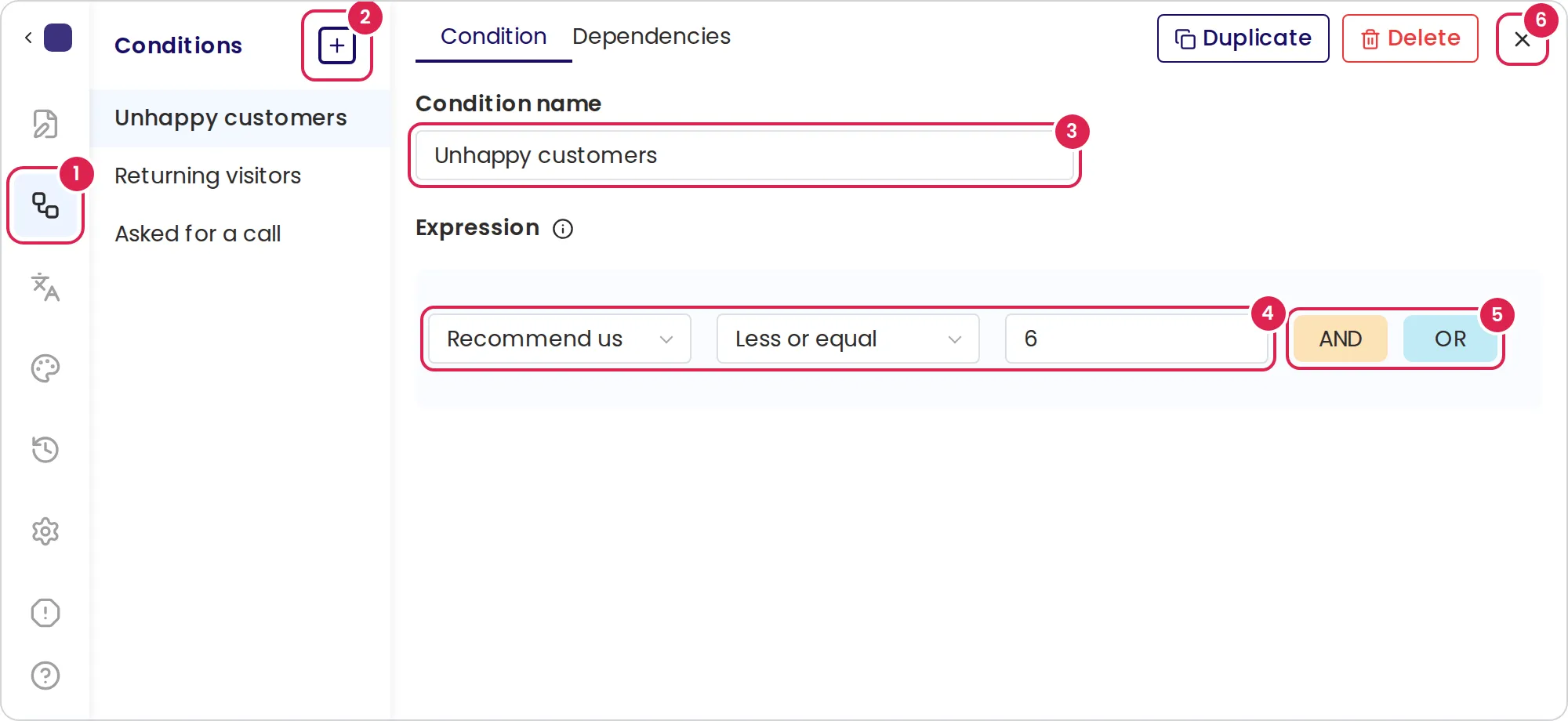
In the side menu, select Conditions.
-
Select the plus button (Add) at the top of the list. A new condition opens on the Condition tab, set to the first question of the questionnaire.
-
In Condition name, enter a name that says what the rule means, such as
Unhappy customers. -
Under Expression, choose the question, then the operator, then the value. For example, choose your NPS question, Less or equal and
6. -
To add a rule, select and or or at the end of a row. The new row is a copy of that row; change it as you need.
-
Close the panel to return to the editor.
-
Select the question or section to show. In the settings panel, under Show conditions, choose the condition instead of Always.
-
Select Preview and answer the questionnaire to check the result.
You can also select the eye button on the toolbar of a selected question or section and choose a condition, or Add new to create one. To show a single choice or grid row only when a condition is true, select the eye icon on its row in Edit choices or Edit grid.
Combine several rules
Section titled “Combine several rules”Rows joined by and must all be true, and rows joined by or need only one. All the rows of a group use the same operator, so selecting the other operator on a group’s last row starts a new group. Select the operator button beside a group to switch all its rows, or the one between two groups to change how the groups are joined. To delete a row, select the trash icon at its end.
Operators
Section titled “Operators”| Question | Operators |
|---|---|
| Text fields, such as Text or Email address | Equal, Not equal, Empty, Not empty |
| Number, date and time, scales and Counter | The four above, plus More or equal, Less or equal, Less and More |
| Choice lists, such as Single Choice or Dropdown | Equal, Not equal, Empty, Not empty, In, Not in |
| Checkbox | Checked, Not checked |
| Grids, attachments, Gps Picker and Signature | Empty, Not empty. For grids the list shows more operators, but they have no value box, so don’t use them |
In matches when the answer is one of the choices you pick, and Not in when it is none of them. Text is compared without regard to capital letters. A smiley scale counts its faces from 1, the lowest, to 5; with 3 faces they are 1, 3 and 5. Formatted text and images collect no answer, so a condition cannot use them. On a choice list where respondents can pick several choices, In and Not in look at only one of the picked choices, so test such a condition in the preview.
Result
Section titled “Result”Respondents see the element only while its condition is true, and it appears or disappears as soon as they change an answer. In the editor, an eye icon beside a question’s title shows that it has a condition; point to it to see the condition’s name.
- A hidden question counts as unanswered, so an element whose condition needs an answer to it is hidden too.
- An unanswered question matches only Empty, and an unanswered checkbox counts as not checked. A question on a later page is still unanswered when respondents first reach the element.
- Respondents don’t have to answer a hidden question, even when it is Required.
- An answer that is saved while its question is hidden is kept, but exports, dashboards, alerts and Insights leave it out. The response panel on the Responses page still shows it. An answer saved before its question was hidden, for example on an earlier visit to the page, is included everywhere.
- A page cannot have a condition. If every section on a page is hidden, respondents see an empty page and select Next.
End the questionnaire with a condition
Section titled “End the questionnaire with a condition”An exit point ends the questionnaire when its condition is true and records its name as the response’s status. Choose the condition in the exit point’s Exit on setting, as described in Set up the end page and exit points.
The Dependencies tab of a condition lists every question, section, choice and exit point that uses it. Select Go to to open one. When you delete a condition that is in use, the dialog lists those elements, and they go back to Always, or to Never for an exit point.
Limits
Section titled “Limits”- Up to 100 conditions in a chapter. A questionnaire has one chapter.
- Condition names hold up to 100 characters. A name that is already taken gets a number, such as
Unhappy customers (2). - On the same page, the condition’s question must come before the question that uses it. The form builder does not check this order for sections.
- A question or section cannot use a condition on itself or on a question inside it.
- A question or section outside a loop section cannot use a condition on a question inside one. See Repeat questions with loop sections.
Troubleshooting
Section titled “Troubleshooting”Publishing is blocked by a condition issue. Open the issues panel and select the issue’s link. A row has no value, or the condition breaks one of the rules under Limits.
The issues panel warns about conditions in the parallel flow. In the Parallel flow, respondents open pages in any order, so a condition can use a question they haven’t answered yet. The warning doesn’t block publishing. In this release it shows for every element with a condition, even when the question is on the same page.
A condition on a choice list never matches. Check the key values of its choices in Edit choices. In this release, a key value with capital letters never matches; use lowercase letters or numbers.
A question never appears. The question its condition uses is unanswered or hidden when respondents reach it. Check the operator, and put that question earlier in the questionnaire.