

Send surveys after events
An Event-Based Questionnaire distribution in Pristo CX sends a questionnaire to a contact automatically after an activity of a chosen event type is recorded, such as a purchase. You set it up in Management > Distributions, and activities reach Pristo CX from an import or from the API.
Before you start
Section titled “Before you start”- Role: account admin or program admin. See roles and permissions.
- Plan: the Distributions page appears under Management on the Pro plan.
- Setup: the event types you want to react to, defined in the population under Events attributes. See Populations overview.
- A way to report activities: a file with Import activities in the population, or your systems calling the API. See Import activities and Send an event.
-
Start a new distribution and choose the questionnaire, as described in Create a distribution.
-
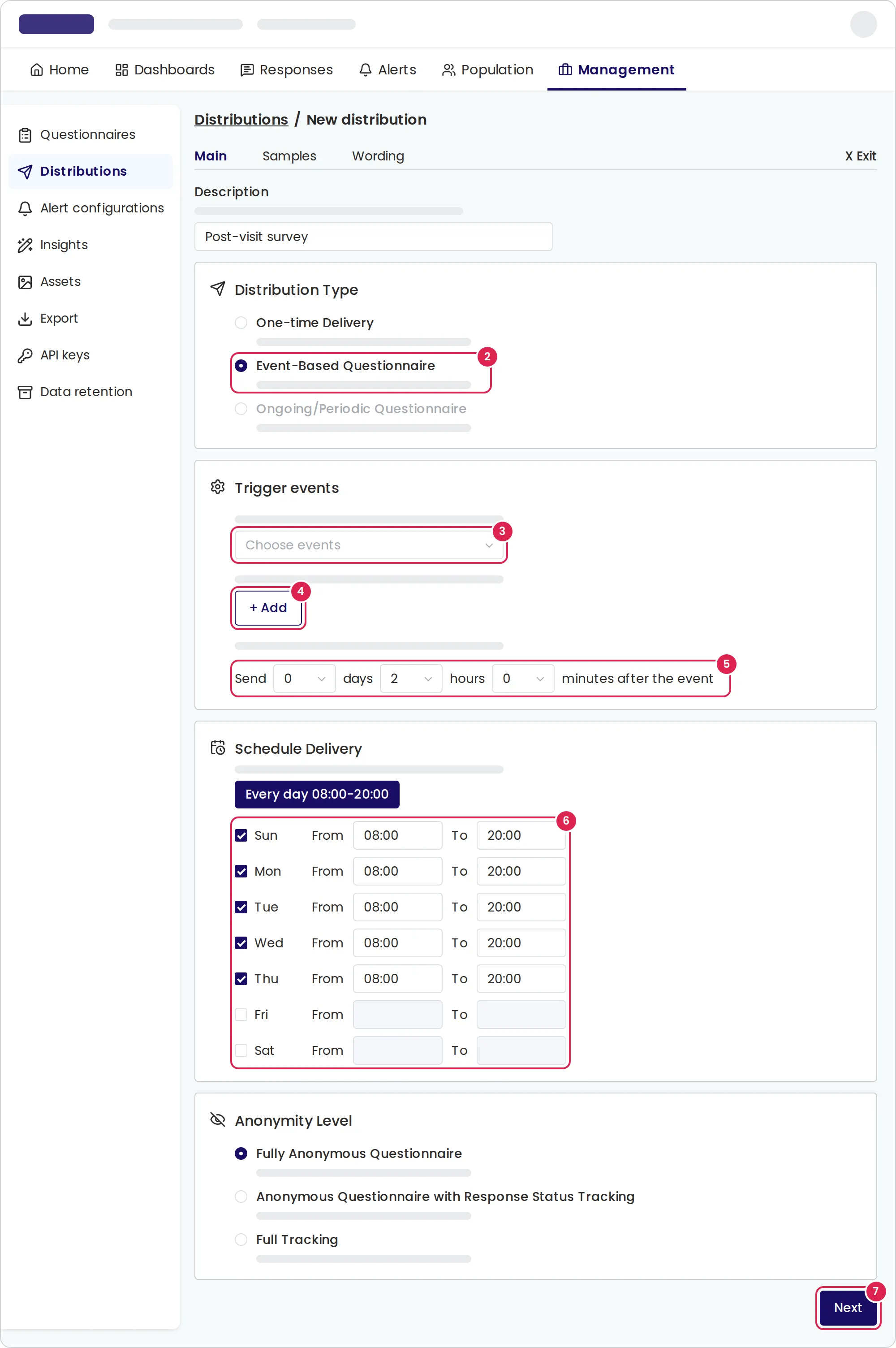
On the Main tab, enter a Description and select Event-Based Questionnaire.
-
Under Trigger events, open Choose events and select one or more event types.
-
Optionally filter by event attributes: select Add, choose an attribute, a comparison and a value, and select Save. Select And to add another condition.
-
On the line that starts with Send, set how long to wait after the activity in days, hours or minutes.
-
Under Schedule Delivery, select the days on which questionnaires may go out and set From and To for each, or select Every day 08:00-20:00.
-
Choose the Anonymity Level and select Next.
-
On the Samples tab, optionally limit the contacts by attribute and set the Distribution Rules, then select Next.
-
Write the message on the Wording tab, select Next to save, and activate the distribution from the menu in its row.
Result
Section titled “Result”The status shows Active. Each time an activity of a chosen type arrives for a contact who passes the filters and rules, Pristo CX schedules the questionnaire for that contact. The contact’s page lists the activity under Events and the message under Sends.
Pristo CX picks the send time like this: it adds the delay to the time it processes the activity. If that time falls inside a sending window, the questionnaire goes out then. Otherwise it goes out when the next window opens, within the next 7 days. Windows use the questionnaire’s time zone.
When an activity arrives for a contact who is not in the population yet, Pristo CX adds the contact from the activity’s contact details. For a contact who exists, it updates the details the activity carries.
Limits
Section titled “Limits”- Delay: 0 to 9 days, 0 to 23 hours or 0 to 59 minutes. Pristo CX applies only the largest unit you set, so 1 day and 2 hours waits 1 day.
- Sending windows: one window per day, in 15-minute steps. At least one day is required.
- Filters: up to 5 conditions on event attributes, and the activity must match all of them. An activity without the filtered attribute does not match.
- Send spacing: up to 180 days. With 0, sends to the same contact are still at least 10 minutes apart.
- The event type in an API call is the event type’s Unique Identifier, not its name.
Troubleshooting
Section titled “Troubleshooting”No questionnaire was sent after an activity. Check that the distribution is active and that the activity’s event type is selected under Trigger events. The contact must be subscribed and active, have a usable phone number or email for the channel, and pass the filters, the segment and the spacing rules.
The questionnaire went out later than the delay. The delayed time fell outside the sending windows, so it waited for the next window.
The event types list is empty. The population has no event types yet. Define them under Events attributes first.