

Filter and segment dashboard data
A Pristo CX dashboard filters data in two places and breaks it down in a third. The filter bar at the top of the dashboard filters every widget. A widget’s Filtering tab adds a permanent filter to that widget only, and its Segmentation tab breaks its data down by contact or event attributes, such as branch or customer tier.
Before you start
Section titled “Before you start”- Role: anyone who can open the dashboard can use the filter bar. Choosing the filters it offers and editing widgets needs an account admin or program admin. See roles and permissions.
- Plan: any plan.
- Setup: contact or event attributes in the program’s population. See Contact attributes and Import activities.
Use the filter bar
Section titled “Use the filter bar”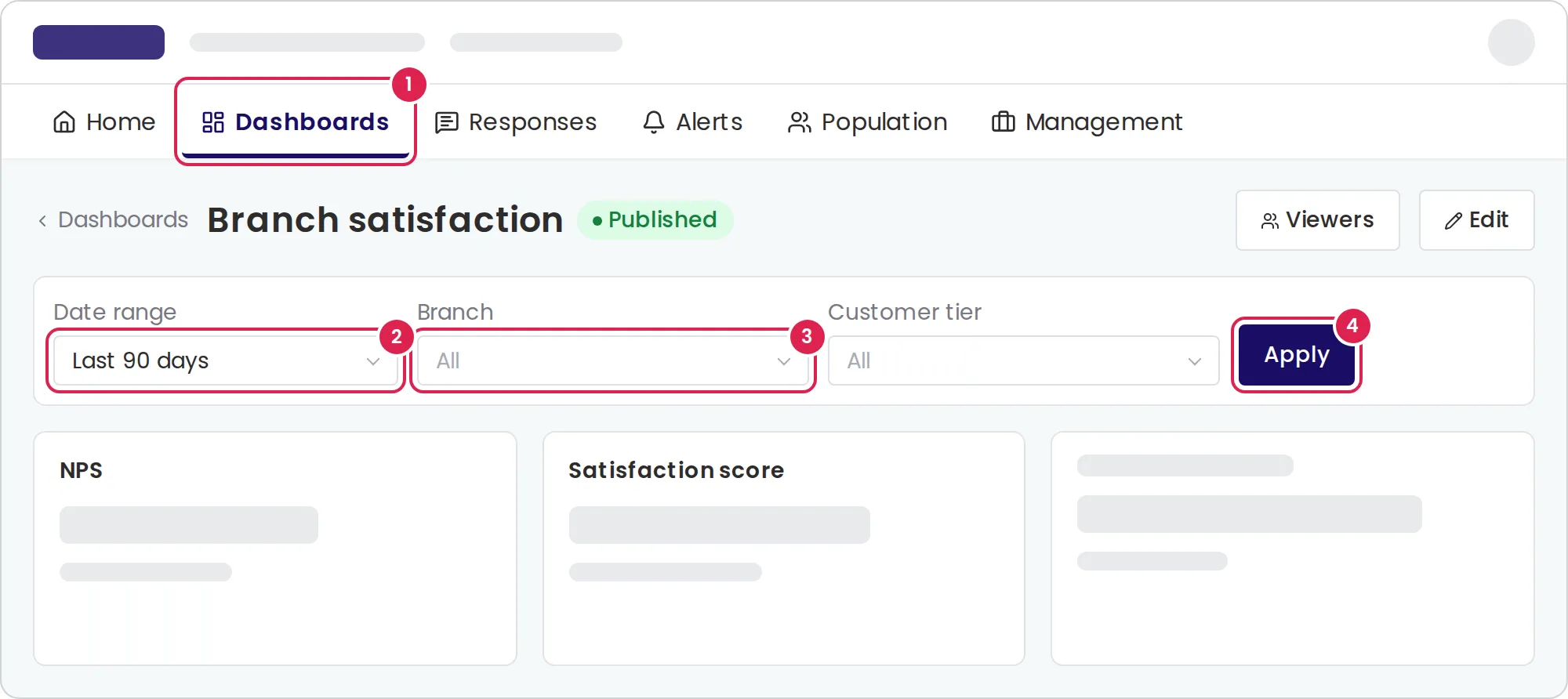
-
Open the dashboard from the Dashboards tab.
-
Choose a Date range.
-
For each attribute in the bar, choose or type a value. Leave All to include everyone.
-
Select Apply.
Every data widget reloads with the date range and the values you chose, together with its own permanent filter. Your choices are not saved: the next time anyone opens the dashboard, the bar starts on Last 90 days with no values.
| Date range | Covers |
|---|---|
| Today, Yesterday | That calendar day |
| Last 7 days, Last 30 days, Last 90 days | The last 7, 30 or 90 days, up to now |
| Current month, Previous month | A calendar month |
| Current year, Previous year | A calendar year |
The date range applies to when a response was submitted, when a questionnaire was sent or when an alert was created, depending on the widget.
| Attribute type | How you choose a value |
|---|---|
| Text | A list of the 50 most common values in the program’s responses. If there are more, you can also type a value |
| Yes or no | Yes or No |
| Number | Type a number |
| Date, time, date and time | Pick one in a calendar or time picker |
Each attribute in the bar matches one exact value.
Choose the filters in the bar
Section titled “Choose the filters in the bar”-
Open the dashboard and select Edit.
-
Select Edit filters.
-
Check the attributes to offer. Date range is always on.
-
Select Apply, then Save & publish.
Add a permanent filter to a widget
Section titled “Add a permanent filter to a widget”-
In the dashboard editor, select the pencil on the widget and open Filtering.
-
Choose AND or OR.
-
Select Add condition, then choose the Field, the Operator and the Value. Add more conditions the same way.
-
Select Apply, then save or publish the dashboard.
| Attribute type | Operators |
|---|---|
| Text | Equals, Not equal to |
| Yes or no | Equals |
| Number, date, time, date and time | Equals, Not equal to, Greater than, Less than, At least, At most |
With AND, a response must match every condition. OR works on one field with Equals, to match any of several values, such as a city that is Haifa or Jerusalem. A condition without a value is left out. Viewers do not see a widget’s permanent filter, so mention it in the widget’s subtitle.
Break a widget’s data down
Section titled “Break a widget’s data down”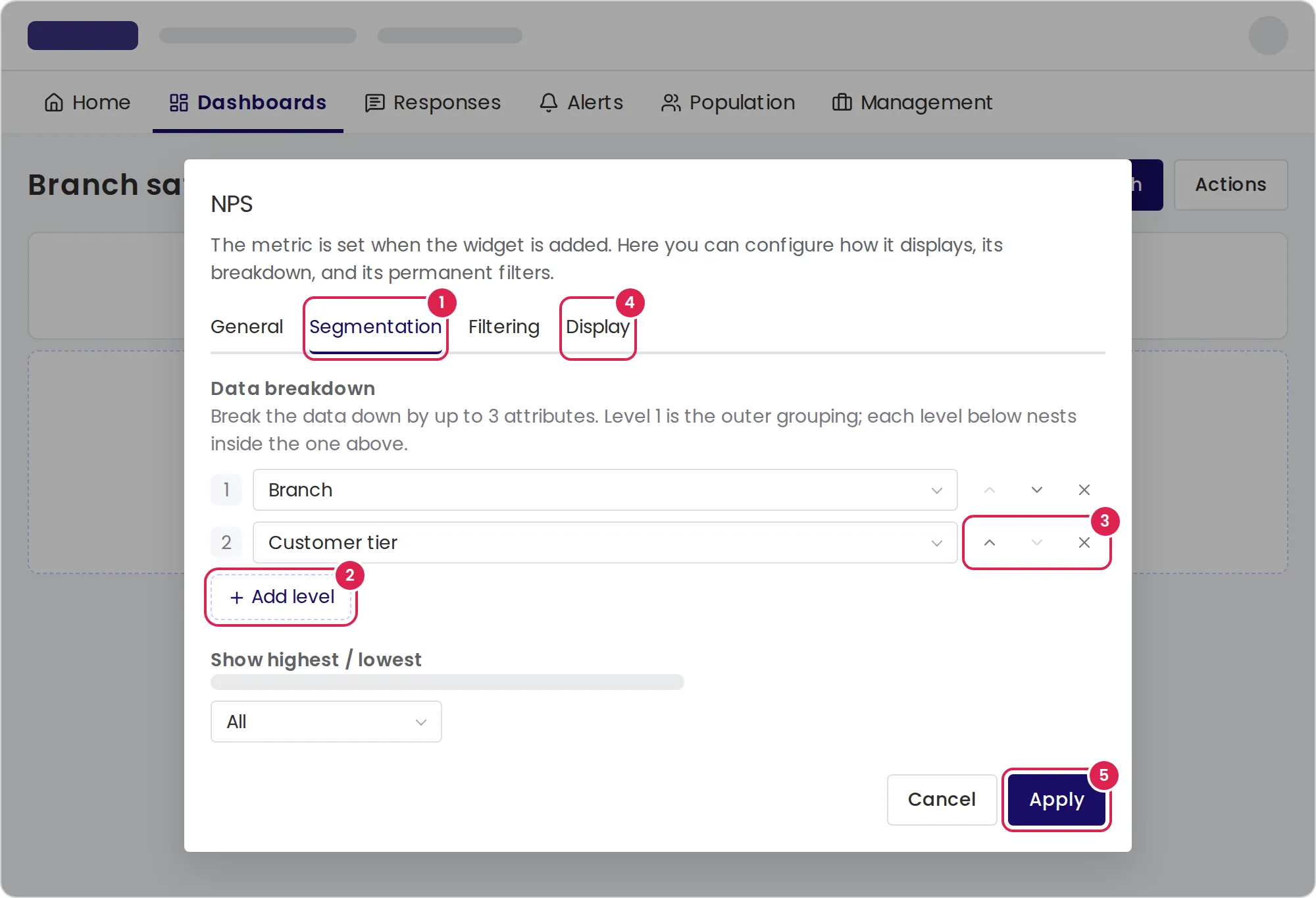
-
In the dashboard editor, select the pencil on the widget and open Segmentation.
-
Select Add level and choose the attribute for level 1.
-
Add up to two more levels. Each level nests inside the one above. Use Move up and Move down to reorder them, and Remove level to remove one.
-
On Display, choose how the breakdown shows. See Dashboard widgets.
-
Select Apply, then save or publish the dashboard.
Show only the highest or lowest values
Section titled “Show only the highest or lowest values”NPS and Satisfaction score widgets with a breakdown can rank the values of level 1, for example the five branches with the lowest NPS.
-
On Segmentation, under Show highest / lowest, choose Highest or Lowest instead of All.
-
Set how many values to show and the Minimum number of responses.
Values with fewer responses than the minimum, and responses with no value for the attribute, are left out of the ranking. The widget shows a caption with the direction, the number and the attribute.
Read a broken-down widget
Section titled “Read a broken-down widget”- Responses with no value for an attribute show as (Not set).
- Switch between chart and table with Show as chart and Show as table. The widget returns to its default when the page reloads.
- In a table, select a level’s button to hide or show that level.
- In a bar chart with several levels, select a bar to see the next level inside it. Select All to go back to the top.
- Point at a value to see how many responses it is based on.
Limits
Section titled “Limits”- Breakdowns use text, number or yes-or-no attributes, up to 3 levels, each a different attribute. Date and time attributes can filter but not break down.
- With one level, a widget shows the 50 values with the most data. With two or three levels, it shows 20 values at level 1 and 10 inside each value below.
- Minimum number of responses: 1 to 100,000, 5 by default. The number of values to show: 1 to 50, 5 by default.
- An Answer distribution widget shown Over time cannot be broken down.
- With a breakdown, a widget has no comparison with the previous period and no gauge.
- There is no dashboard-wide questionnaire or channel filter. Each widget has its own source questionnaires, and the count widgets have their own channels.
Troubleshooting
Section titled “Troubleshooting”The attribute lists are empty. The program’s population has no contact or event attributes, or none of a type that can break data down. Add attributes in the population.
A widget with three levels shows an error for a whole year. Shown Over time with three breakdown levels, a range longer than about 4 months, such as Current year, is too detailed. The widget then shows This widget's configuration is invalid. Remove a level or choose a shorter range.
The editor refuses my OR filter. OR accepts only Equals conditions on one field. Use AND for conditions on different fields.
A colleague sees different numbers on the same dashboard. Filter bar choices belong to each person and are not saved. Check that you both chose the same date range and values.