

In Pristo CX, you import contacts from an Excel (.xlsx) or CSV file in the Population tab, with Actions > Import contacts. Each contact needs an identifier, and the file needs an email or a phone column.
Before you start
Section titled “Before you start”- Role: account admin or program admin. Program users cannot import. See roles and permissions.
- Plan: any plan except Free. The population is not available on the Free plan.
- Setup: to keep extra columns such as city or customer tier, define them first as contact attributes. See Contact attributes.
- File: one contact per row, up to 10 MB. In an Excel file, put the contacts on the first worksheet.
-
Open the Population tab.
-
Select Actions > Import contacts.
-
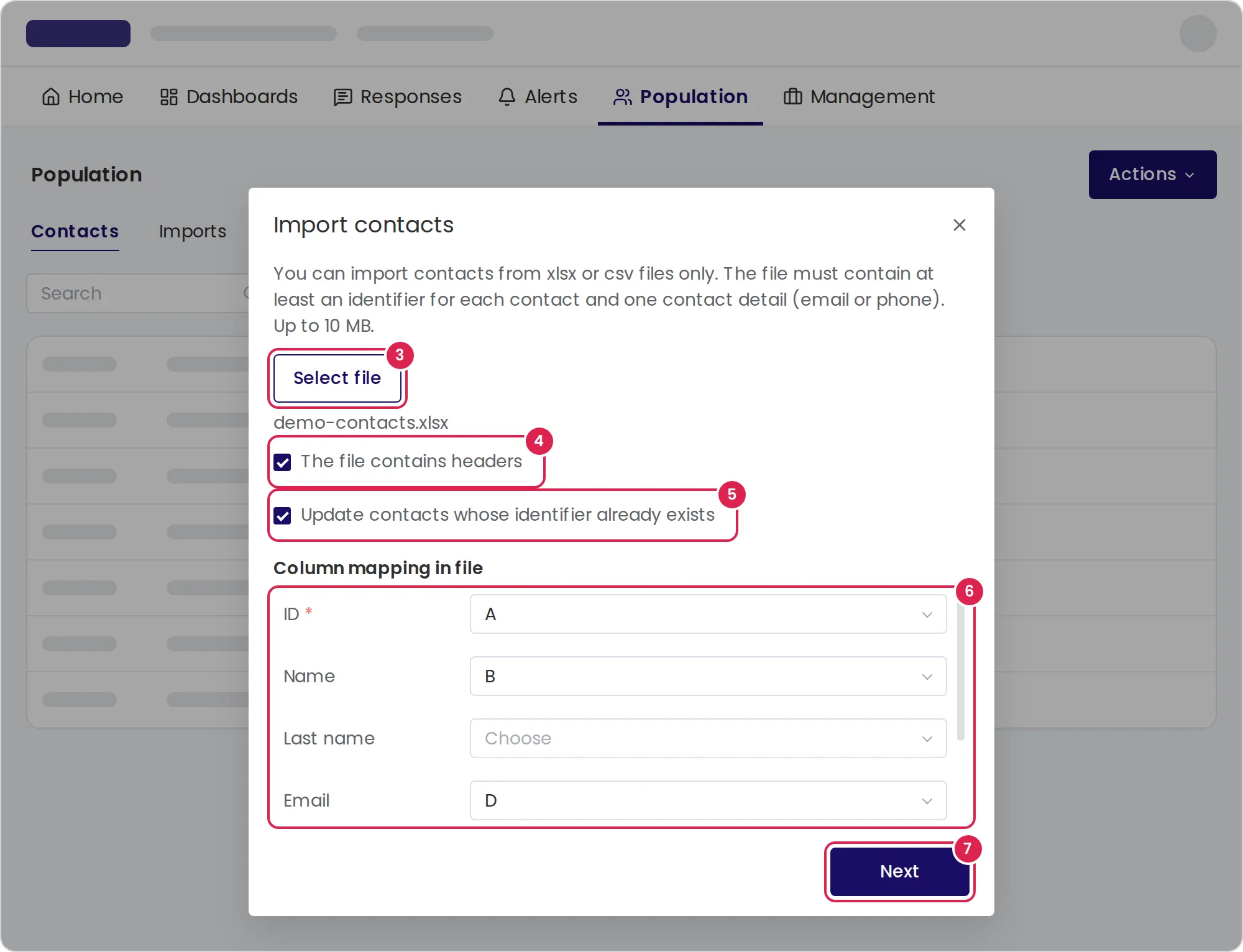
Select Select file and choose your file.
-
Keep The file contains headers selected if the first row holds column names. Clear it if the data starts on the first row.
-
Keep Update contacts whose identifier already exists selected to update contacts that are already in the population. Clear it to add only new contacts.
-
Under Column mapping in file, choose the column letter for each field: ID is required, and at least one of Email or Phone. Name, Last name, Language and your contact attributes are optional.
-
Select Next. Pristo CX checks the file without importing anything.
-
If the check passes, select Import. If it lists errors, select Back, fix the file or the mapping, and check again.
-
When Import finished successfully appears, select Close.
The dialog remembers your mapping, so the next import starts with the same columns.
Result
Section titled “Result”The new contacts appear in the Contacts tab. The Imports tab adds a row for the file with the number of rows, imported and updated contacts, errors and warnings. Expand the row to see each warning by row number.
To import activities (events) instead of contacts, use Import activities in the same menu, as described in Import activities.
Limits
Section titled “Limits”- File types:
.xlsxand.csvonly, up to 10 MB. Pristo CX reads only the first worksheet of an Excel file. - Columns: you can map columns A to BZ.
- Identifier: required, up to 50 characters, and unique in the file. A row with an existing identifier updates that contact, or is skipped when updating is off.
- When a contact is updated, the name, email, phone and attribute fields you did not map keep their existing values.
- Name and last name: up to 50 characters. Longer values are cut to 50 characters, with a warning.
- Email: an invalid address is left out, with a warning, and the rest of the contact is imported.
- Phone: Pristo CX sends SMS only to numbers it can read as Israeli mobile numbers (+972 5…). A number without a country code is read as an Israeli number. Other numbers are imported with a warning, and the contact page shows Invalid number.
- Language: a two-letter code such as
enorhe. If the language column is not mapped, or a value cannot be read, the contact gets the population’s default language. - A file with any errors cannot be imported. The check stops listing errors after about 100.
Troubleshooting
Section titled “Troubleshooting”The dialog says the file is invalid. The message Invalid file. Please select a valid xlsx or csv file up to 10MB means the file is not .xlsx or .csv, or it is larger than 10 MB. Save it in one of those formats or split it into smaller files.
The check shows Contacts that cannot be imported were found. Each line names a row and a field. The usual causes are an empty identifier, an identifier longer than 50 characters and the same identifier on two rows. Fix those rows and select Next again.
A column from my file was not imported. Pristo CX imports only mapped columns. Define the column as a contact attribute, then import the file again with Update contacts whose identifier already exists selected.
A contact does not receive SMS. Open the contact. If its phone shows Invalid number, correct the number in the file and import it again with updating on.