

In Pristo CX, you create a distribution in Management > Distributions. The editor has three tabs, Main, Samples and Wording, and you activate the distribution from the list when it is ready.
Before you start
Section titled “Before you start”- Role: account admin or program admin. See roles and permissions.
- Plan: the Distributions page appears under Management on the Pro plan.
- Setup: a questionnaire with a published form (see publish and versions) and contacts in the population (see Import contacts).
- For email: an account admin must first set up a verified sending domain under Distribution channels. See Send email from your own domain.
-
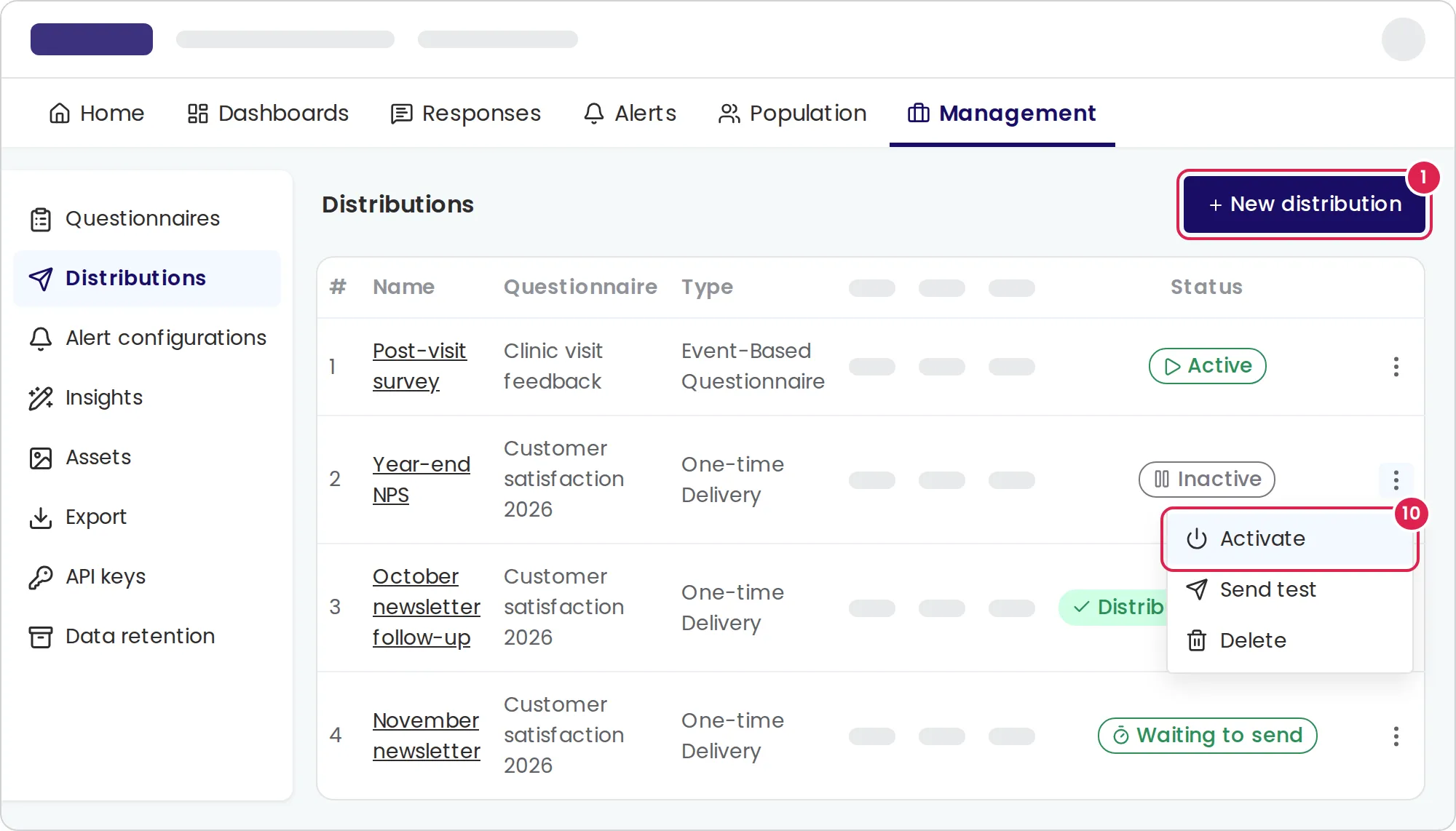
Open Management > Distributions and select New distribution.
-
Choose the questionnaire and select Continue.
-
On the Main tab, enter a Description, choose the Distribution Type and fill in the settings for that type: one-time delivery or event-based.
-
Choose the Anonymity Level and select Next. The levels are explained in the distributions overview.
-
On the Samples tab, under Sampling Segmentation, optionally add conditions on contact attributes, for example only contacts whose city is Haifa. Without conditions, every contact can receive the questionnaire.
-
Under Distribution Rules, choose when the link expires and how many days must pass between sends, then select Next.
-
On the Wording tab, choose SMS or Email under Distribution Channel & Type.
-
Write the Message content. Use Add variable to insert the contact’s name or an attribute. For email, also fill in the Subject and the Button label. Check the Preview.
-
Optionally add follow-up messages under Reminders, as described in Send survey reminders, then select Next to save. You return to the list, where the distribution is Inactive.
-
Open the menu at the end of the distribution’s row, select Activate and confirm.
To check the message on a real phone or inbox first, select Send test in the same menu and choose a contact. The test goes to a contact in the population, so add yourself as a contact first.
Result
Section titled “Result”The distribution’s status changes to Waiting to send for a one-time delivery or Active for an event-based one. The status meanings are in the distributions overview.
Limits
Section titled “Limits”- SMS message: up to 500 characters, before the link and unsubscribe text that Pristo CX adds. Every 200 characters are billed as an additional SMS message.
- Email subject: up to 200 characters. Button label: up to 60 characters.
- The email message editor shows no character limit, but a distribution with an email message over 1,000 characters cannot be saved. The limit also counts the formatting, such as bold text and links, not just the visible text.
- Segmentation: up to 5 conditions, and a contact must match all of them. See Choose who receives a distribution.
- Send spacing: 0, 1, 3, 7, 10, 14, 21, 30, 60, 90 or 180 days. With 0, an event-based distribution still keeps sends to the same contact at least 10 minutes apart.
- Link expiry: from 5 minutes to 1 year, or no expiry.
- Reminders: up to 3, each a whole number of hours after the previous message. Reminders go only to contacts who have not answered, and are not available with Fully Anonymous Questionnaire. See Send survey reminders.
Troubleshooting
Section titled “Troubleshooting”The distribution will not save because the email message is too long. Shorten the message and remove unnecessary formatting, then try saving again. The 1,000-character limit also counts the formatting, so the visible text can be under 1,000 characters and still exceed the limit.
The questionnaire is not in the list. Only questionnaires with a published form appear. Publish the form and try again.
I cannot select Email. Email needs a verified sending domain and a sending address for the account. An account admin sets them up under Distribution channels, as described in Send email from your own domain.
I cannot edit a distribution. A one-time delivery that has started sending is read-only. Create a new distribution instead.
I cannot add a reminder. The link expiry may be too short for another reminder. Choose a longer expiry under Distribution Rules.