

Send a one-time distribution
A One-time Delivery distribution in Pristo CX sends a questionnaire once to the contacts in your population, right after you activate it or at a date and time you choose. You set it up in Management > Distributions.
Before you start
Section titled “Before you start”- Role: account admin or program admin. See roles and permissions.
- Plan: the Distributions page appears under Management on the Pro plan.
- Setup: a questionnaire with a published form and contacts in the population. See Import contacts.
-
Start a new distribution and choose the questionnaire, as described in Create a distribution.
-
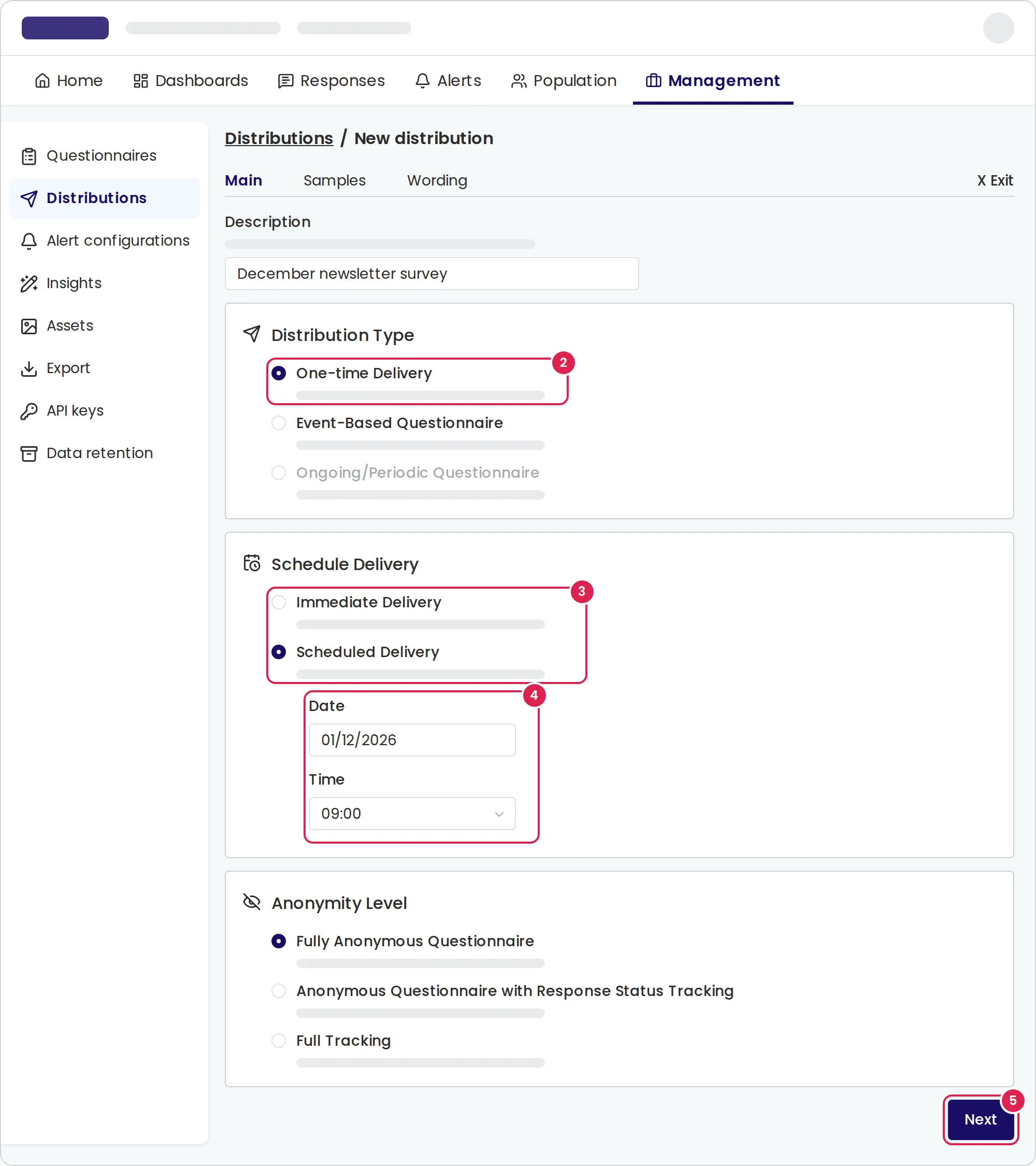
On the Main tab, enter a Description and select One-time Delivery.
-
Under Schedule Delivery, select Immediate Delivery to send as soon as you activate the distribution, or Scheduled Delivery to send later.
-
For a scheduled delivery, choose the Date and the Time.
-
Choose the Anonymity Level and select Next.
-
On the Samples tab, optionally limit the audience under Sampling Segmentation.
-
Under Distribution Rules, choose when the link expires. To leave out contacts who received any questionnaire recently, set the number of days in the first rule; see Choose who receives a distribution. Then select Next.
-
Write the message on the Wording tab and select Next to save.
-
In the list, open the menu at the end of the row, select Activate and confirm.
Result
Section titled “Result”The status shows Waiting to send, and the Next run time column shows when it will send. After it sends, the status changes to Distribution completed.
The questionnaire goes to every contact who, at that moment, matches the segment, is active and subscribed, passes the distribution rules and has a usable phone number (SMS) or an email address (email). Contacts you add later do not receive it.
Limits
Section titled “Limits”- The scheduled date and time use the questionnaire’s time zone, shown in Management > Questionnaires.
- Times are in 15-minute steps, and the date and time cannot be in the past.
- A one-time delivery sends at the chosen time and has no sending windows by day.
- Send spacing: 0, 1, 3, 7, 10, 14, 21, 30, 60, 90 or 180 days.
- Link expiry: from 5 minutes to 1 year, or no expiry.
- After it starts sending, the distribution is read-only and cannot be deleted. You can still deactivate it.
Troubleshooting
Section titled “Troubleshooting”The distribution still shows Inactive. New distributions are saved inactive. Activate it from the menu in its row.
Some contacts did not receive the questionnaire. Check whether they unsubscribed, are inactive, have no usable phone number or email, fall outside the segment, or were left out by a distribution rule.
The schedule shows Invalid date or time. The date and time you chose have already passed. Choose a later time.
I need to send the same questionnaire again. Create a new one-time delivery. A distribution that has sent cannot be changed or sent twice.