

Navigate the Pristo CX app
The Pristo CX app has a header at the top and the main menu under it. To change the interface language, select your profile picture in the top-right corner, then User settings and Language.
Before you start
Section titled “Before you start”- Role: every user has the header and their own user settings. Management appears for program admins and account admins. Account settings and UPGRADE appear for account admins only. See roles and permissions.
- Plan: Population is not on the Free plan. Under Management, Distributions appears on the Pro plan and API keys on the Standard and Pro plans. See Plans and limits.
- Setup: sign in at
app.pristo.io. Terms such as program are explained in the glossary.
What is in the header
Section titled “What is in the header”| Item | What it does |
|---|---|
| Pristo logo | Goes back to Home |
| Organization name | Switches to another account. It appears only when you belong to more than one |
| Program name | Switches to another program |
| UPGRADE | Opens the plans. Account admins only |
| Question mark icon | Opens Help Center and Contact us |
| Your profile picture | Opens User settings, Account settings, Change password and Logout |
The main menu has the tabs Home, Dashboards, Responses, Alerts, Population and Management. On a small screen, scroll the tabs with the arrows, or select the down arrow at the end of the bar to list every tab.
Management has a side menu: Questionnaires, Distributions, Alert configurations, Insights, Assets, Export, API keys and Data retention. Account settings has General, Distribution channels, Users and Billing.
Change the interface language
Section titled “Change the interface language”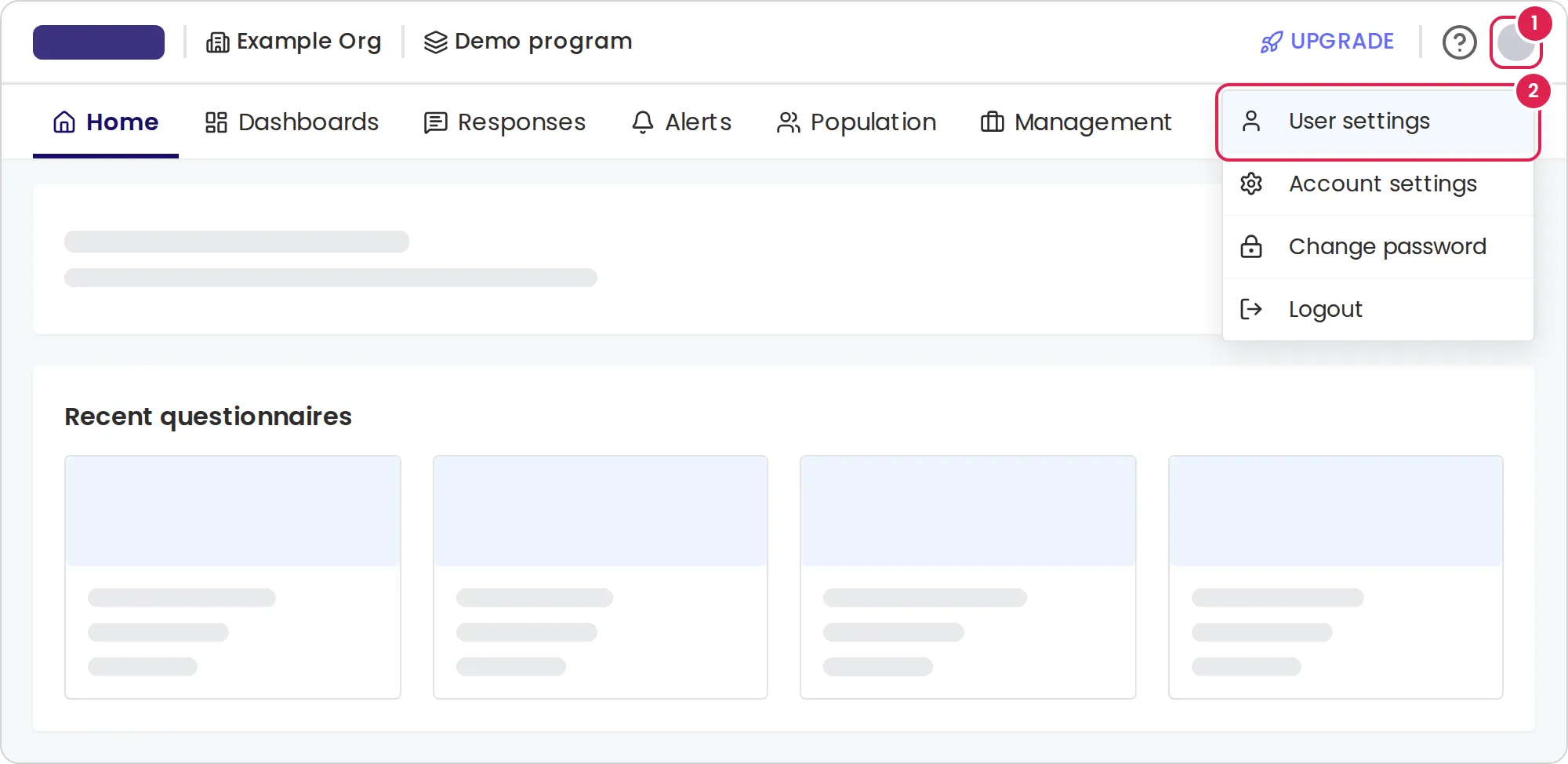
-
Select your profile picture in the top-right corner.
-
Select User settings.
-
Select Language.
-
Choose English, Español or עברית in the list.
Switch to another program or organization
Section titled “Switch to another program or organization”-
Select the program name in the header. On a small screen, select the layers icon.
-
In Select a program to switch to, select Switch next to the program.
To change organization, select the organization name in the header and then Switch in the same way.
Turn on dark mode
Section titled “Turn on dark mode”-
Open User settings from your profile picture, then select Theme.
-
Clear the checkbox under System theme.
-
Select Use dark theme.
Keep the checkbox selected if you want the app to follow your device’s light or dark setting.
Change your other user settings
Section titled “Change your other user settings”User settings also has these pages:
- Profile: your picture, name and phone number. Your email address cannot be changed.
- Notifications: the emails you get, such as Alert triggered and Export ready. Set up alerts explains who gets alert emails.
- Security: select Enable two-factor authentication, scan the QR code with Google Authenticator or Microsoft Authenticator, enter the 6-digit code and select Confirm and enable two-factor authentication. See Secure your Pristo CX sign-in.
To change your password, select Change password under your profile picture, as described in Change your password.
Get help
Section titled “Get help”Select the question mark icon in the header. Help Center opens this help center in a new tab. Contact us opens a short form: describe your question and select Send. Pristo receives it with your email address. Before you write, check Troubleshooting for answers to the most common problems.
Result
Section titled “Result”A new language applies at once, and Hebrew switches the app to right-to-left. Language, notification and theme changes save as soon as you make them, and Profile changes save when you select Save. Your settings belong to your user, so they apply on every device you sign in on. Switching program or organization reloads the app on Home.
Limits
Section titled “Limits”- The app is available in English, Spanish and Hebrew. Questionnaires can use other languages.
- A Contact us message is up to 250 characters.
- The program list shows only the programs you have access to.
Troubleshooting
Section titled “Troubleshooting”I don’t see Management. Only program admins and account admins see it. Ask your account admin to change your role.
The program I need is not in the list. An account admin can add it to your access under Account settings, Users.
The app shows You have no program access yet. You have a role but no program yet. Ask your account admin to give you a program, as described in Manage who can use a program.
My questionnaire did not change language. The interface language changes only the app. Respondents see the languages you add in the form builder; see translate a questionnaire.
The light and dark theme options are grayed out. Clear the checkbox under System theme first.