

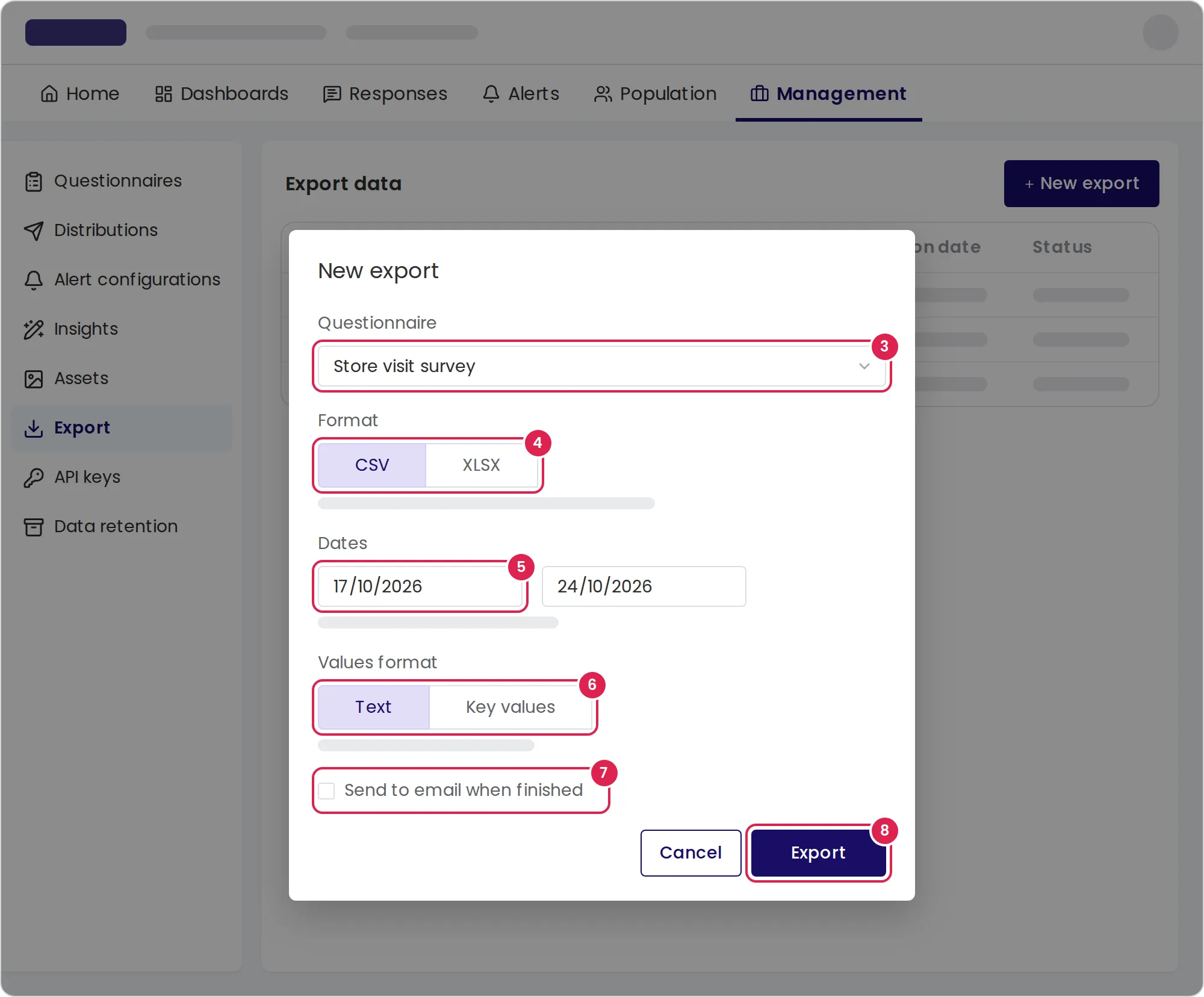
In Pristo CX, you export responses on the Export data page under Management. You choose a questionnaire, a file format, a date range and how answers are written, and Pristo CX prepares the file for you to download.
Before you start
Section titled “Before you start”- Role: you need to be an account admin or a program admin. See roles and permissions.
- Plan: the XLSX format, key values and the longest date range depend on your plan. Options your plan doesn’t include show a lock. See Plans and limits.
- Setup: to get the file by email, verify your email address and keep Export ready turned on under Notifications in your profile.
-
Open Management, then select Export.
-
Select New export.
-
Under Questionnaire, choose the questionnaire.
-
Under Format, choose CSV or XLSX.
-
Under Dates, choose the first day, then the last day.
-
Under Values format, choose Text or Key values.
-
Select Send to email when finished if you want an email when the file is ready.
-
Select Export. The export appears in the list as In progress.
-
When Download appears in the status column, select it.
Result
Section titled “Result”The list shows every export of the program with its format, questionnaire, dates, creation date and status. It refreshes every 30 seconds while an export is running.
The file has one row per response, with these columns:
id, the response number, which is the ID shown on the Responses page.timestamp, when the response reached its first exit point.status, the name of the last exit point the response reached.- Your contact and activity attributes, when the program has a population.
- The answers, in one or more columns per question.
With Key values, choice and scale answers are written as their keys, and the export adds a mapping table from each key to its text. Loop sections get their own table.
A CSV export makes one file per table. An XLSX export puts the tables on separate sheets of one workbook. If the export has more than one file, for example because responses came from more than one published version, you download them together as export.zip.
Limits
Section titled “Limits”- The export includes only responses that reached an exit point, by the date they did, from the first day to the last day of your range.
- The longest date range depends on your plan. The note under Dates shows it. The last day can’t be later than today.
- An account can have up to 5 exports in progress at the same time.
- Responses above your plan’s response limit are exported with the status
Please Upgradeand without their answers.
Troubleshooting
Section titled “Troubleshooting”The export failed. Open the menu on the export’s row and select Retry.
I can’t start a new export. The account already has 5 exports in progress. Wait for one to finish, then try again.
The email checkbox is disabled. Verify your email address first. Until you do, the checkbox tooltip reads For verified users only.
An in-progress response is missing from the file. Exports include only responses that reached an exit point. Use the Responses page to see responses in progress.
To remove an export from the list, open the menu on its row, select Delete, type delete and select Delete.