

Repeat questions with loop sections
In Pristo CX, a loop section repeats its questions for each item a respondent adds, such as each child in a family or each product in an order. You turn a section into a loop section in the form builder: select the section and turn on This section is repeatable in the settings panel. Respondents add the items themselves; the number of items does not come from another answer or from a list.
Before you start
Section titled “Before you start”- Role: you need to be an account admin or a program admin. See roles and permissions.
- Setup: open the questionnaire in the form builder, as described in the form builder overview. A published version is read-only, so select Edit first.
- Terms: a section is a block of questions on a page. See the glossary.
-
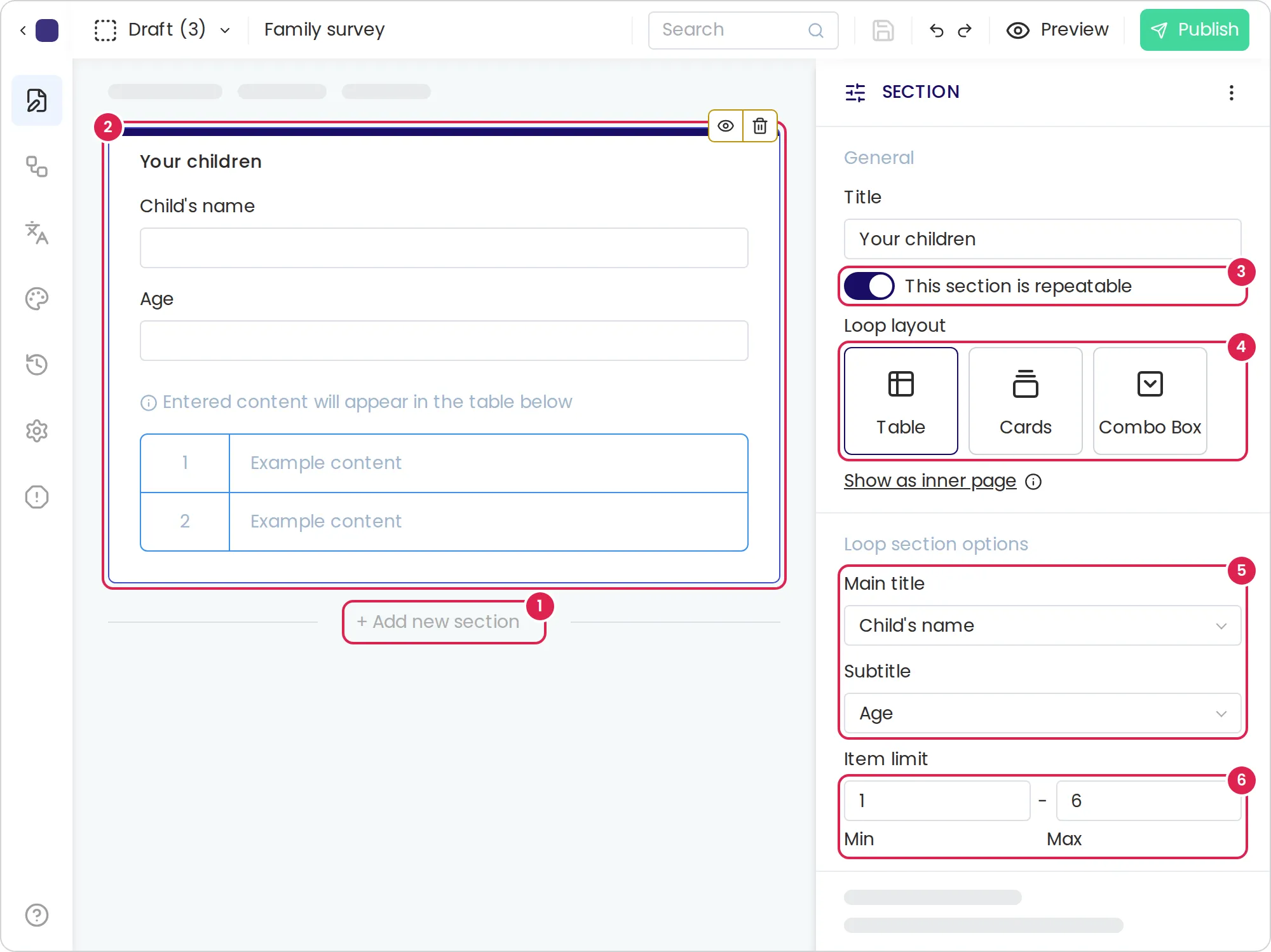
Select Add new section on the page, and add the questions to repeat to the new section.
-
Select the section. Its settings open in the settings panel.
-
Turn on This section is repeatable.
-
Under Loop layout, choose Table, Cards or Combo Box. To ask the questions on a page of their own instead, select Show as inner page and confirm.
-
Under Loop section options, choose the questions whose answers name each item in Main title and Subtitle. The builder fills in the section’s first two questions for you.
-
In Item limit, enter the smallest and the largest number of items. Leave a box empty for no limit.
-
Select Preview and add a few items to check the result.
To make a loop section a plain section again, turn off This section is repeatable. A section shown as an inner page has no such switch: its questions move to the inner page, which you open with Edit modal page on the section in the editor.
How respondents add items
Section titled “How respondents add items”| Layout | What respondents see |
|---|---|
| Table | The section’s questions and an Add button. Each item they add becomes a row of a table below. Selecting a row opens the item to change or delete it |
| Cards | Each item as a card they can open to change or delete, with the questions for a new item below the cards |
| Combo Box | A dropdown list of the items, with arrows to move between them and a New item entry for adding one. The questions below show the selected item |
| Show as inner page | An Add button that opens the questions in a dialog, and a table of the items added |
Each item is named by its number and the answers to the main title and subtitle questions, for example [2] Dana 7. Respondents must answer at least one of an item’s questions before they can add it.
Result
Section titled “Result”Respondents answer the section’s questions once for each item. With a minimum, the section is marked as required, and respondents cannot go on until they have added enough items. At the maximum, respondents cannot add more items, and the section shows Cannot add anymore items.
If an item has an error, such as a required question left empty, a Validation error dialog asks whether to save it anyway. An item saved with errors stops respondents from going on until they fix it.
A condition on a question inside a loop section is checked for each item on its own. See Show or hide questions with conditions.
In the response panel on the Responses page, a loop section shows its number of items and a table with one numbered row per item. In an export, each loop section gets its own table: a separate CSV file, or a sheet of the XLSX workbook, named after the first 16 characters of the section’s title, with hyphens for spaces, and a number that starts at 0. Each row is one item. The first column holds the response number, the same as in the main table, and the second identifies the item.
Limits
Section titled “Limits”- A loop section counts toward the 15 sections on a page and holds up to 100 questions, like any section.
- Questions and sections outside a loop section cannot use a condition on a question inside it. Exit points treat such a question as unanswered.
- Respondents cannot add, change or delete items after they finish the questionnaire.
Troubleshooting
Section titled “Troubleshooting”The issues panel says a loop item is missing. The section has no question in Main title or Subtitle. Choose one, or leave it: the warning doesn’t block publishing.
Respondents cannot go on, and no message shows. A condition hides a loop section that has a minimum in Item limit. In this release, the minimum still applies while the section is hidden. Remove the minimum, or the condition.
Publishing is blocked because a field depends on a field in a loop section. A question or section outside the loop section uses a condition on a question inside it. Base that condition on a question outside the loop section.