

An alert in Pristo CX is a response that matched one or more of your alert rules. You handle alerts on the Alerts page in the main menu: open an alert to read the response, add notes about what you did, and move it from Open through In progress to Closed.
Before you start
Section titled “Before you start”- Role: every role can view alerts, change their status and add notes in the programs they can open. See roles and permissions.
- Plan: alerts are available on every plan.
- Setup: at least one alert rule. See Set up alerts.
Find an alert
Section titled “Find an alert”-
Select Alerts in the main menu.
-
Choose the questionnaire in the Questionnaire list of the filter bar.
-
Choose a rule in All types to see only the alerts it raised.
-
Choose one or more statuses in the status list, or clear it to see every status.
-
Change the date range if you need older alerts.
-
Select Columns to add contact or activity columns.
Work on an alert
Section titled “Work on an alert”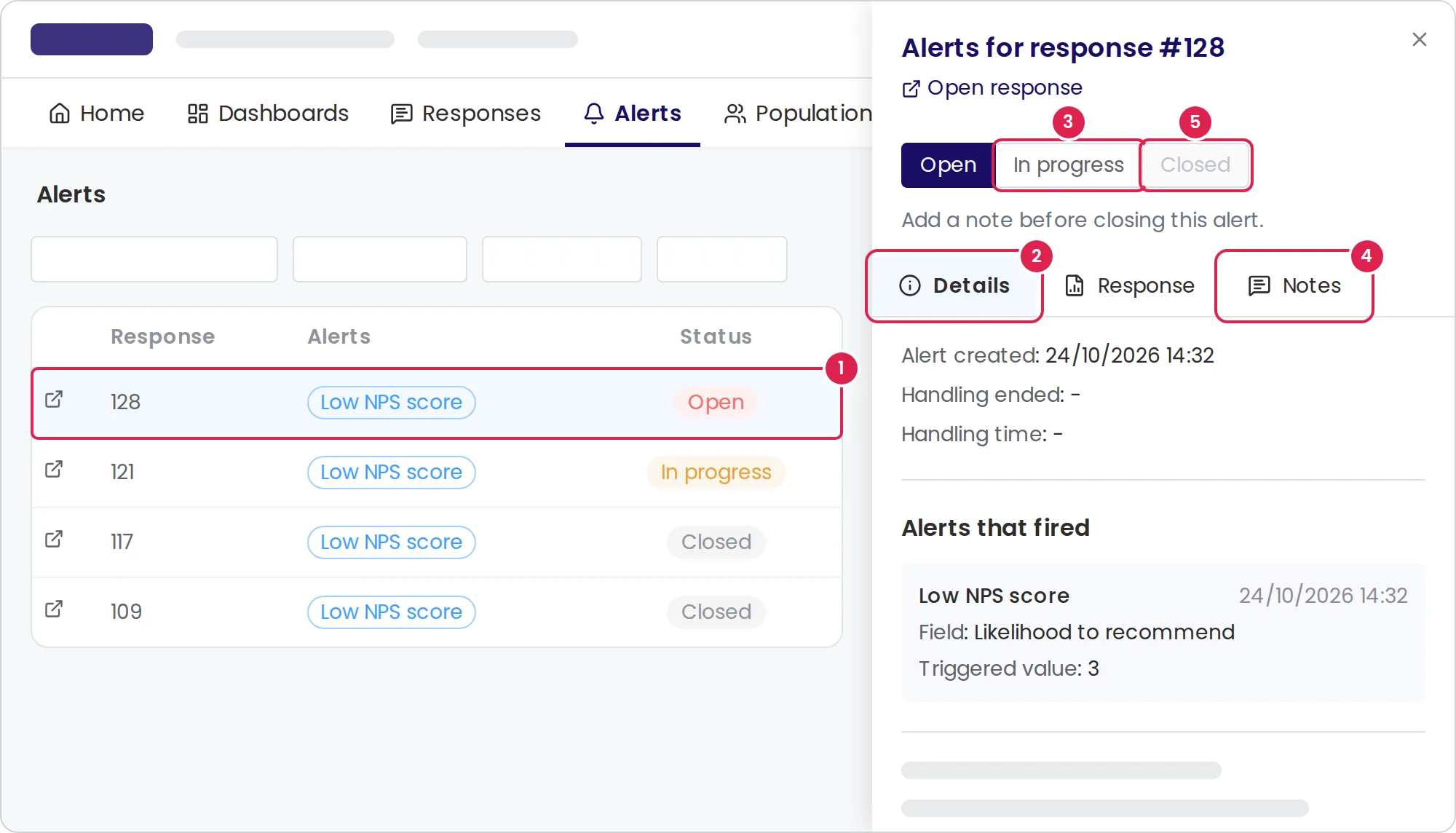
-
Select the alert’s row. It opens in a side panel.
-
Read the Details tab: Alerts that fired lists each rule with the question and the value that triggered it. Select Response to read all the answers.
-
Select In progress at the top of the panel when you start.
-
Select Notes, write what you did under New note and select Save.
-
Select Closed when the follow-up is done.
Account admins and program admins can also select Open response in the panel, or the link icon at the start of a row, to open the response in a new tab.
Open alerts from a dashboard
Section titled “Open alerts from a dashboard”-
On a dashboard, select Show details, the list icon, on an Alert count widget. The alerts behind its number appear.
-
Select a row to open the alert in the same side panel.
-
To see the alerts on the Alerts page, select Open in alerts page. If the widget covers several questionnaires, choose one first.
The Alerts page opens in a new tab with the same questionnaire, dates and status, but without the dashboard’s contact and event filters. On the widget, Open includes alerts in progress.
Result
Section titled “Result”A status saves as soon as you select it. Handling ended shows when the alert was closed, and Handling time shows the time from Alert created until then: hours and minutes under a day, otherwise days.
| Status | Meaning |
|---|---|
| Open | New. Every alert starts here |
| In progress | Someone is following up |
| Closed | The follow-up is done. Needs at least one note |
To reopen a closed alert, select Open or In progress. Its end time is cleared.
Limits
Section titled “Limits”- A response raises one alert. When it matches several rules, the Alerts column shows each of them, and you handle the alert once.
- The page shows one questionnaire at a time, 20 alerts per page, with the most recently triggered first.
- The list starts with open alerts from the last 3 months. The dates filter by when the alert was created.
- You cannot close an alert without a note, and you cannot edit or delete a note.
- An alert appears a little after the response is completed.
- Pristo CX remembers your column choice for each questionnaire.
Troubleshooting
Section titled “Troubleshooting”I can’t select Closed. The alert has no note yet. Add a note on the Notes tab, then close it.
The list is empty. The filters hide every alert. Choose another questionnaire, widen the dates or clear the status list.
An alert shows Response deleted. Someone deleted the response. The alert stays in the list while the response is in the trash, but its answers are not shown.
The link in an alert email does not open the alert. Open Alerts, choose the questionnaire and find the response number from the email in the Response column.
I don’t see Open response. Only account admins and program admins see it. Program users read the answers on the Response tab.