

Add and organize pages in a questionnaire
In Pristo CX, you add and arrange a questionnaire’s pages in the form builder, in the page bar above the questions. Select ADD PAGE to add a page, and use the arrow beside a page name to rename, move or delete it. In this release, every questionnaire built in the form builder has one chapter, which holds all its pages.
Before you start
Section titled “Before you start”- Role: you need to be an account admin or a program admin. See roles and permissions.
- Setup: open the questionnaire in the form builder, as described in the form builder overview. A published version is read-only, so select Edit first.
- Terms: a page is one screen of questions, and a chapter is a group of pages. See the glossary.
-
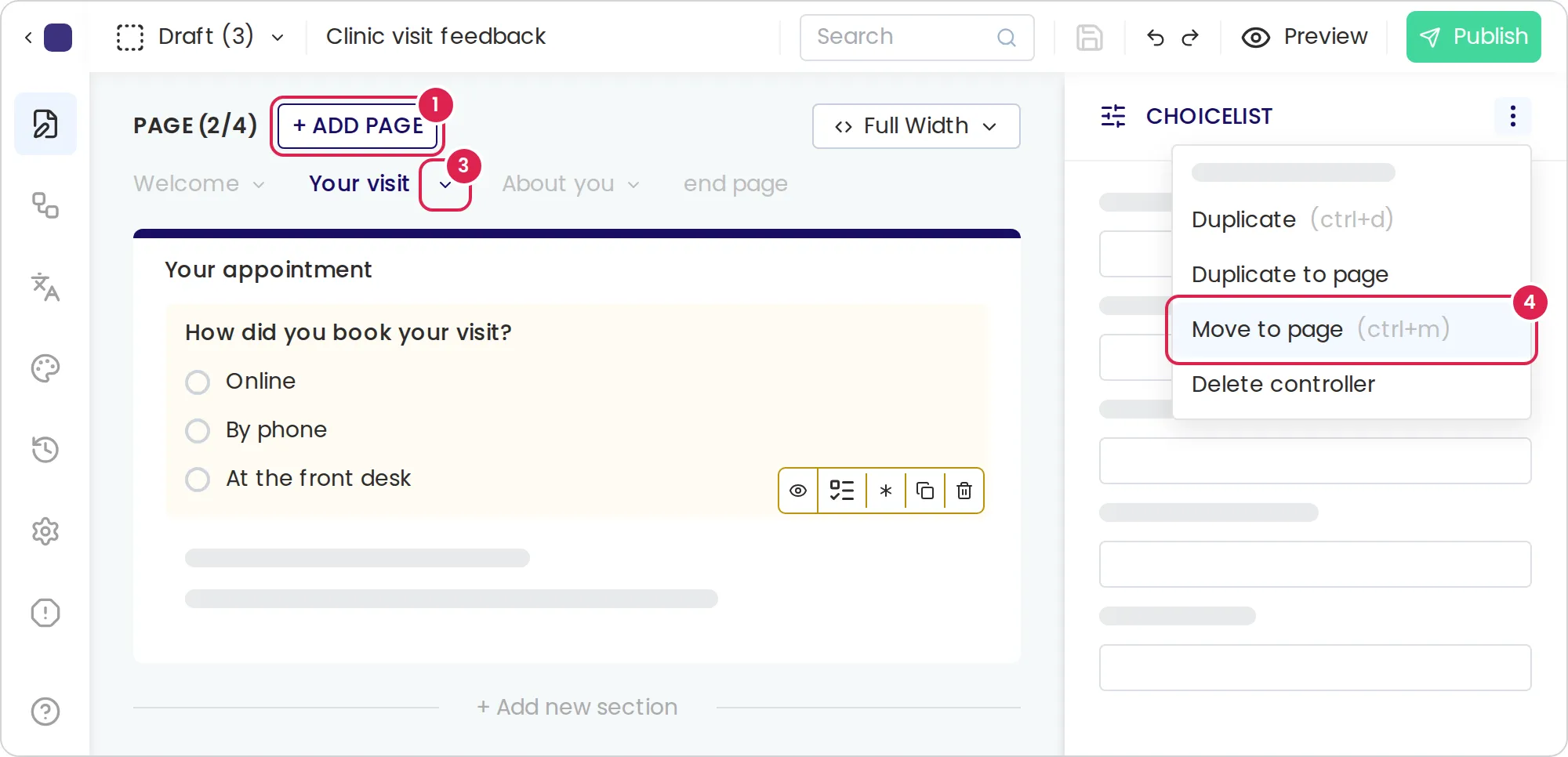
Select ADD PAGE in the page bar. The new page appears after the last page, with its name ready to edit.
-
Type a name for the page and press Enter.
-
To rename, move or delete a page, select the arrow beside its name. Then select Rename, Move Backward, Move Forward or Delete Page.
-
To move a question to another page, select the question. In the settings panel, select More (⋮), then Move to page.
-
Choose the Page and the Section, and select Move. To copy the question instead, choose Duplicate to page in step 4.
A section has the same menu, so you can move or copy a whole section to another page. On a page, add sections with Add new section. A section can also repeat its questions as a loop; see Repeat questions with loop sections.
Choose how respondents move between pages
Section titled “Choose how respondents move between pages”Open Settings in the side menu and choose a Flow:
| Flow | What respondents see |
|---|---|
| Progressed | One page at a time, with Previous and Next, and Finish on the last page. A respondent who comes back starts at the first page that is not complete. You can set up exit points only in this flow |
| Parallel | The pages as tabs. Respondents open them in any order and can select Finish on any page |
When a respondent selects Finish, Pristo CX checks every page and opens the first page that still has a problem.
To change how wide the pages are, use the width menu at the end of the page bar: Full Width, Medium Width or Narrow Width. The width applies to every page, in the builder and for respondents.
Result
Section titled “Result”The page bar lists the pages in the order respondents see them, followed by the end page tab. Your changes reach respondents when you publish the questionnaire.
Limits
Section titled “Limits”- Up to 10 pages in a chapter. Adding more shows Limit Reached.
- Page names hold up to 50 characters.
- Up to 15 sections on a page, 250 questions on a page and 100 questions in a section.
- A questionnaire always keeps at least one page.
Troubleshooting
Section titled “Troubleshooting”Delete Page is greyed out. The page is the only one in the questionnaire. Add another page first.
The builder will not delete a page. A condition uses a question on that page. The message lists the conditions; change or delete them in Conditions, as described in Show or hide questions with conditions, then delete the page.
I cannot find the chapters. In this release, the form builder shows one chapter per questionnaire and has no button to add chapters. Use pages and sections to organize your questions.
ADD PAGE is missing. You are looking at a published version. Select Edit in the header to work on a draft.