

Manage who can use a program
In Pristo CX, an account admin decides who can open each program, in Account settings > Users. Account admins open every program. Program admins and program users open only the programs listed for them, and you change that list with Edit access.
Before you start
Section titled “Before you start”- Role: account admin. Program admins and program users cannot change who uses a program. See roles and permissions.
- Plan: reactivating a user needs a free seat on your plan. See Plans and limits.
- Setup: the person must have joined the account. To add someone, invite them first.
See who can open a program
Section titled “See who can open a program”Active users lists every user of the account with a Role and a Programs column. The programs column shows All programs for account admins, the program names for program admins and program users, and No programs for a user who has none.
A program is open to every account admin and to each program admin or program user whose row names it. The search box matches first names only. Deactivated users stay in the list, dimmed and marked Inactive.
Give a user a program or take one away
Section titled “Give a user a program or take one away”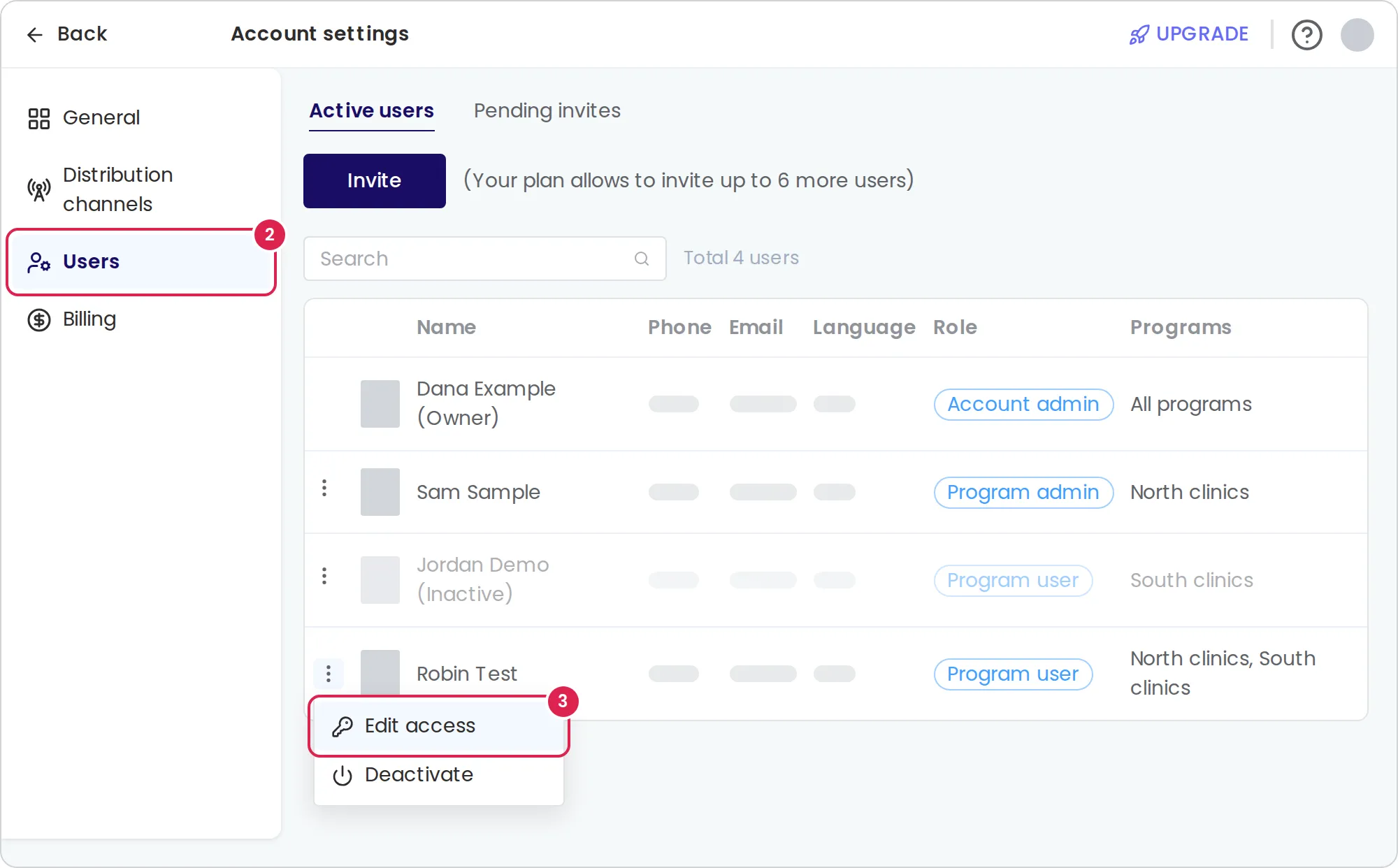
-
Select your profile picture, then Account settings.
-
Select Users. The Active users tab opens.
-
Select the three-dot menu on the user’s row, then Edit access.
-
Under Programs, add or remove programs. Keep at least one.
-
To change what the user can do in those programs, choose another Role. An account admin opens every program, so the program list disappears.
-
Select Save.
Deactivate or reactivate a user
Section titled “Deactivate or reactivate a user”-
In Active users, select the three-dot menu on the user’s row.
-
Select Deactivate, or Activate for a deactivated user. Pristo CX applies it at once, without asking you to confirm.
Result
Section titled “Result”After you save, Access updated appears. The user gets the new access the next time they open or reload the app.
- Dashboards: a program user who loses a program is removed as a viewer of its dashboards. A program user who becomes a program admin or account admin is removed as a viewer of all dashboards, because those roles open every dashboard. Giving the access back does not make them a viewer again, so add them under Viewers on each dashboard.
- Alerts: a user who can no longer open a program stops getting the alert emails of its alert rules. The user stays on those rules, so the emails start again when you give the program back.
- Deactivation: a deactivated user keeps their role, their programs, their dashboard viewer access and their place on alert rules, but cannot open the account and sees This account has been deactivated. They get no alert emails, and their seat is free. Reactivating them restores everything.
What a user without a program sees
Section titled “What a user without a program sees”A program admin or program user who has no program sees You have no program access yet and You have not been given access to a program yet — ask your account admin, with a Logout link. The main menu is hidden, and every page leads back to this message until an account admin gives them a program with Edit access. Account admins never see it.
Limits
Section titled “Limits”- A program admin or program user needs at least one program. To take away all access, deactivate the user. Pristo CX cannot delete a user from the account.
- You cannot change your own access or deactivate yourself. Nobody can change or deactivate the account owner, marked Owner.
- Reactivating needs a free seat: the account must have fewer active users than the plan’s user limit.
Troubleshooting
Section titled “Troubleshooting”The row has no three-dot menu. It is your own row or the account owner’s row.
The menu has no option to edit access. The user is deactivated. Reactivate them, then edit their access.
The save button stays disabled. Nothing has changed yet, or a program admin or program user has no program. The field then says Choose at least one program.
Reactivating fails with a message about the user limit. The account already has as many active users as the plan allows. Deactivate another user or upgrade the plan.
A user still sees a program you removed. The change applies when the app loads. Ask the user to reload the page.