

Preview a questionnaire
In Pristo CX, select Preview in the form builder’s header to open the questionnaire as respondents see it, in a window over the builder. Nothing you enter in the preview is saved: it records no response and uploads no files.
Before you start
Section titled “Before you start”- Role: you need to be an account admin or a program admin. See roles and permissions.
- Setup: open the questionnaire in the form builder, as described in the form builder overview. The preview shows the version that is open, so you can preview your draft before you publish it.
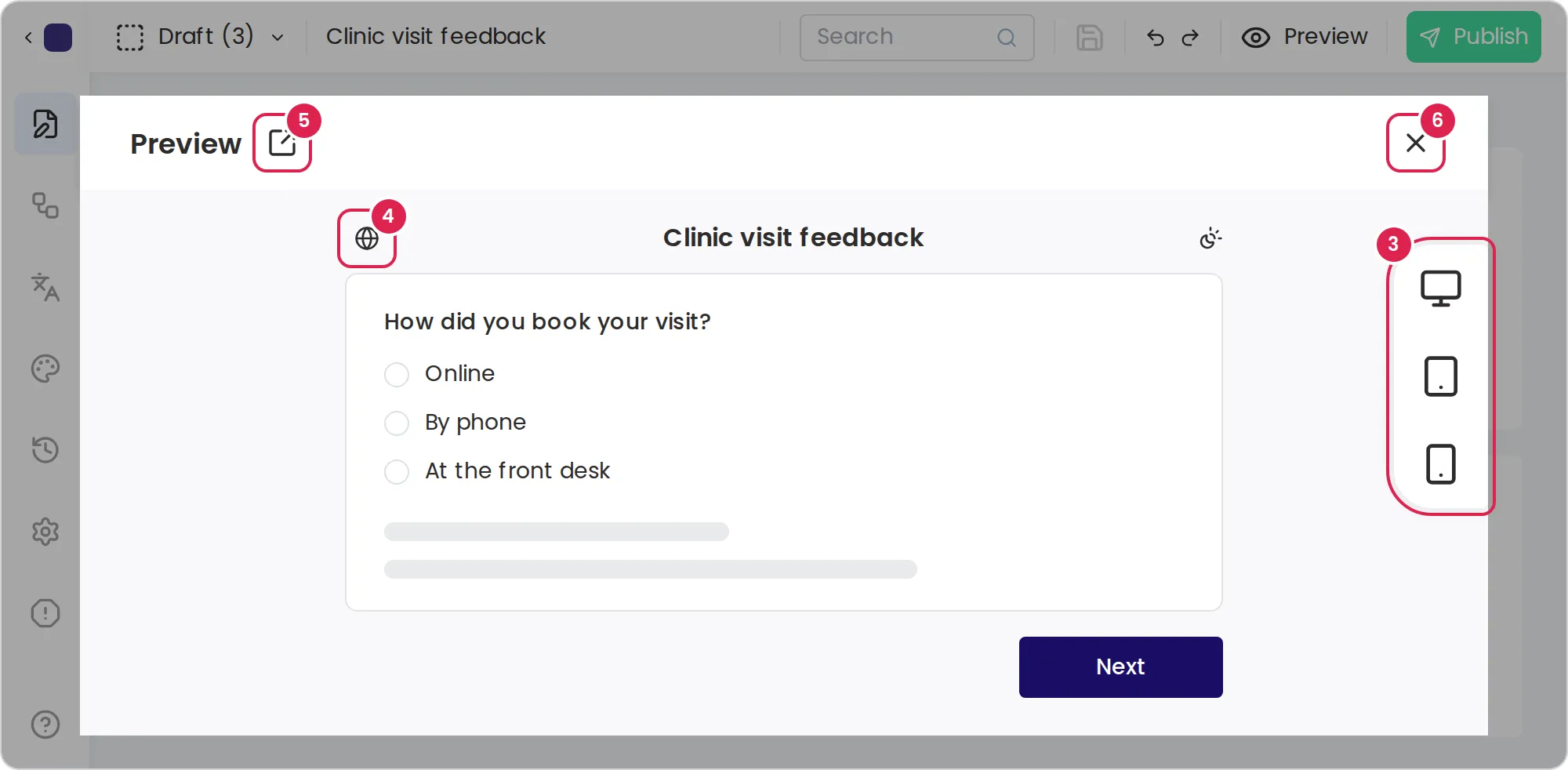
-
Select Preview (the eye icon) in the header. The builder saves your changes first, then opens the Preview window.
-
Answer the questions and move through the pages as a respondent would. Check required questions, conditions and the end page.
-
To see another device, select the desktop, tablet or phone button on the right edge of the preview.
-
To see another language, select the globe button (Change language) in the questionnaire’s header and choose a language.
-
To open the preview in a browser tab of its own, select Open preview in a new tab next to the window title.
-
Select Close (X) to return to the builder.
Result
Section titled “Result”You have seen the questionnaire as respondents will, with no response recorded. Respondents see your changes only after you publish the questionnaire.
Limits
Section titled “Limits”- The device buttons appear only when the preview is wide, as on a computer screen.
- The globe button appears only when the questionnaire has a translation and the preview is wider than a phone, so it is hidden in the phone view.
- On a phone, the preview window fills the screen.
Troubleshooting
Section titled “Troubleshooting”A question is missing in the preview. A show condition hides it until earlier answers make the condition true. Answer the earlier questions, or check the condition in Conditions.
The device buttons are missing. The preview is too narrow. Widen the browser window, or select Open preview in a new tab.
The language button is missing. The questionnaire has no translations yet, or the preview is too narrow. See Translate a questionnaire.